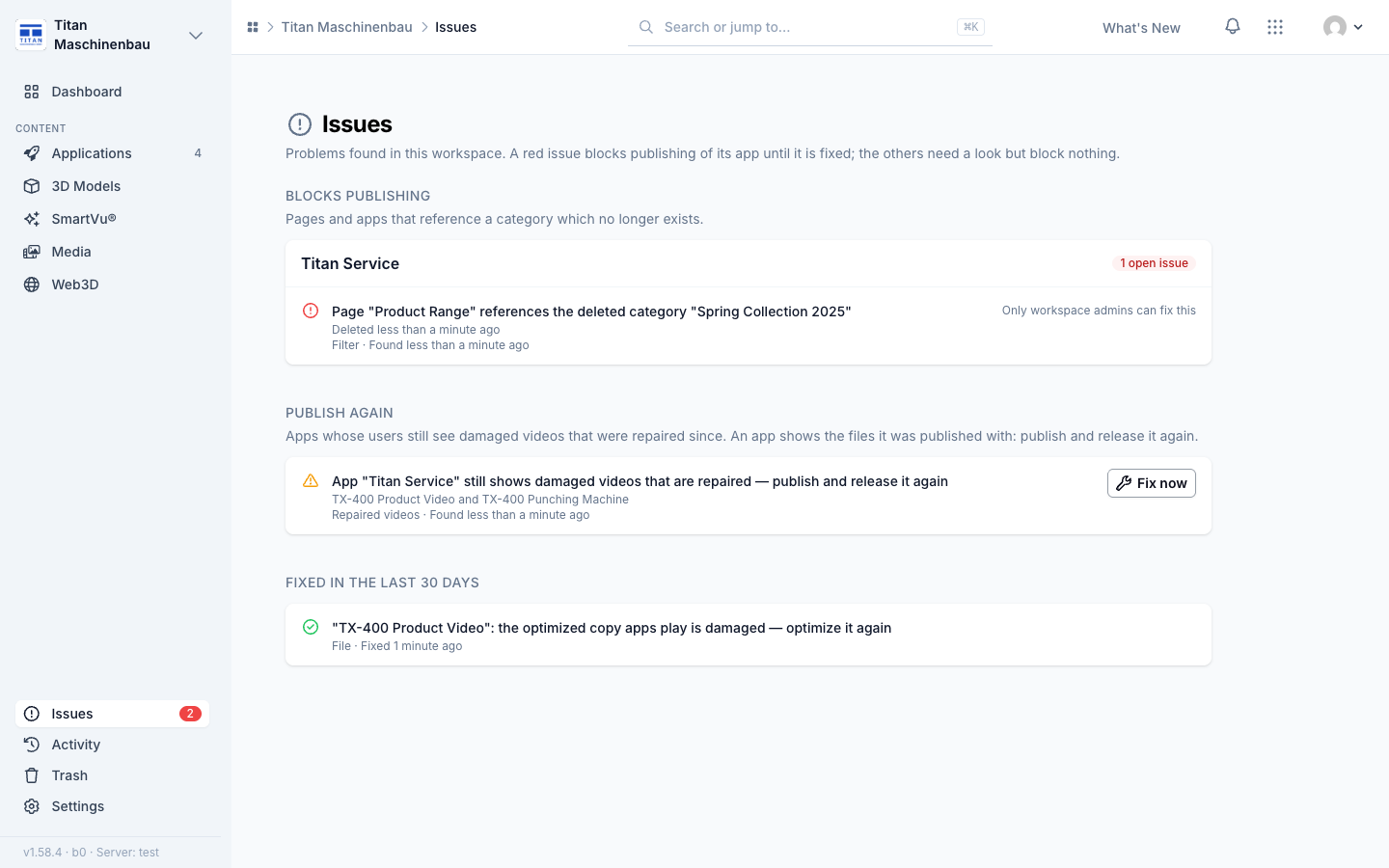
Vuframe® Cloud v1.58.0 to v1.59.5 tells you which apps still show something that was repaired since, and makes category types easy to reach from categories and from the search.
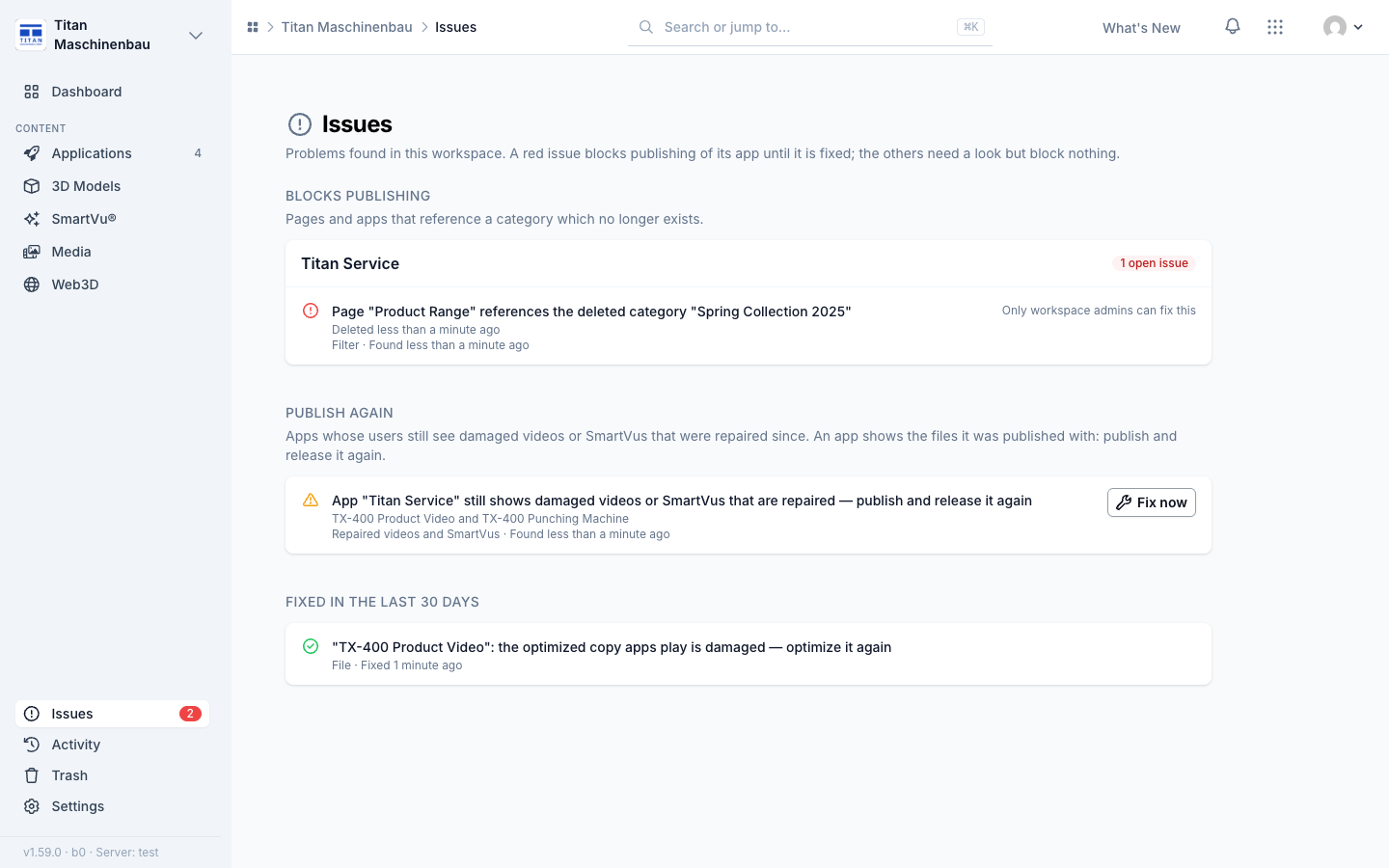
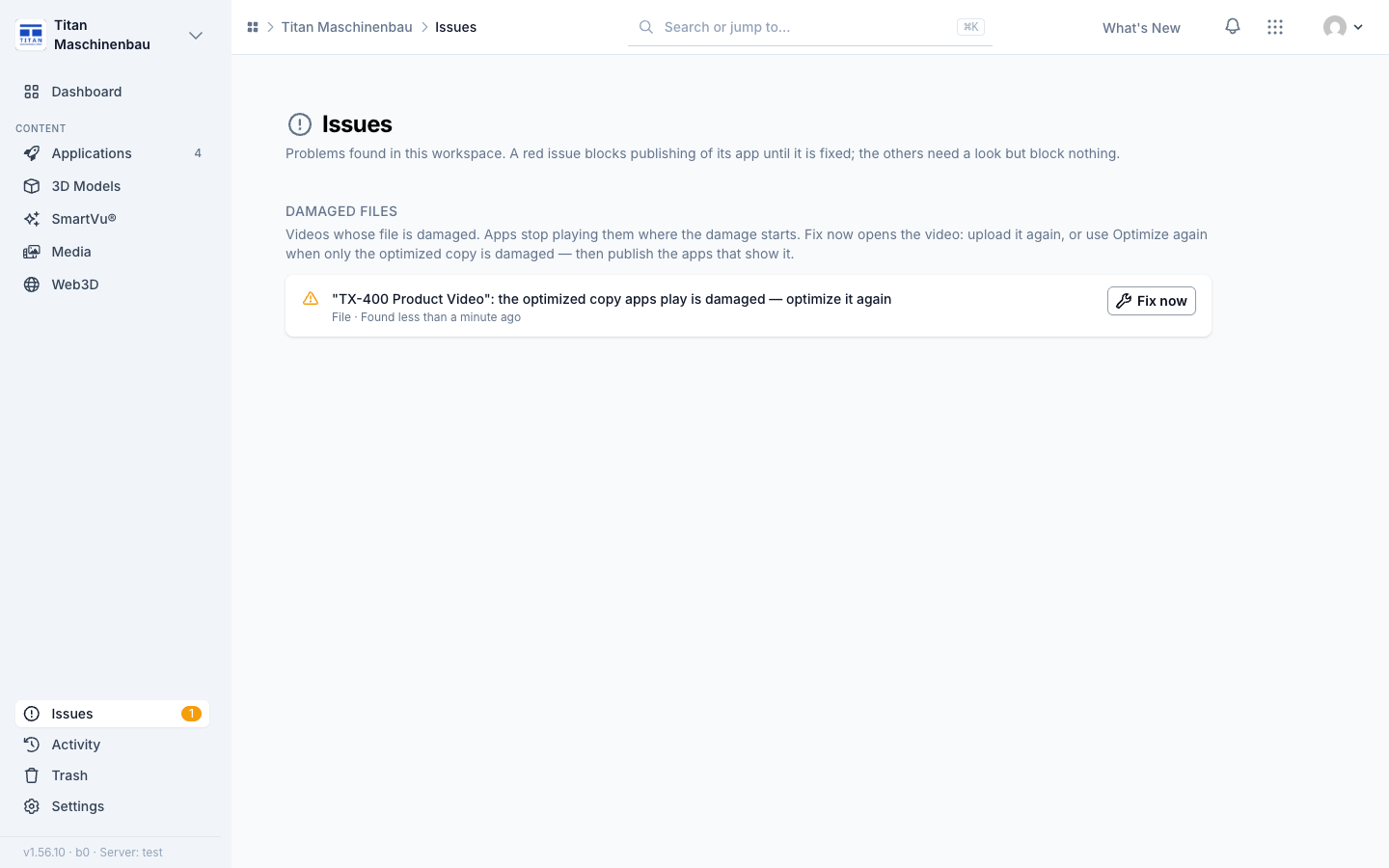
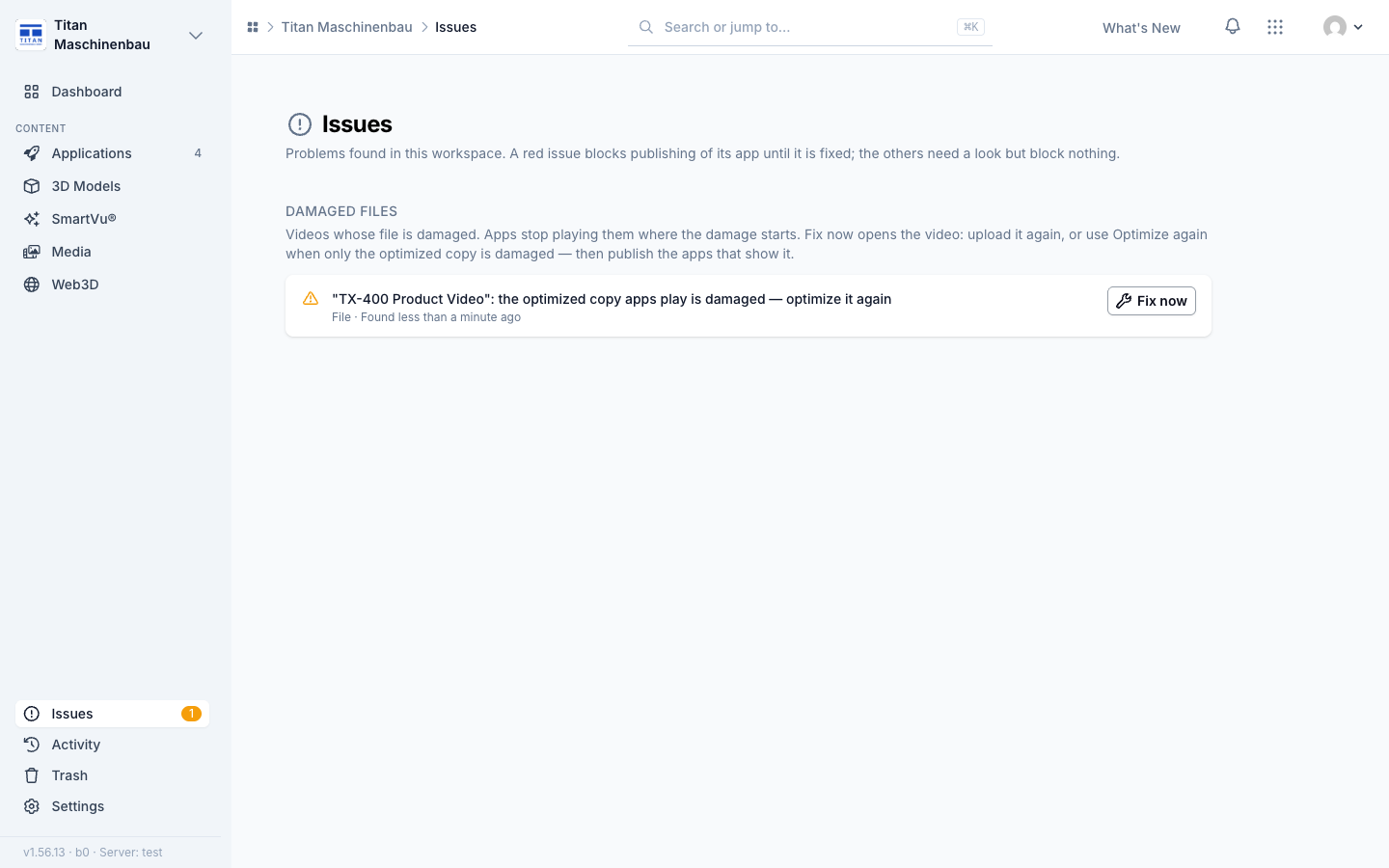
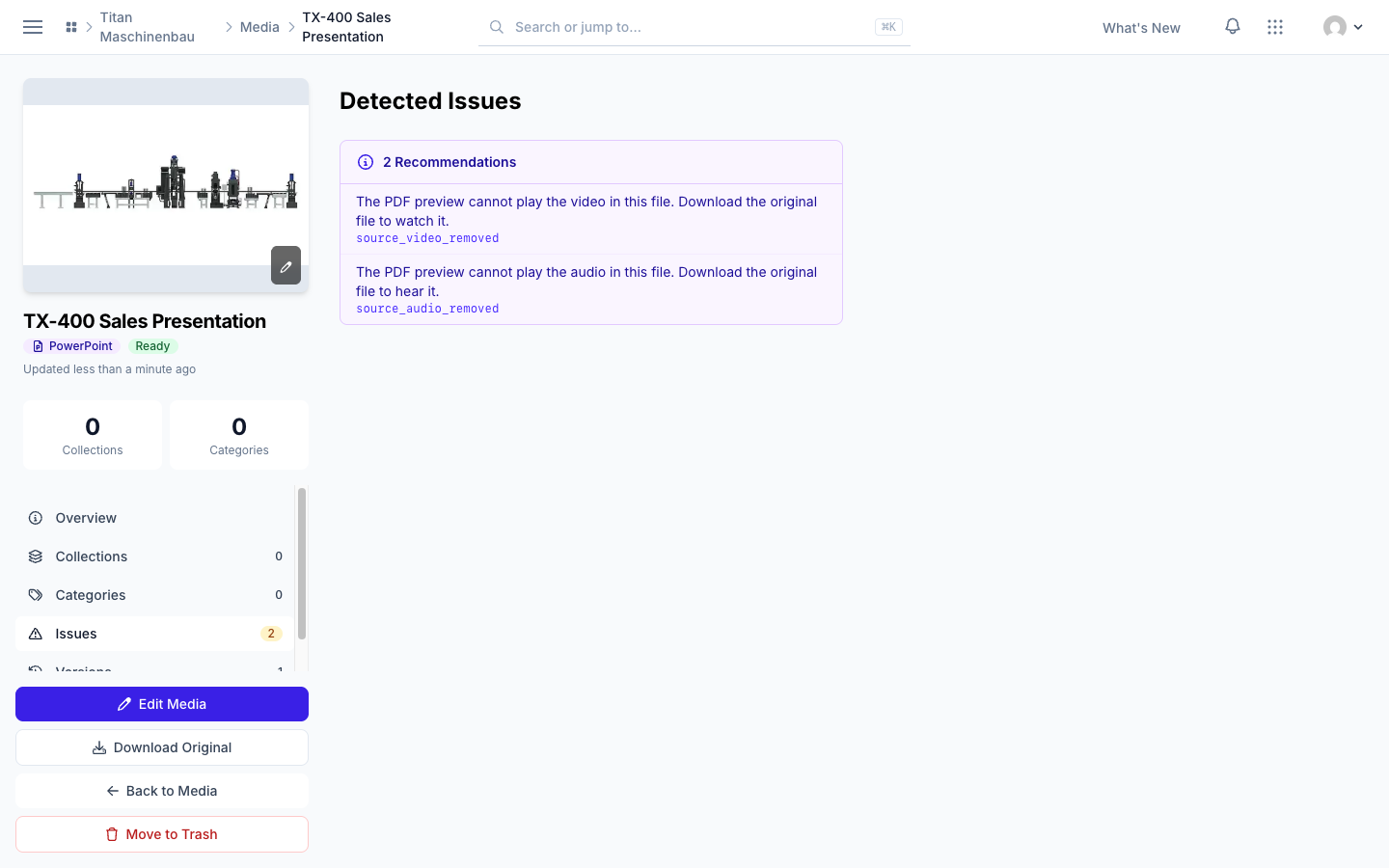
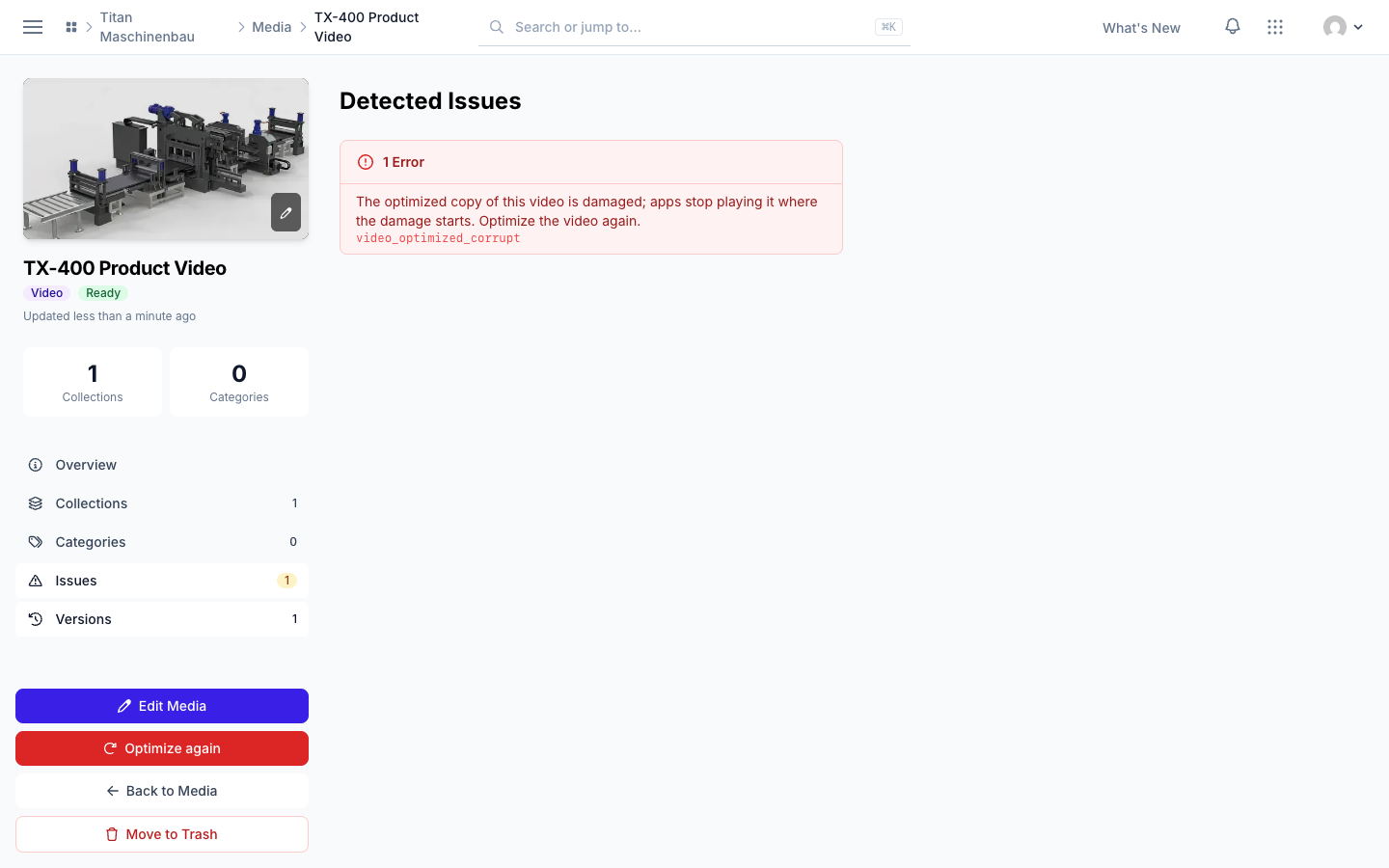
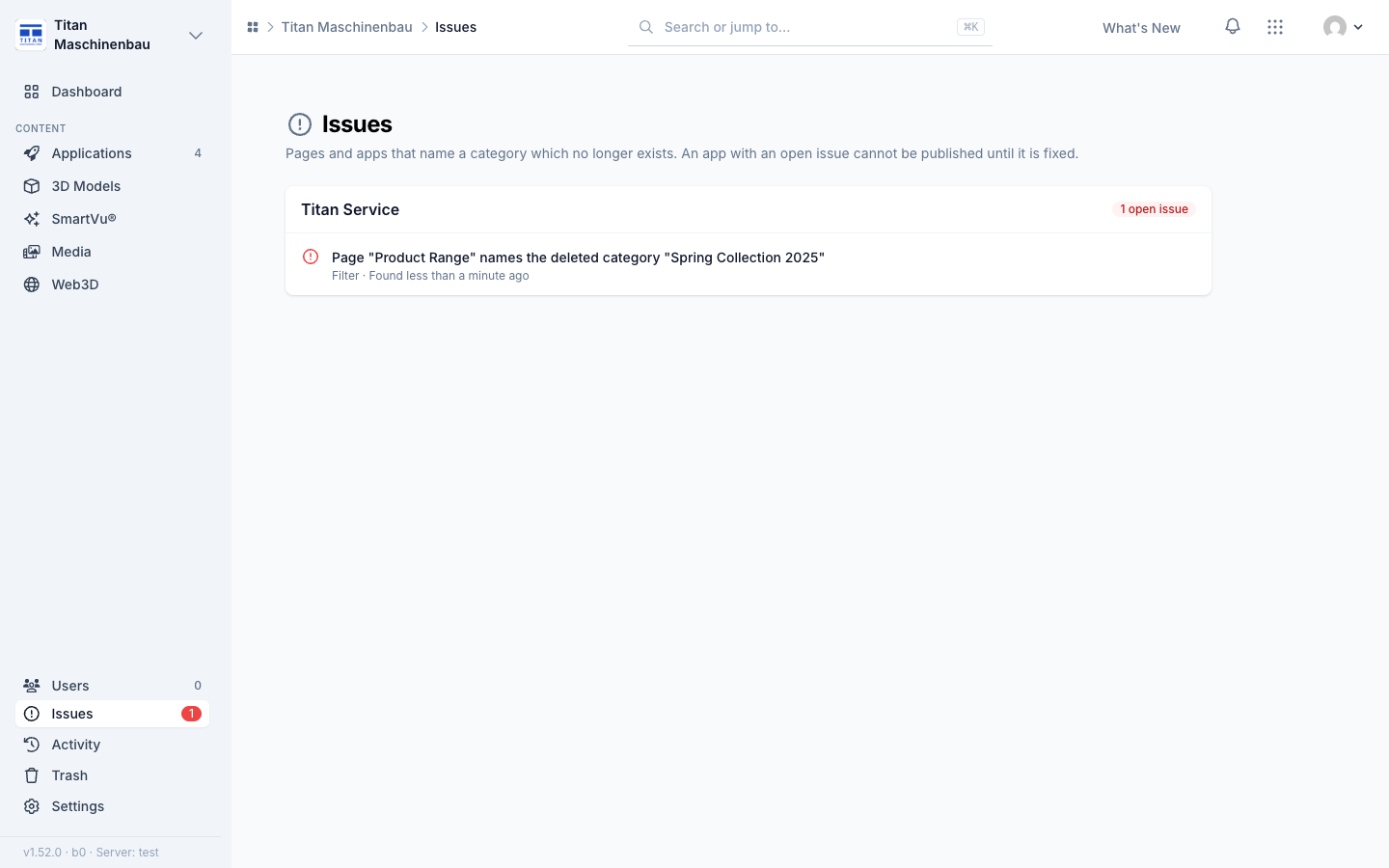
Publish again. An app keeps the files it was published with. When a damaged video or a SmartVu® is repaired, the Issues page lists each app that still shows the old copy under Publish again, with the names of what was repaired. Fix now opens the app; publish and release a new version and the issue closes by itself. It does not block publishing.
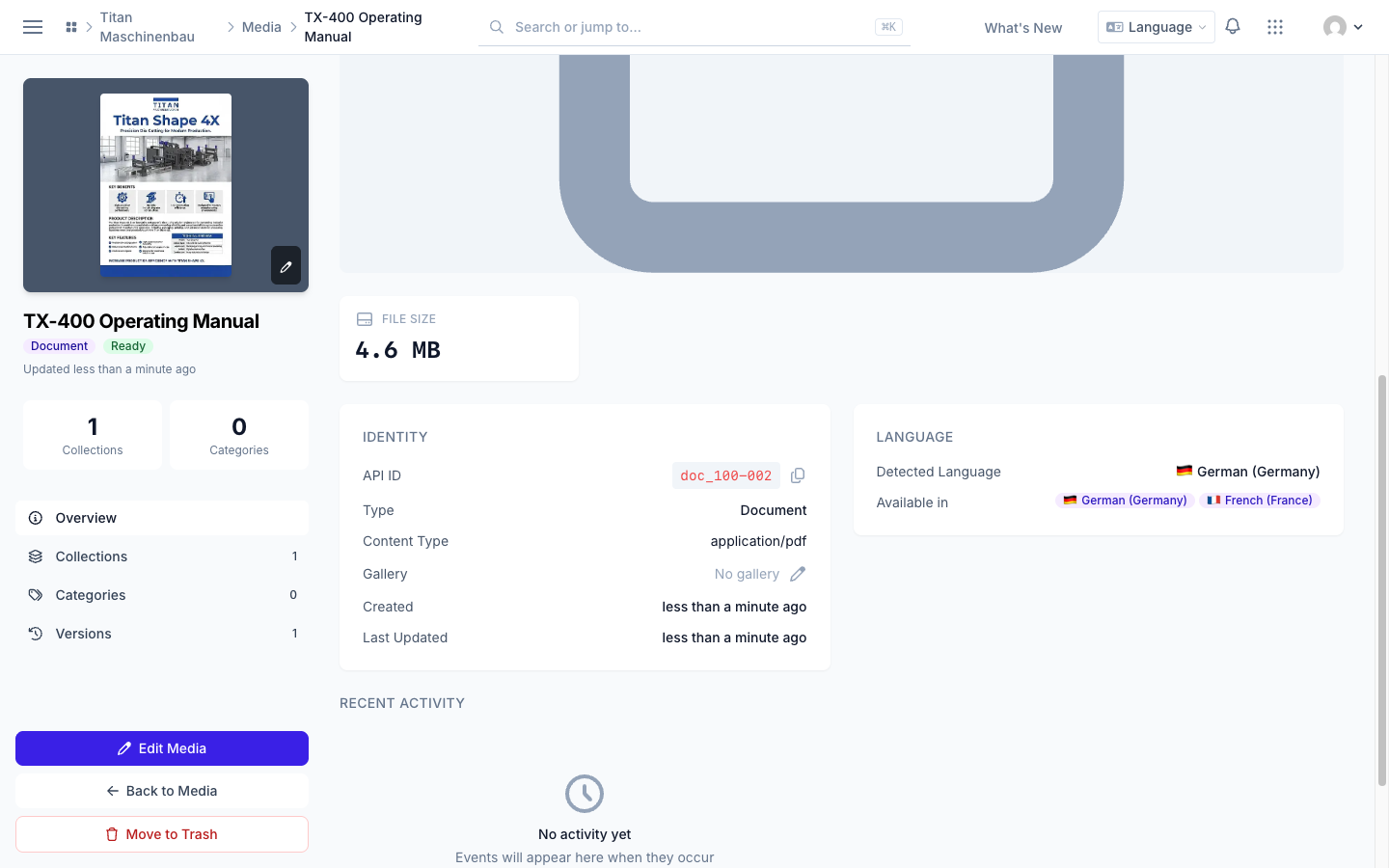
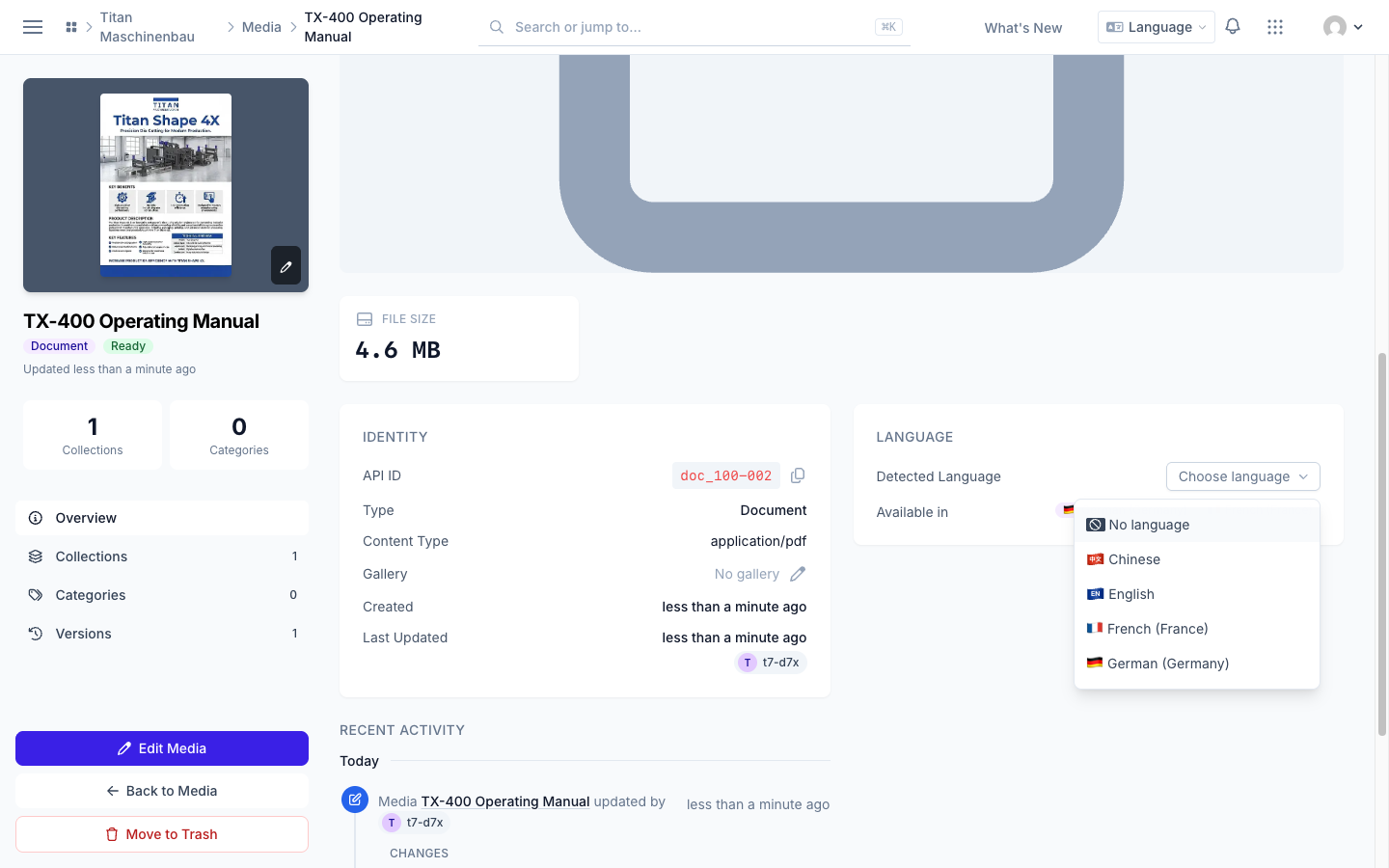
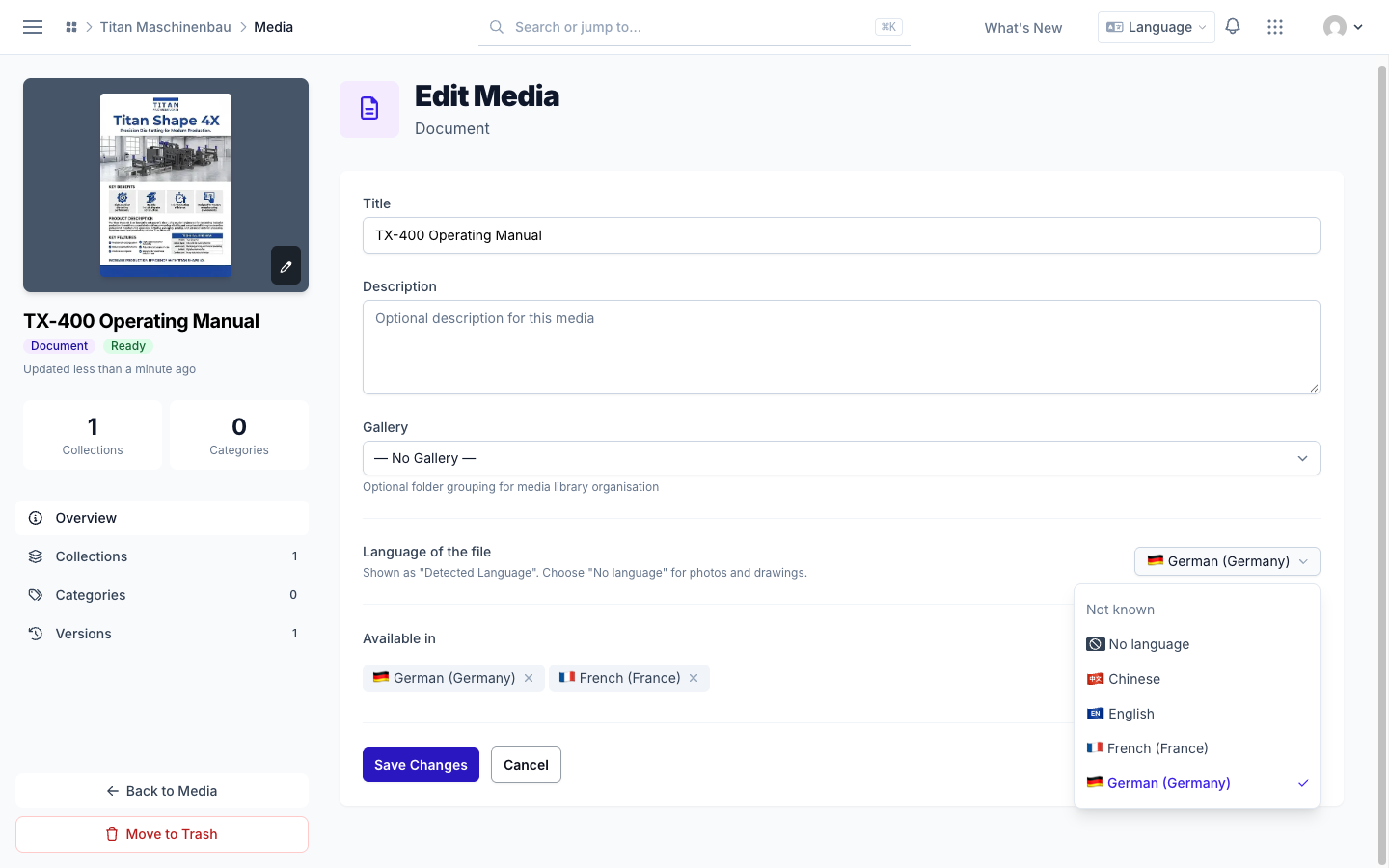
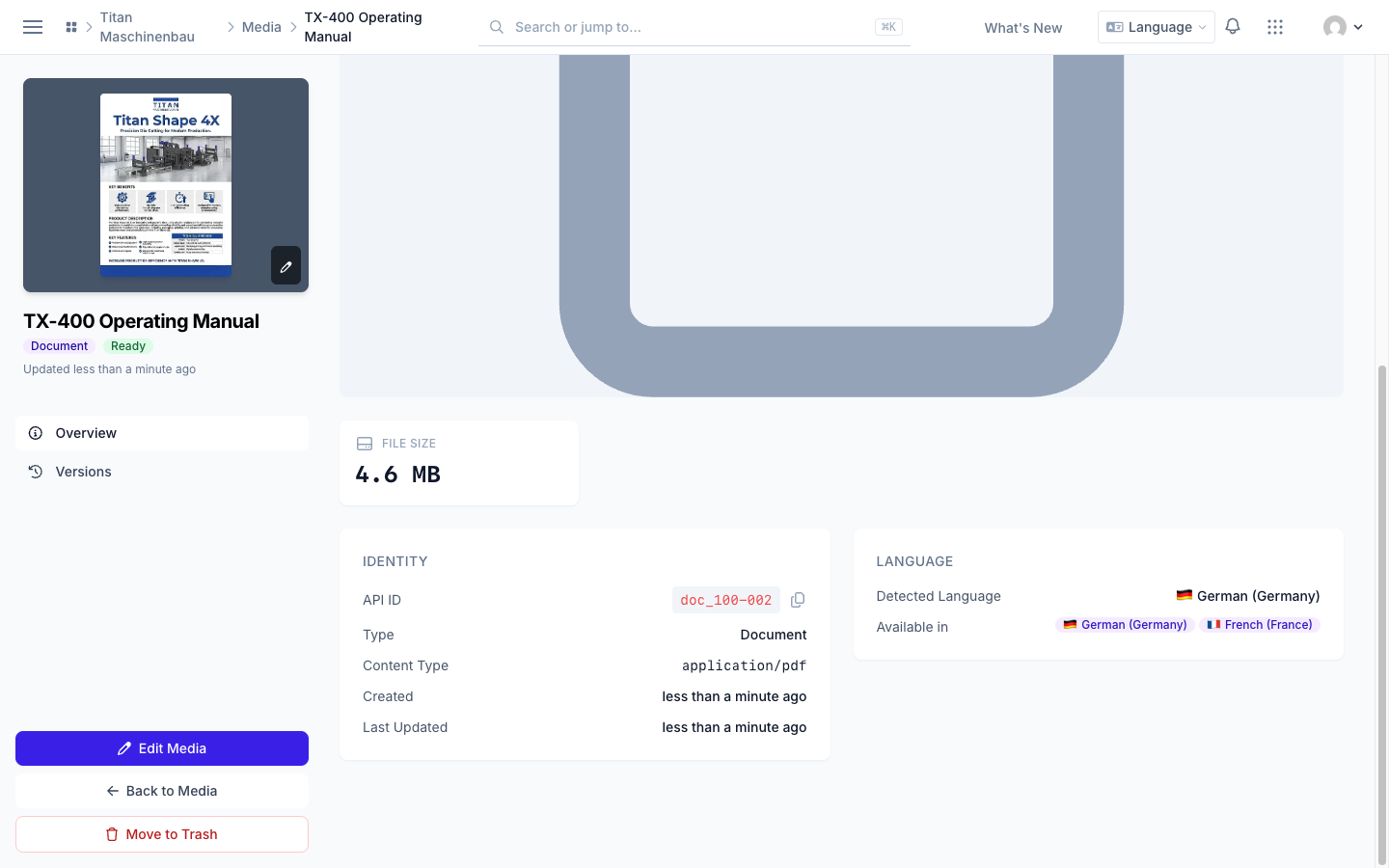
Uploaded PDFs know their language. Vuframe® Cloud reads the text of an uploaded PDF and fills in the Detected Language, also for PDFs you uploaded before. When the text does not tell (a scanned PDF, an image, a video, or text in more than one language), the Language card shows Choose language. To change the language later, use Language of the file on the Edit Media page. Select No language for photos and drawings. A language you set stays, also after the next import. Every language shows its flag on the media pages.
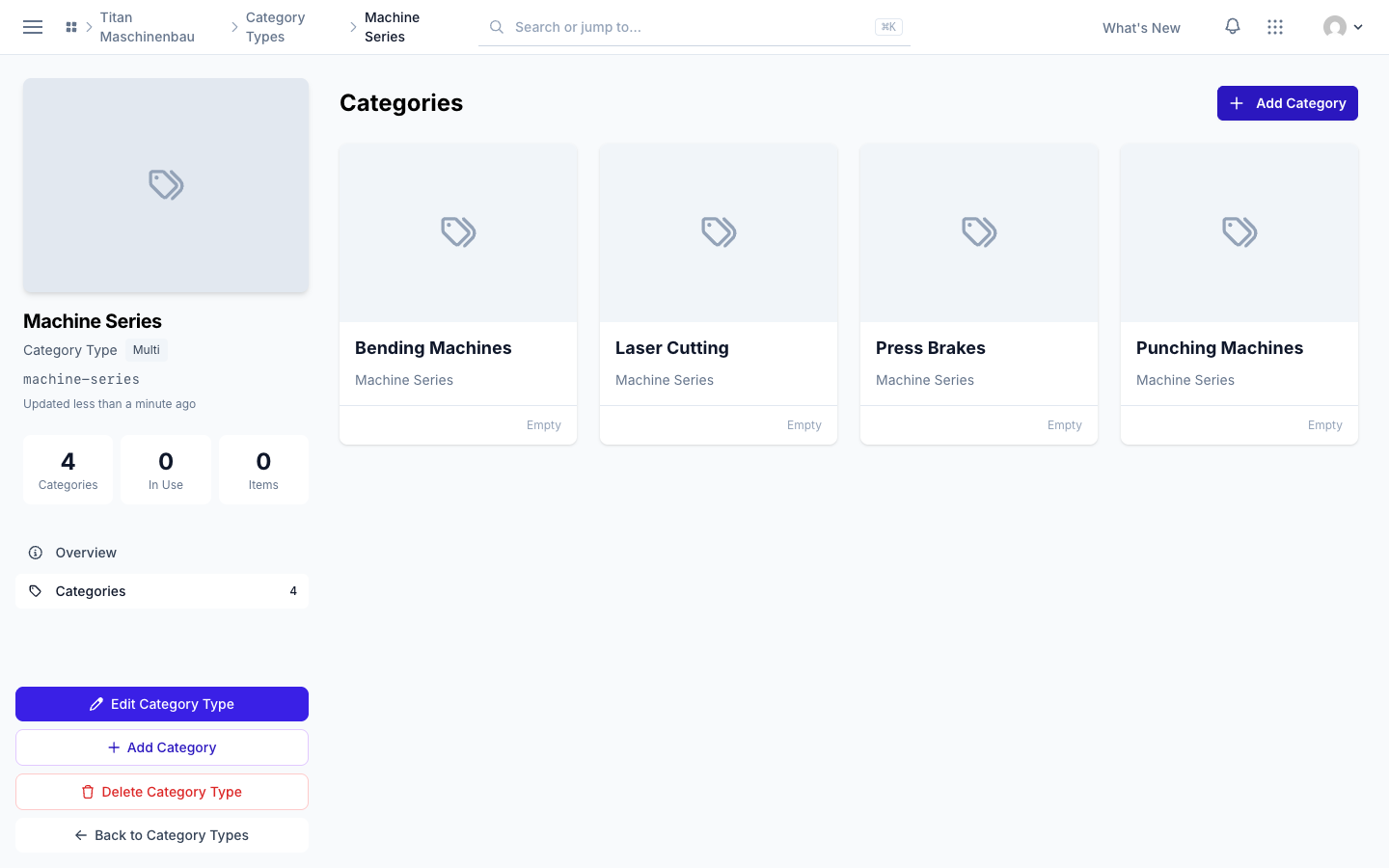
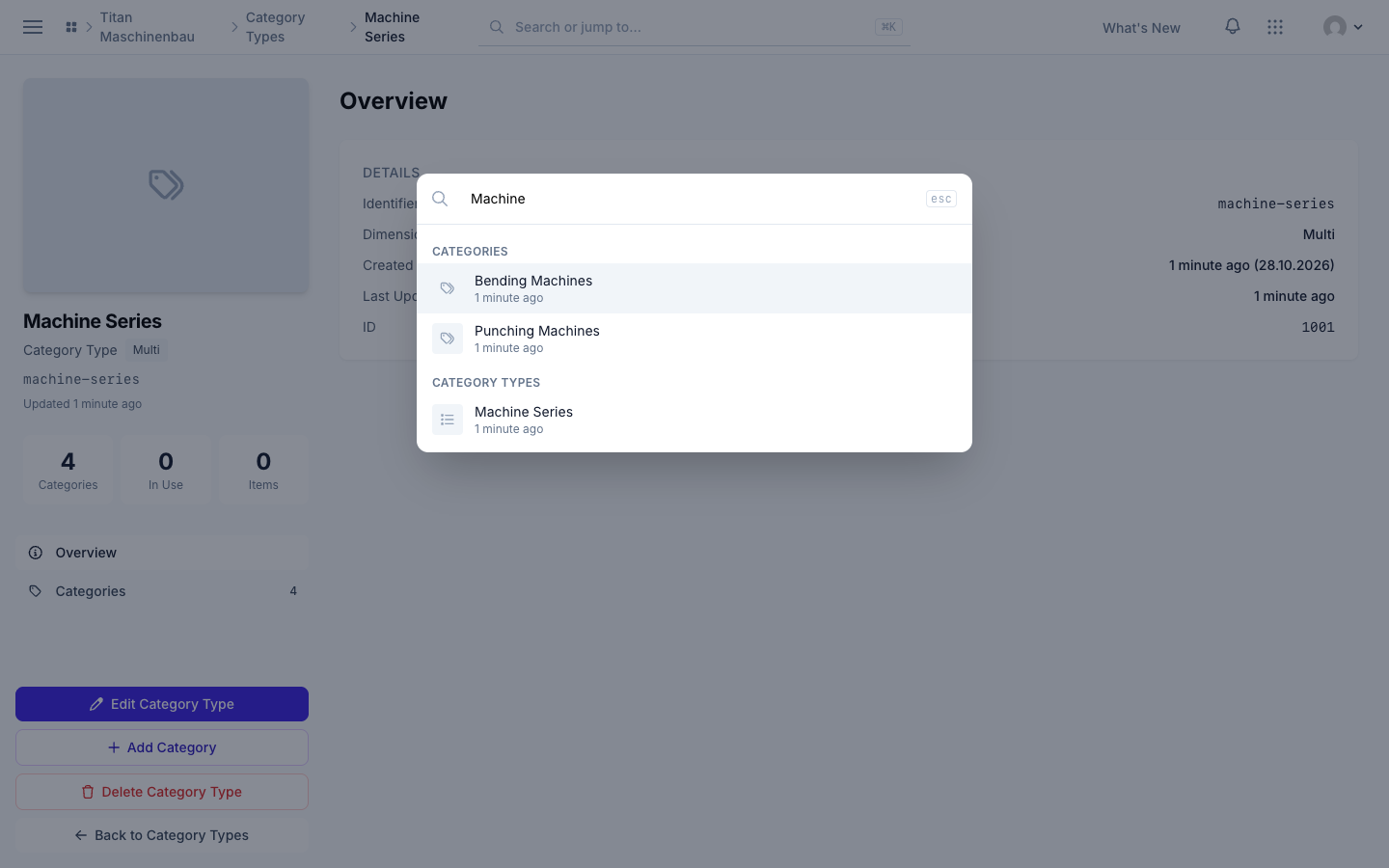
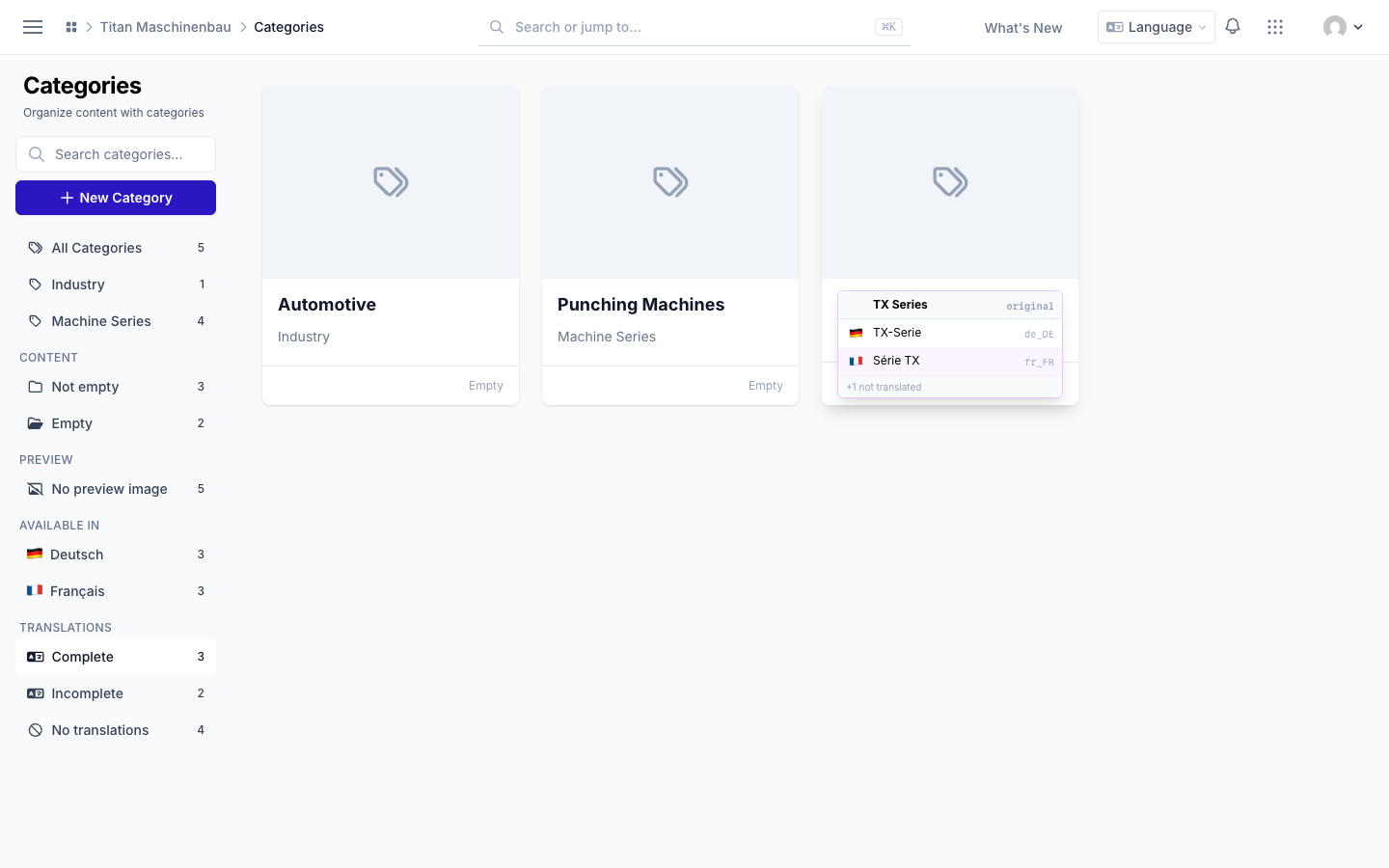
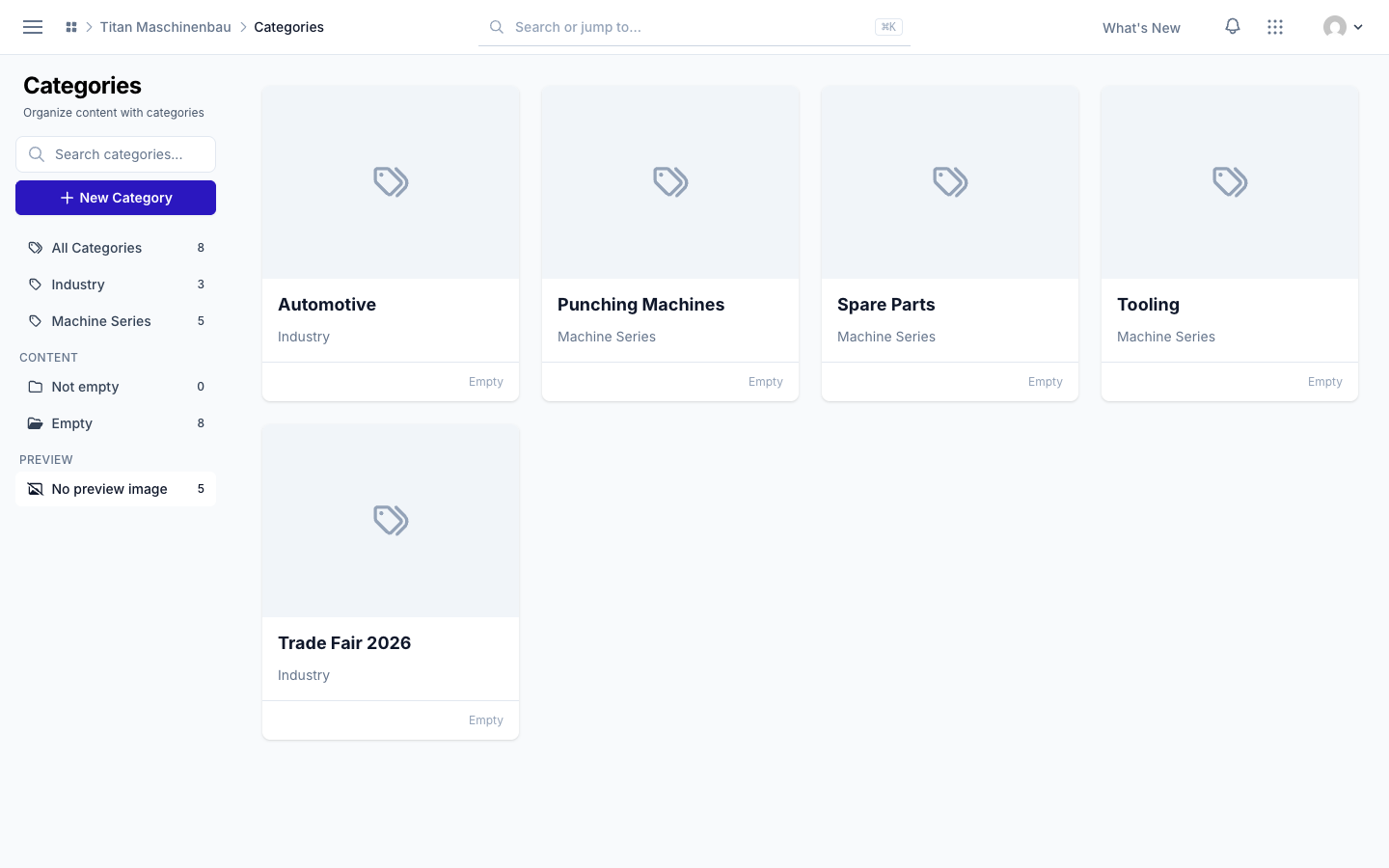
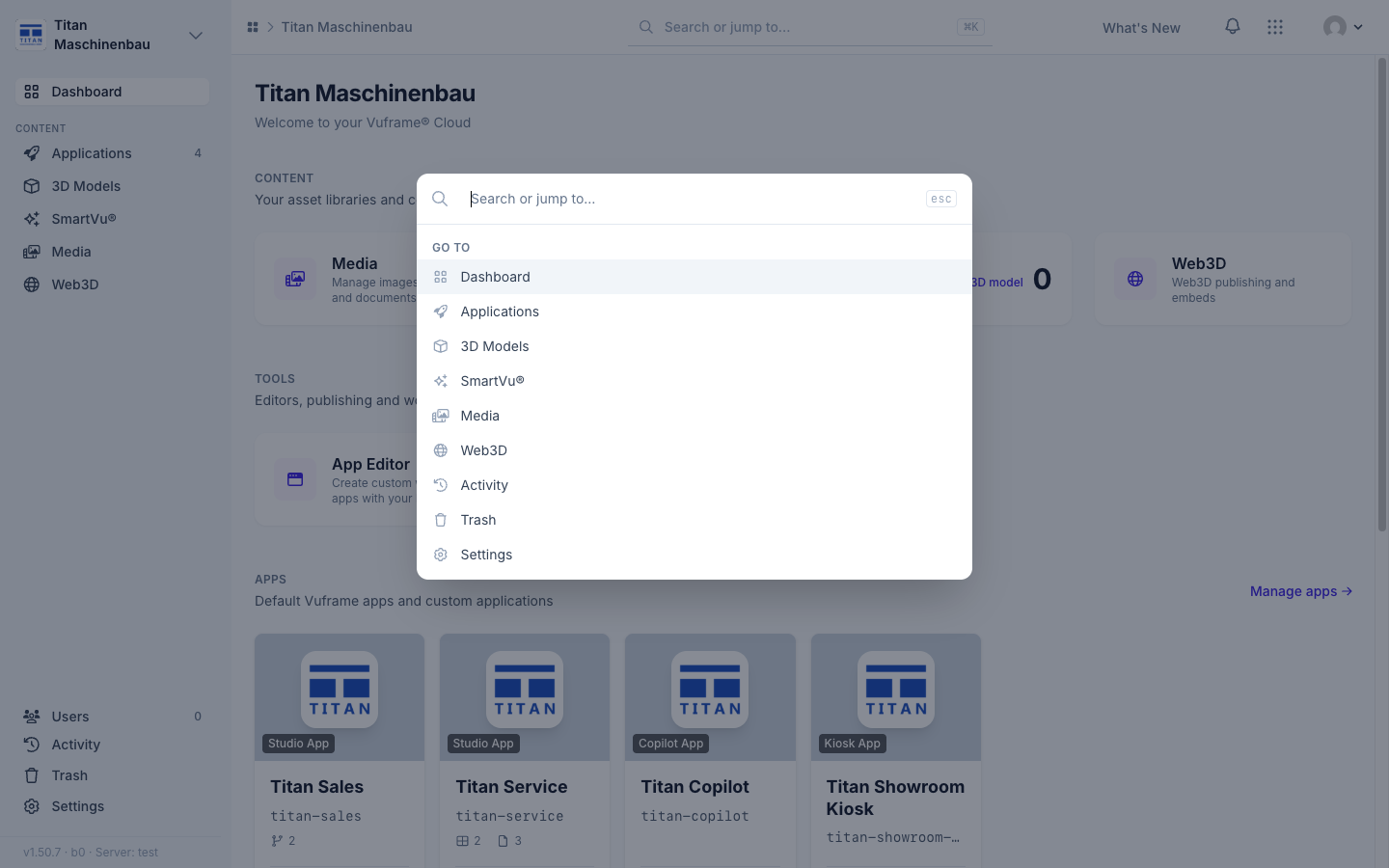
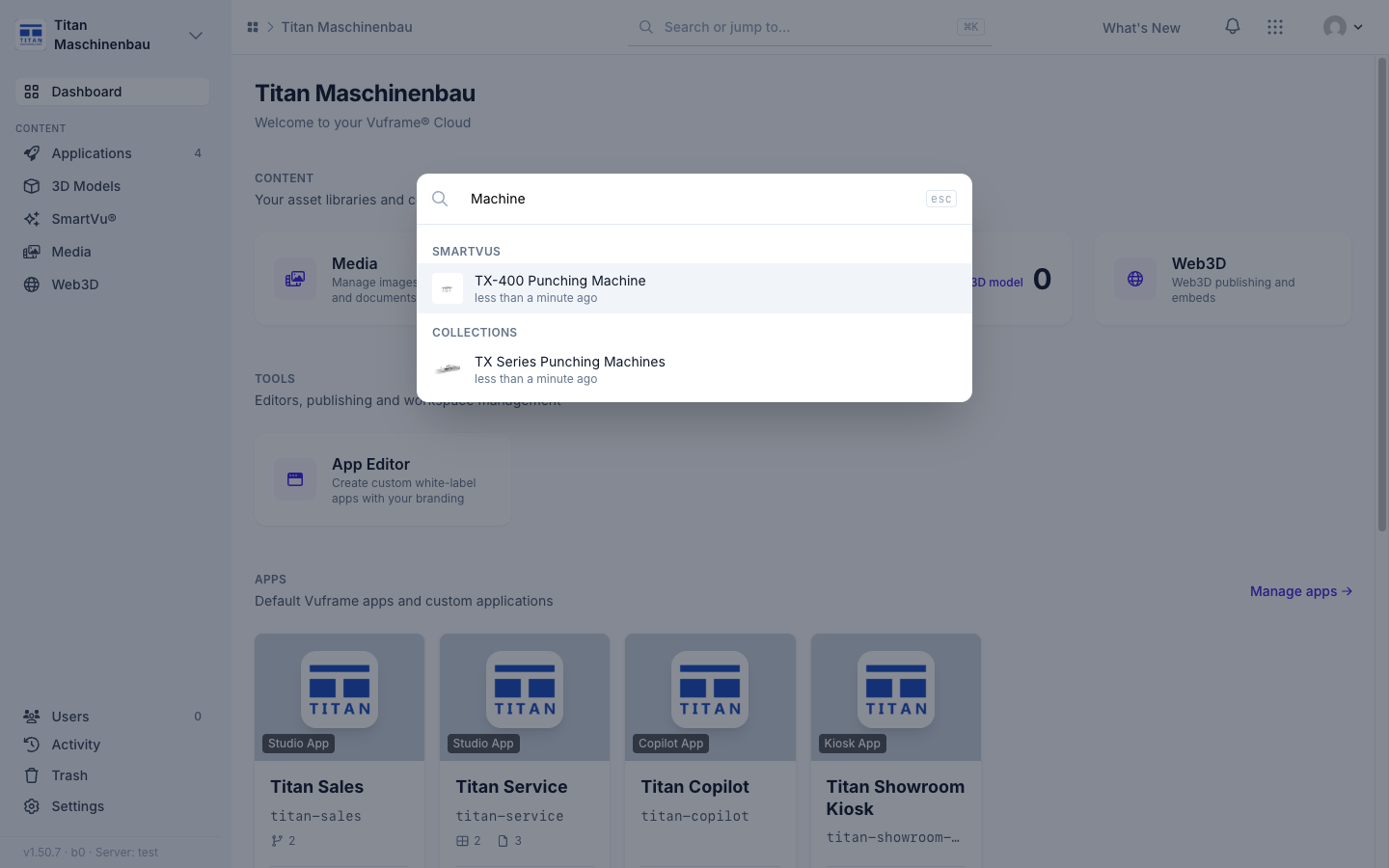
Category types one click away. A category page links its category type. On the category type page, Add Category sits in the sidebar and above the list, and the new category starts with that type selected. The search (Cmd+K) finds category types, and category results show the category's preview image.
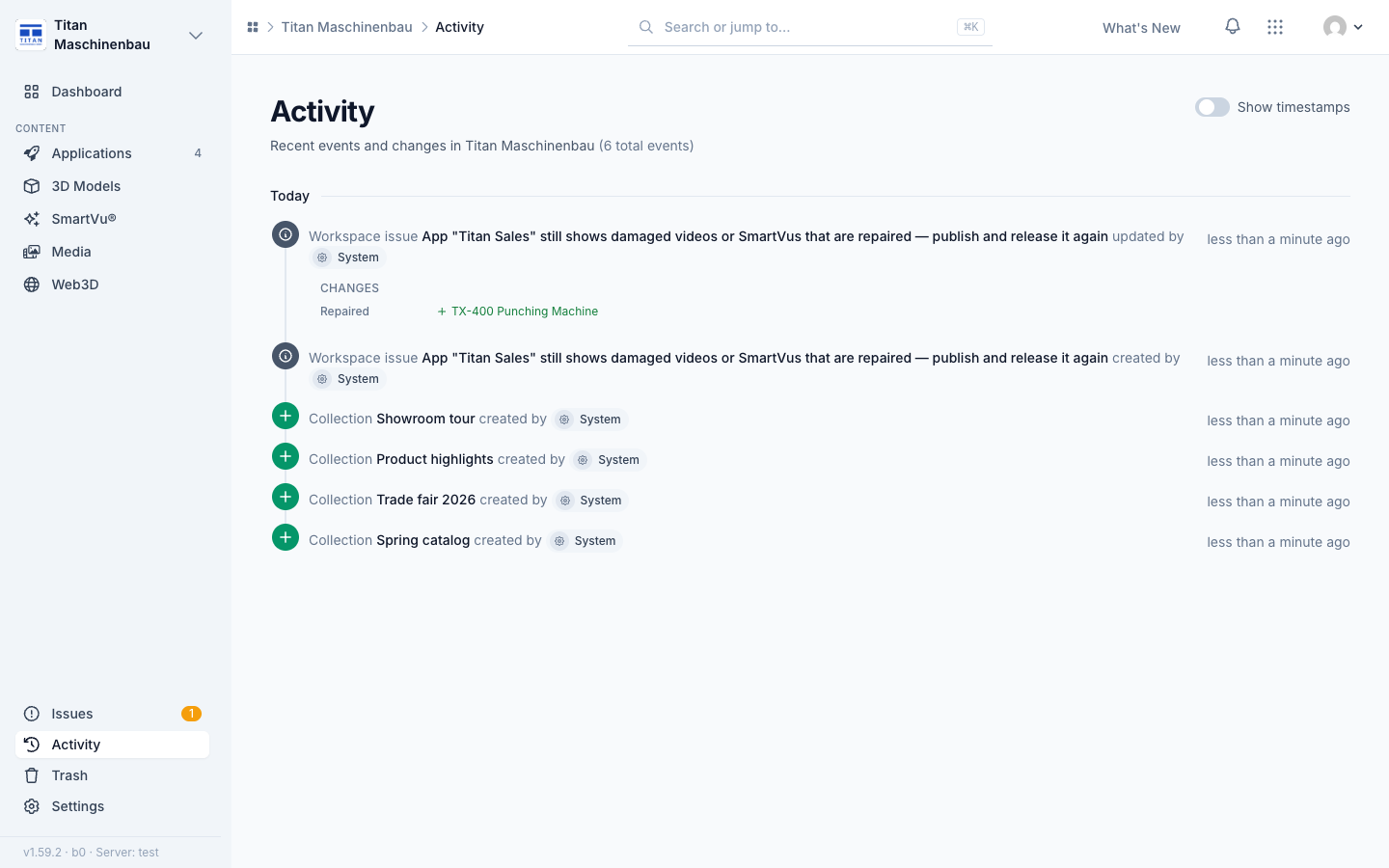
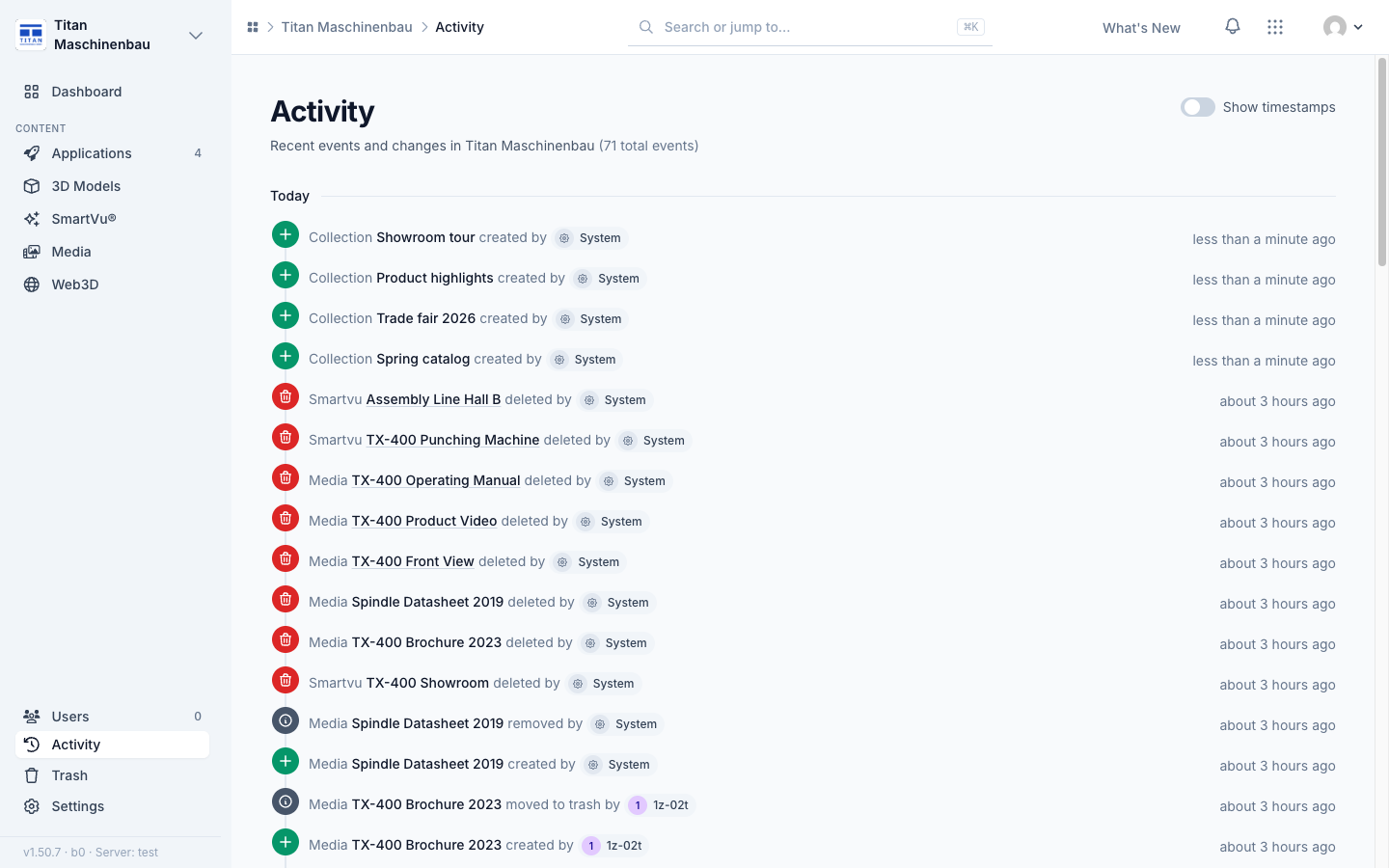
The Activity feed names repairs. When the list of a Publish again issue changes, the feed shows under Repaired which entries were added and removed.
Older SmartVu® videos play again. Videos added to a SmartVu® experience in the legacy Studio up to mid-2025 did not start in your apps. Vuframe® Cloud now publishes the uploaded video file under a new name, so no device keeps the broken file. The affected SmartVu® experiences are published again automatically. Publish and release your apps once to bring the videos to your users.
SmartVu®s with an incomplete build are built again. Some SmartVu®s were published before each build carried the file with their behaviour and sidebar media. Vuframe® Cloud builds them again by itself; the Issues page lists the apps to publish again.
A batch of repairs updates its issue once, so the Activity feed shows one entry instead of one per repair.
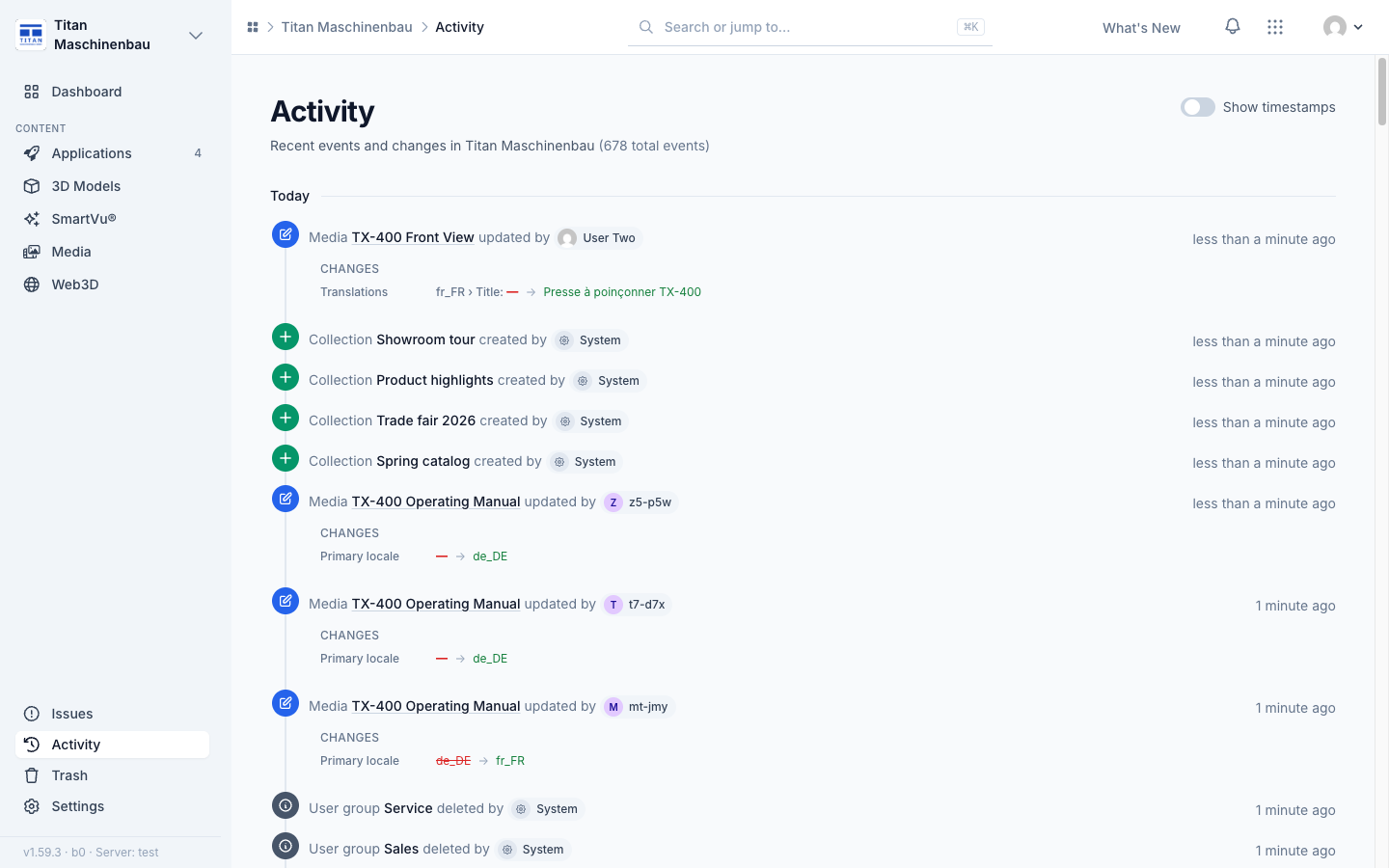
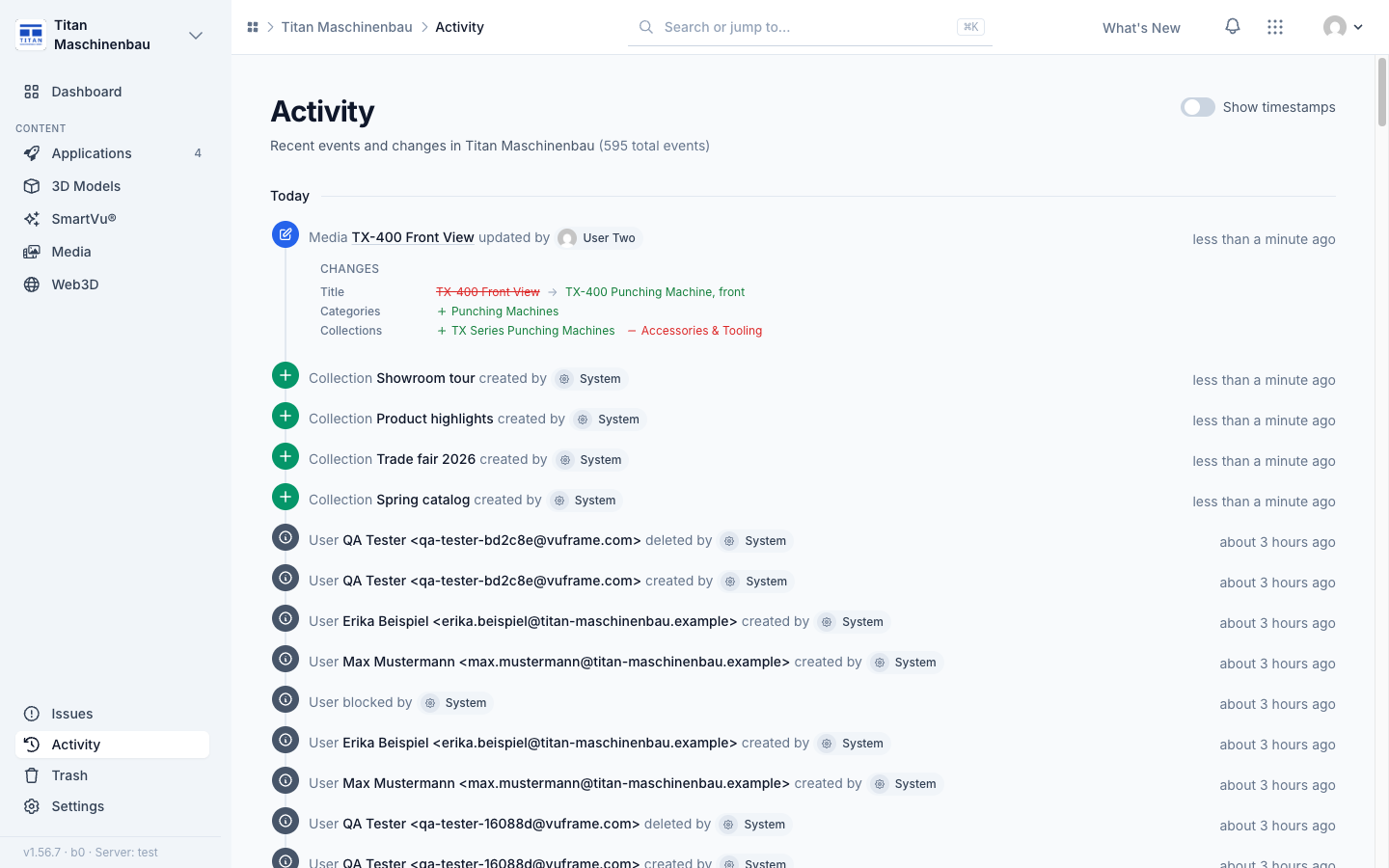
Activity shows changed translations as text: the language, the field and the new text, for example "fr_FR › Title: — → Presse à poinçonner TX-400". An update right after a record was created lists only what it added. The Catalog overview lines up again on wide screens.
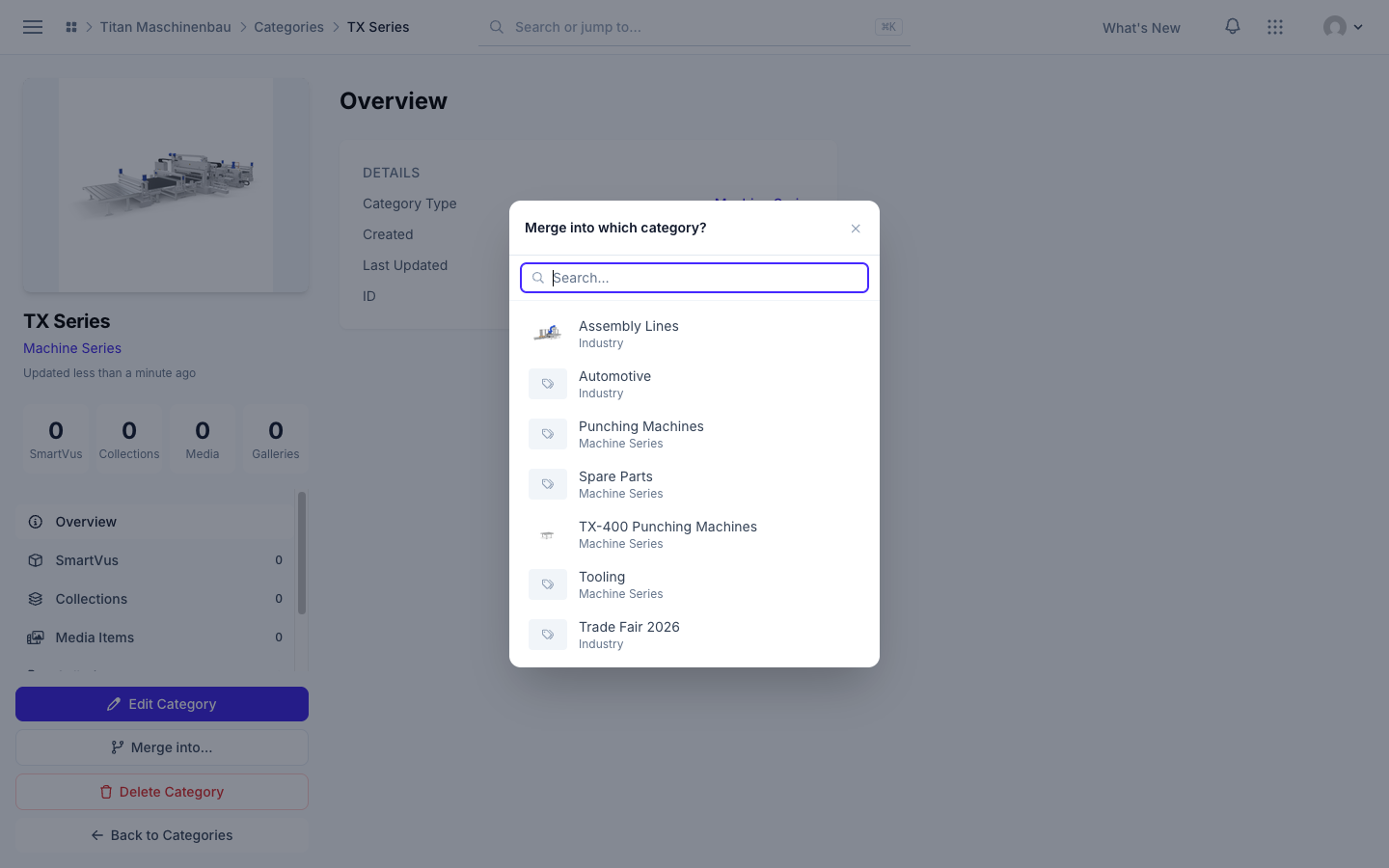
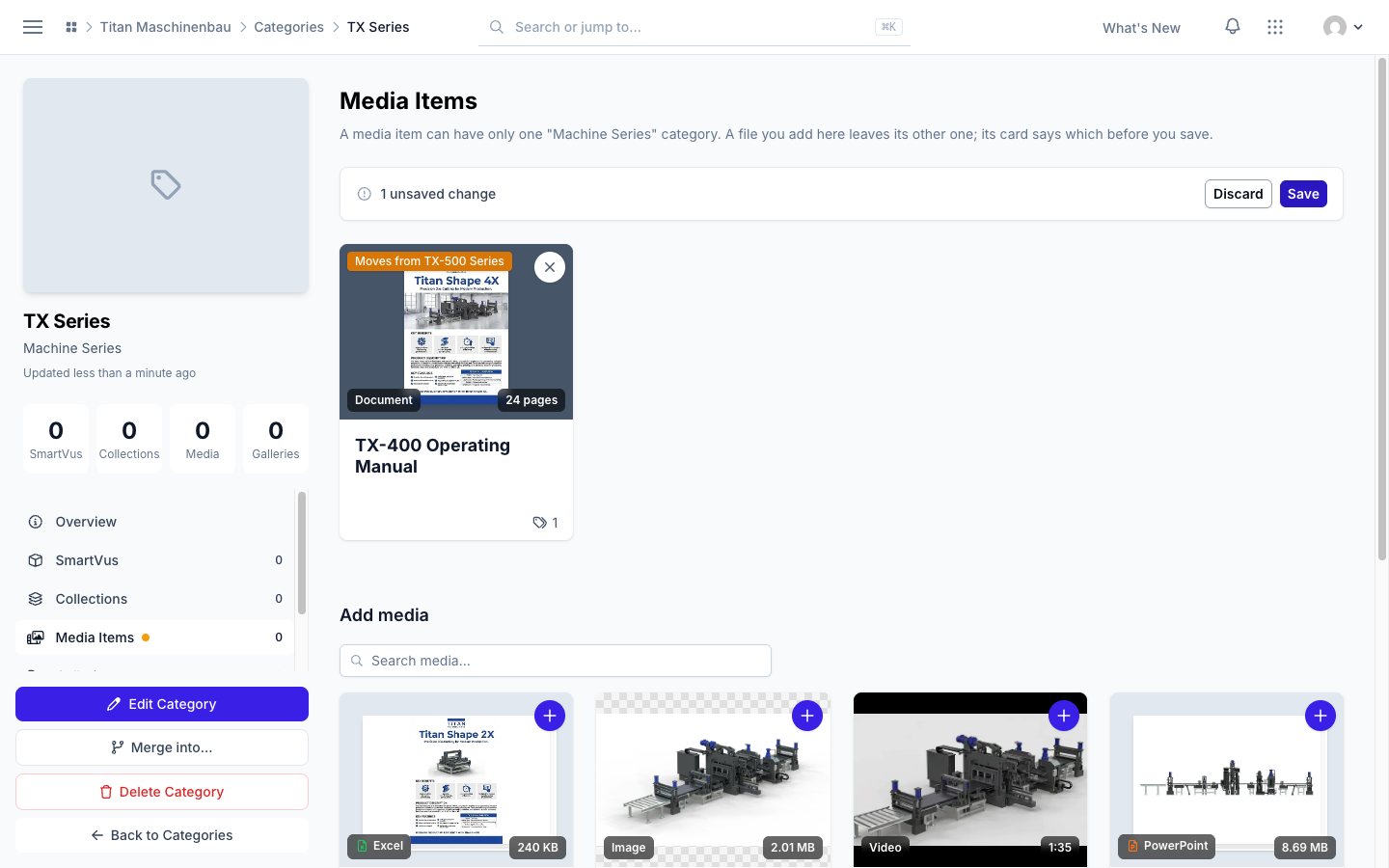
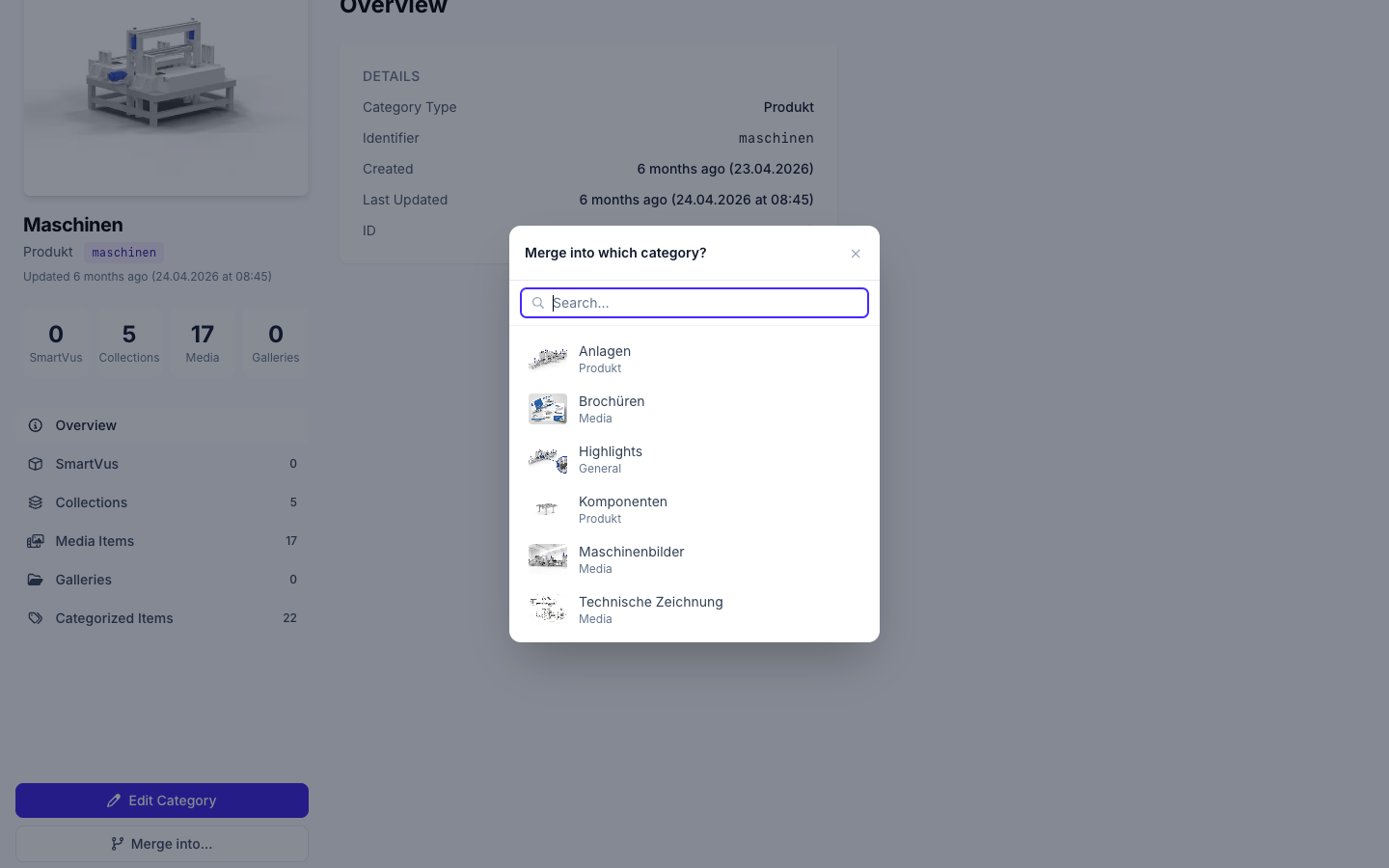
Merge into… opens on top of the page again, so you can pick the category to merge into.
Vuframe® Cloud v1.56.28 lets you organize a media file from its own page and shows in the Activity feed exactly what changed. Damaged videos are caught before they reach your apps, and published files are smaller and carry no hidden upload data.
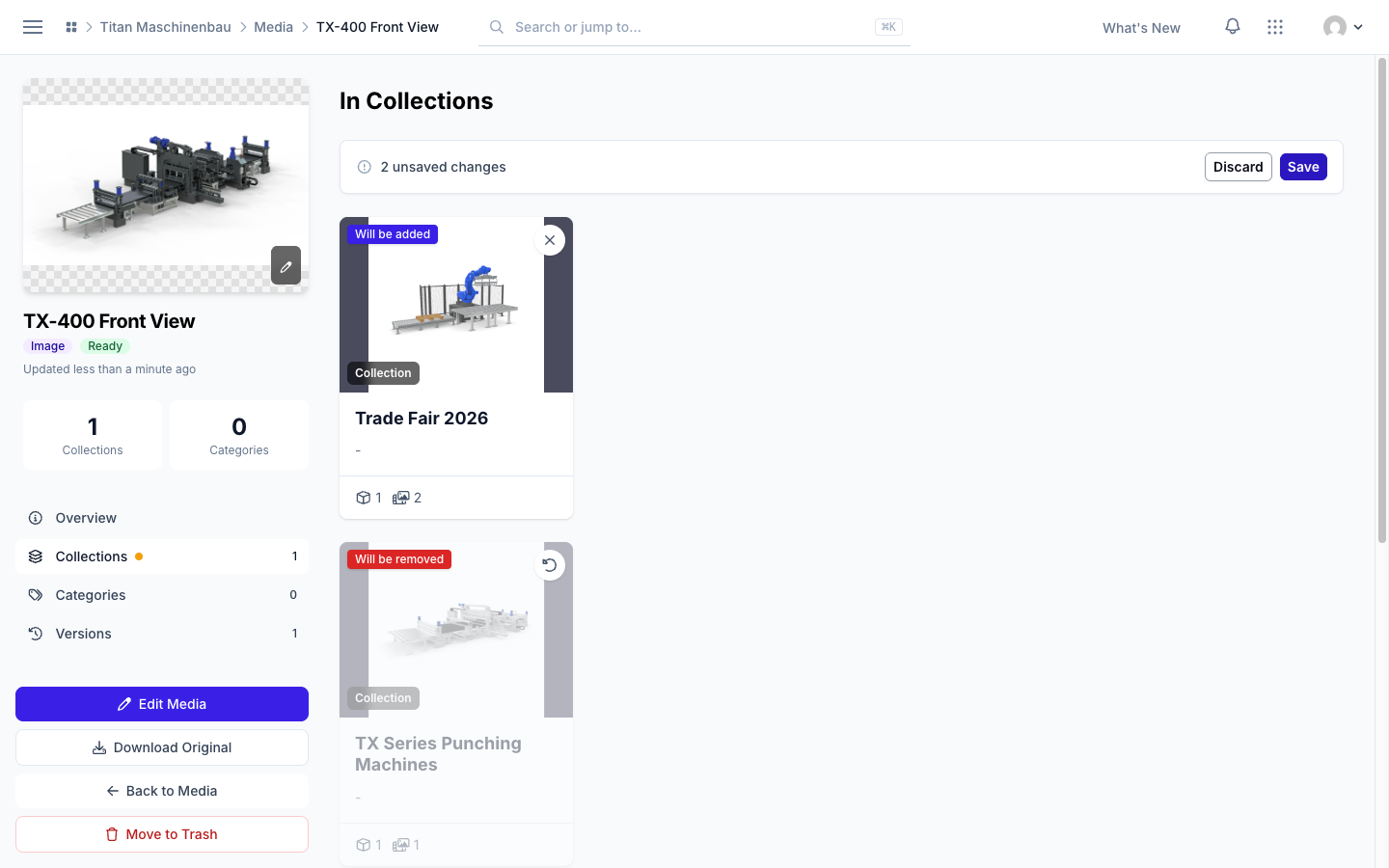
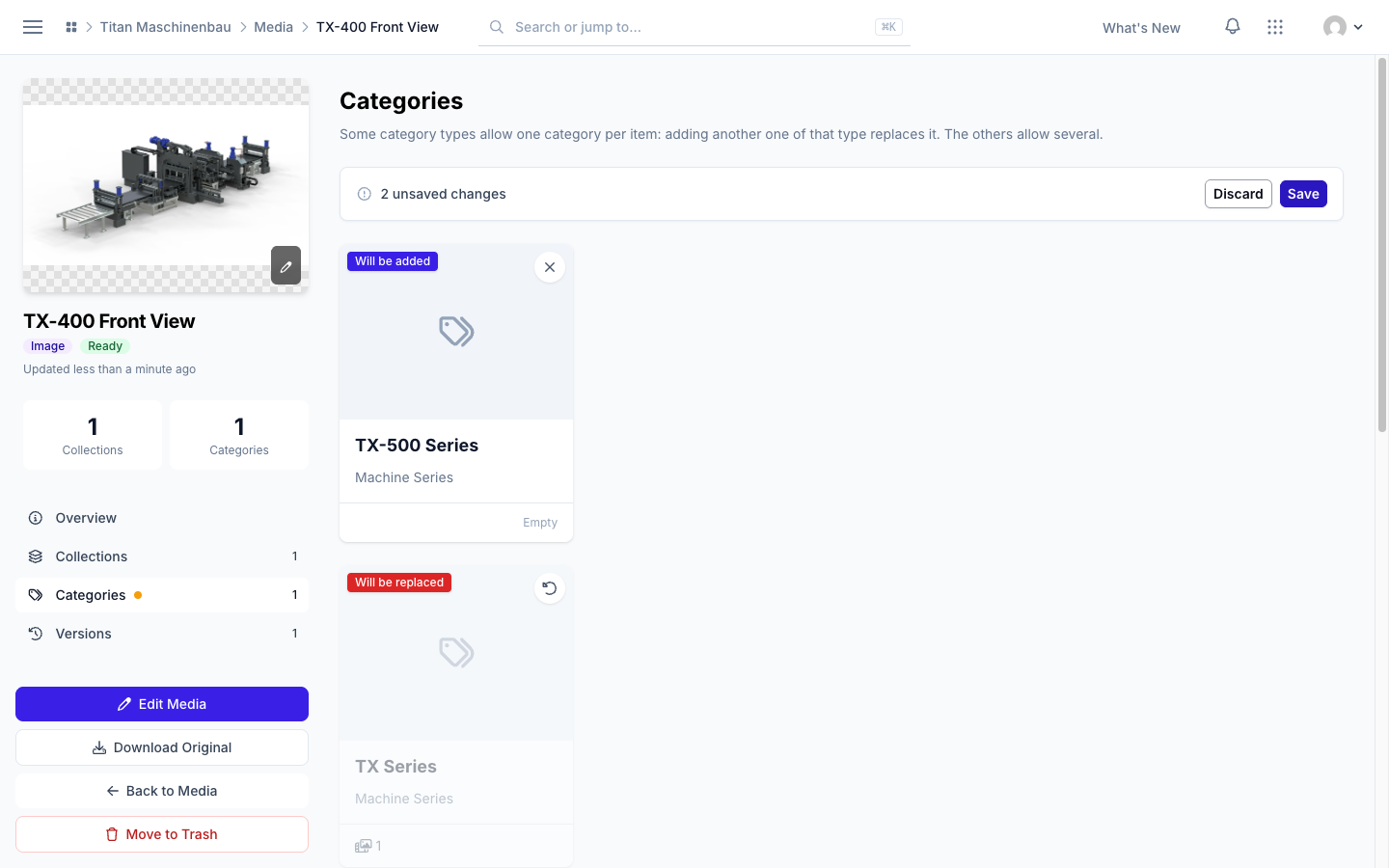
Organize media from both sides. On a media file's page, the Collections and Categories sections list what the file is in and what you can add, with a search field. The Media Items sections of categories, collections and galleries work the same way. Category types say whether an item can have one or any of their categories.
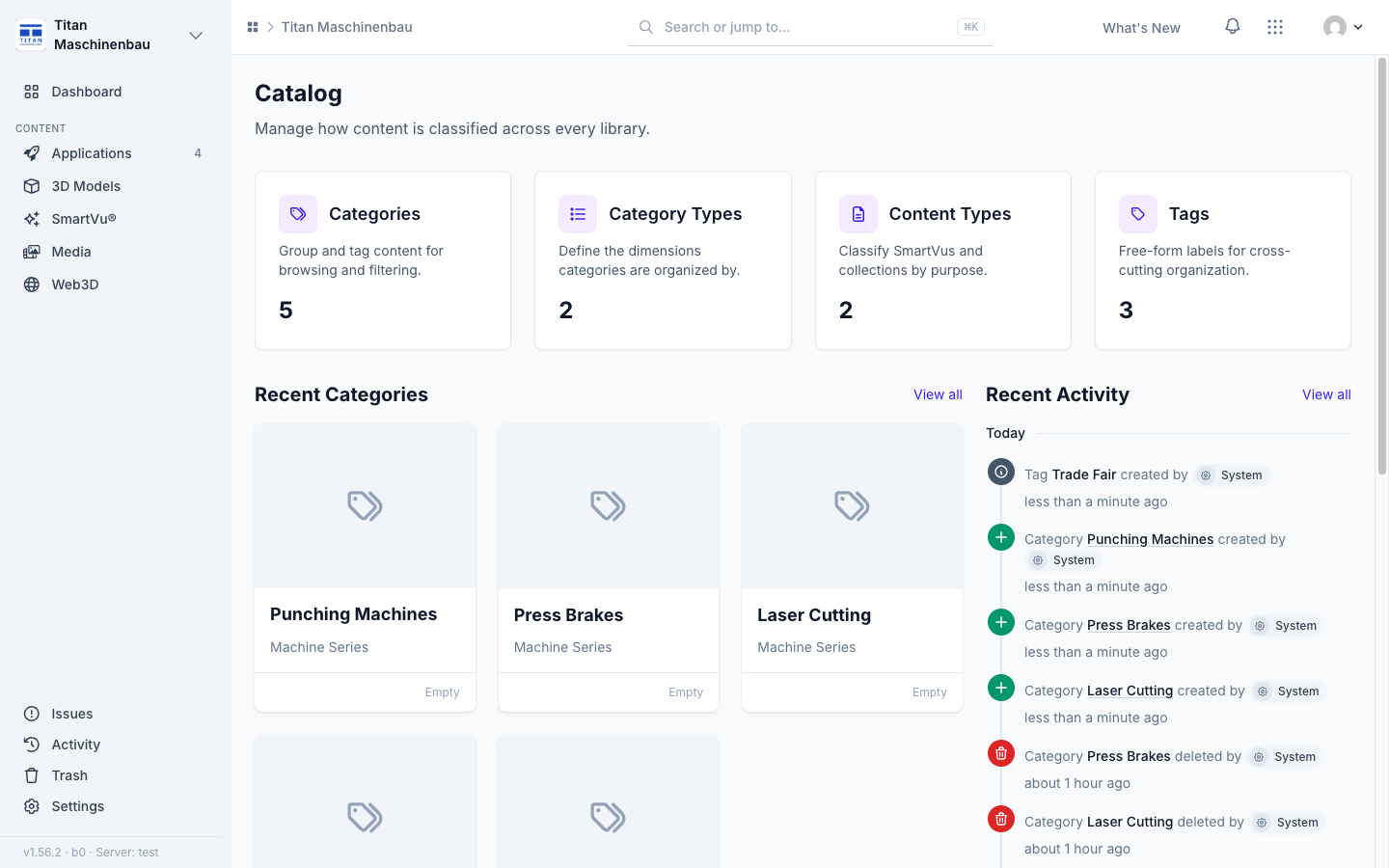
Catalog overview. The Catalog page shows Recent Categories and Recent Activity for categories, category types, content types and tags.
The Activity feed shows what changed: the old and the new value of each field, and which categories, collections, tags or user groups were added or removed.
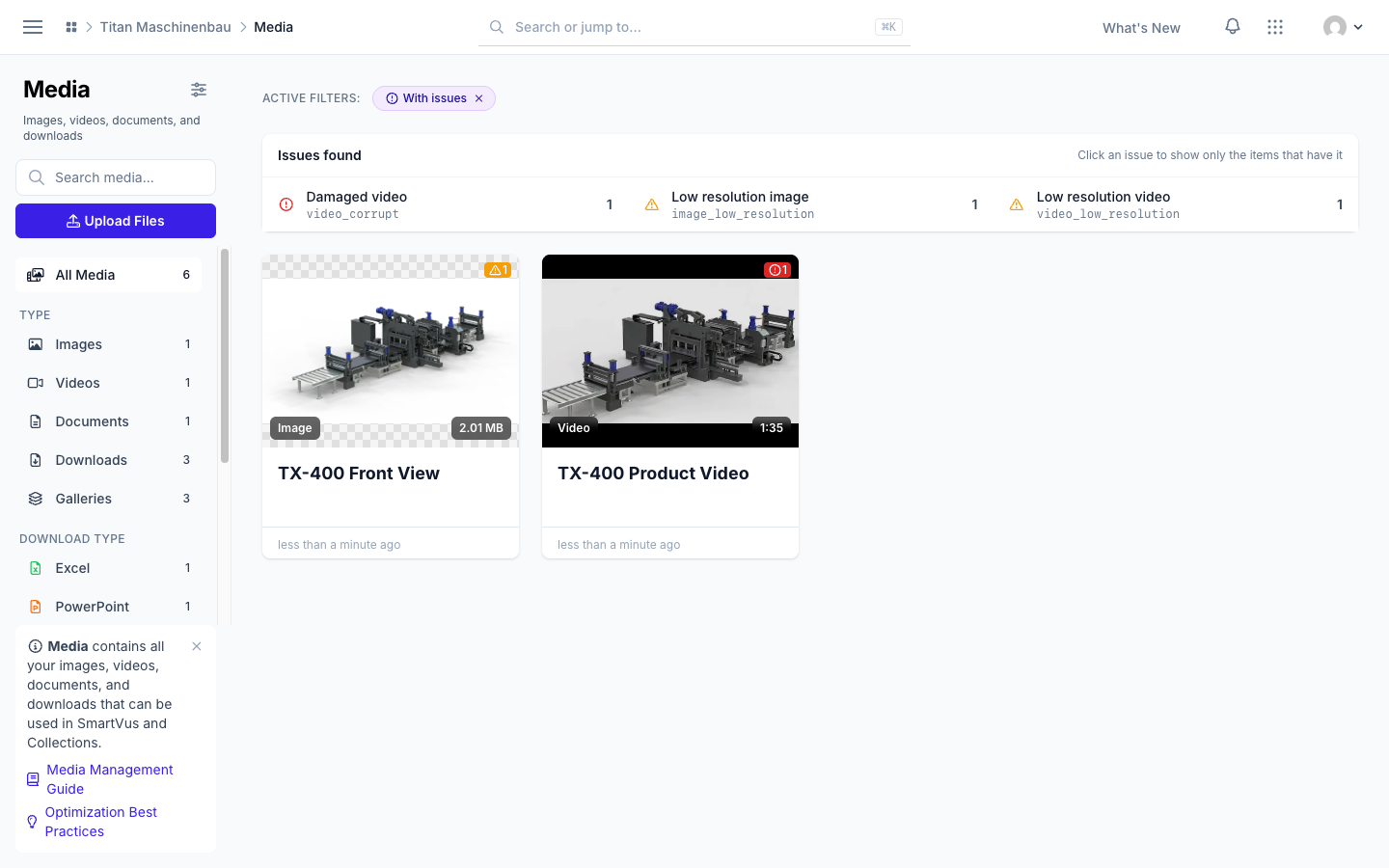
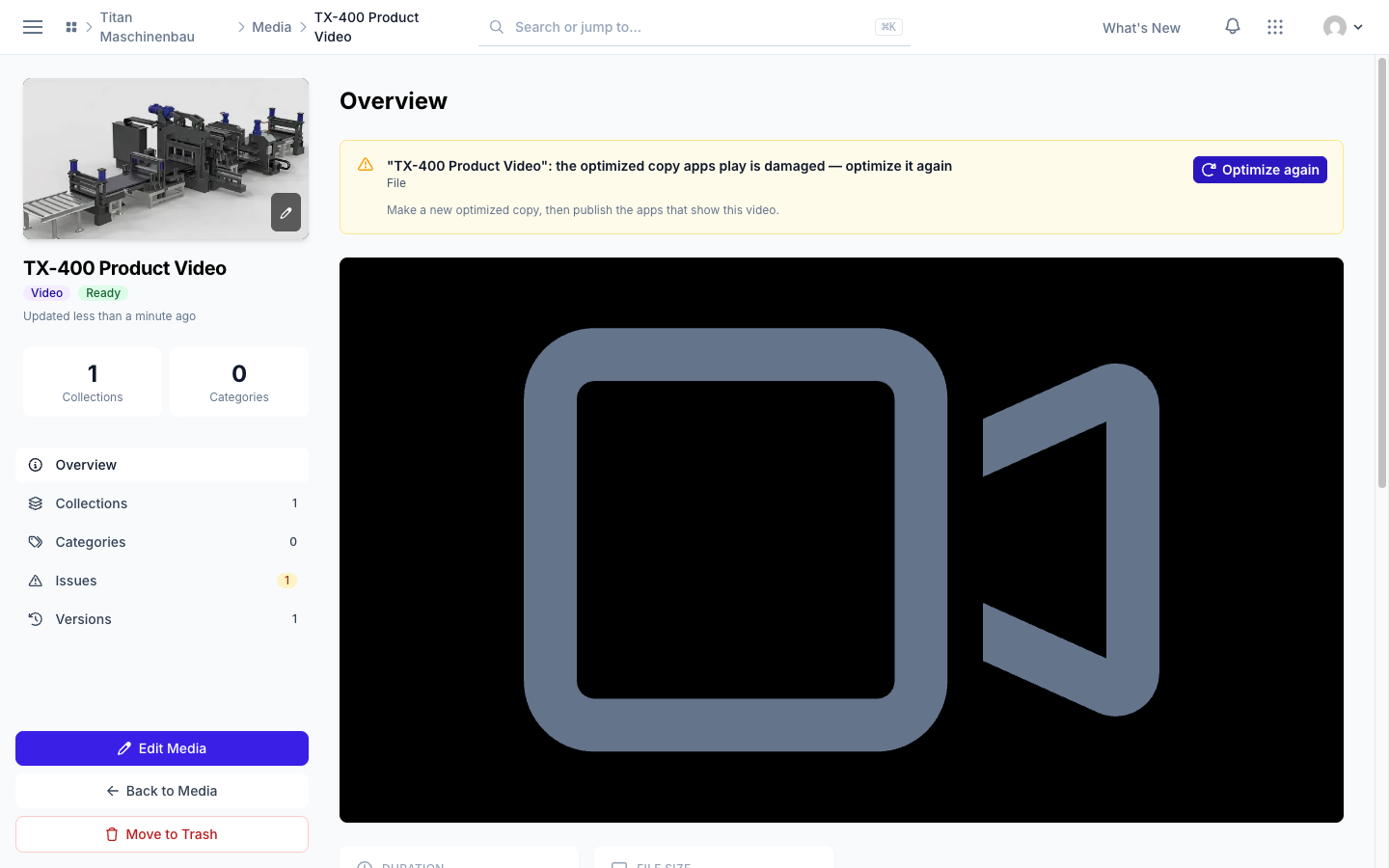
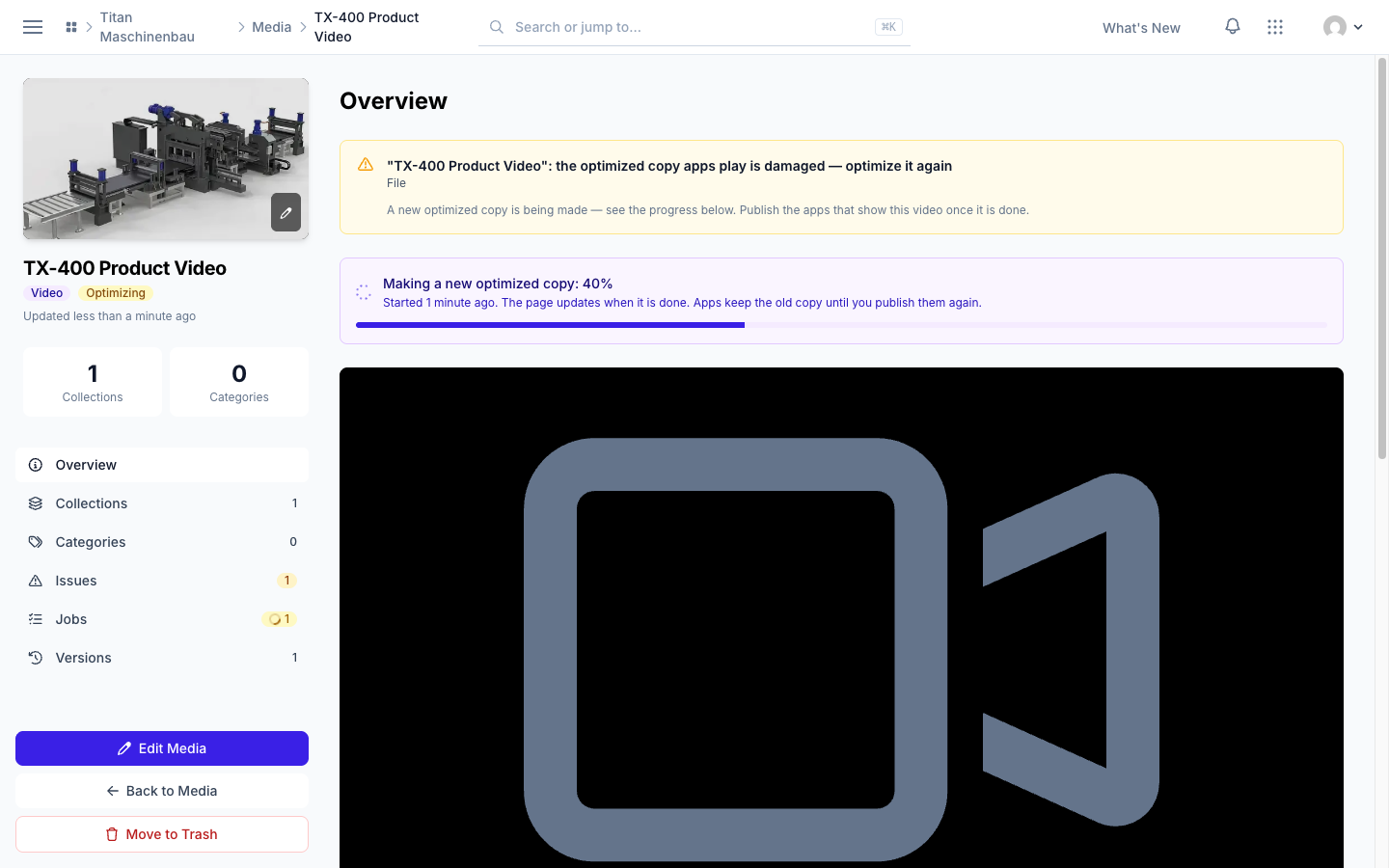
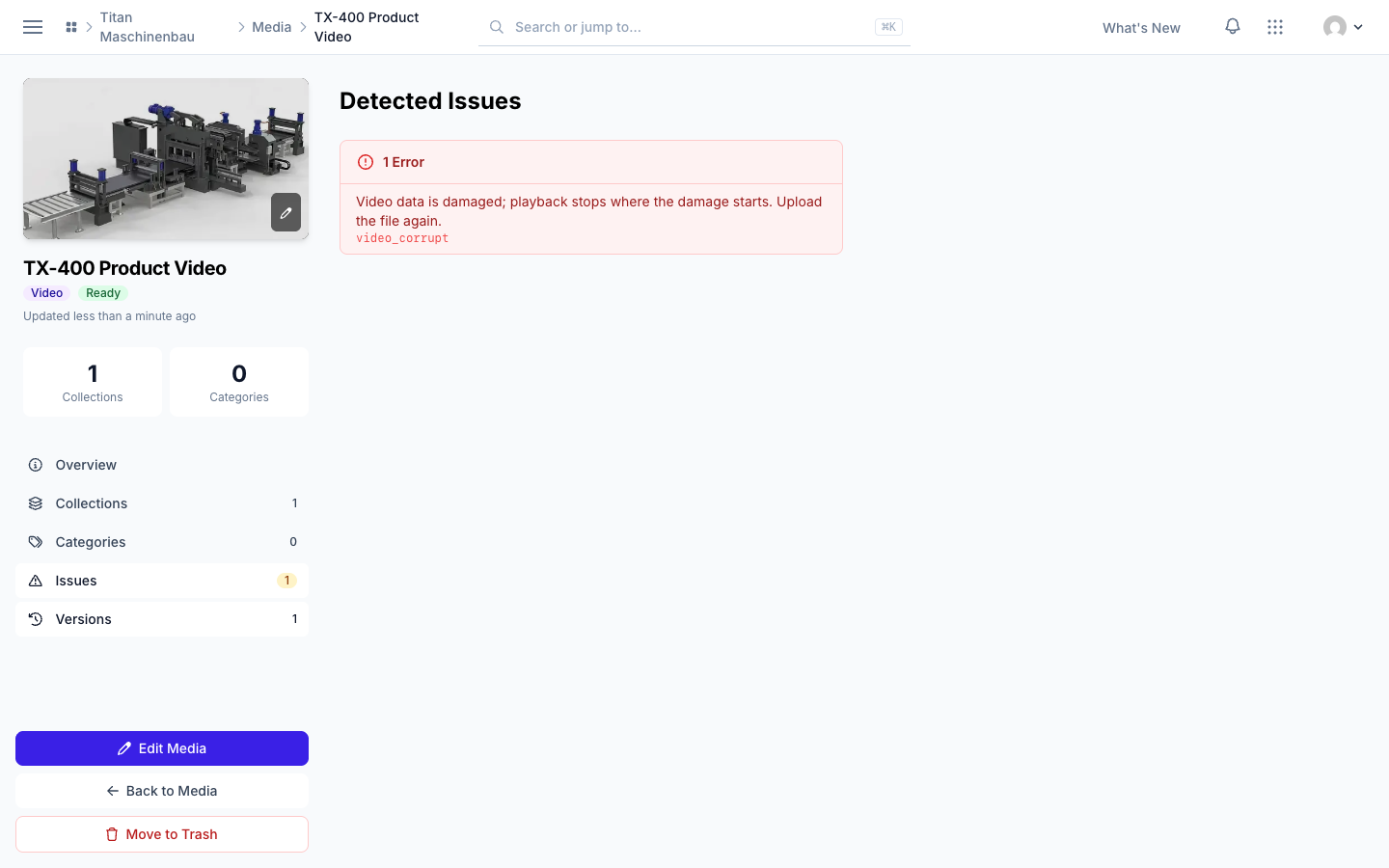
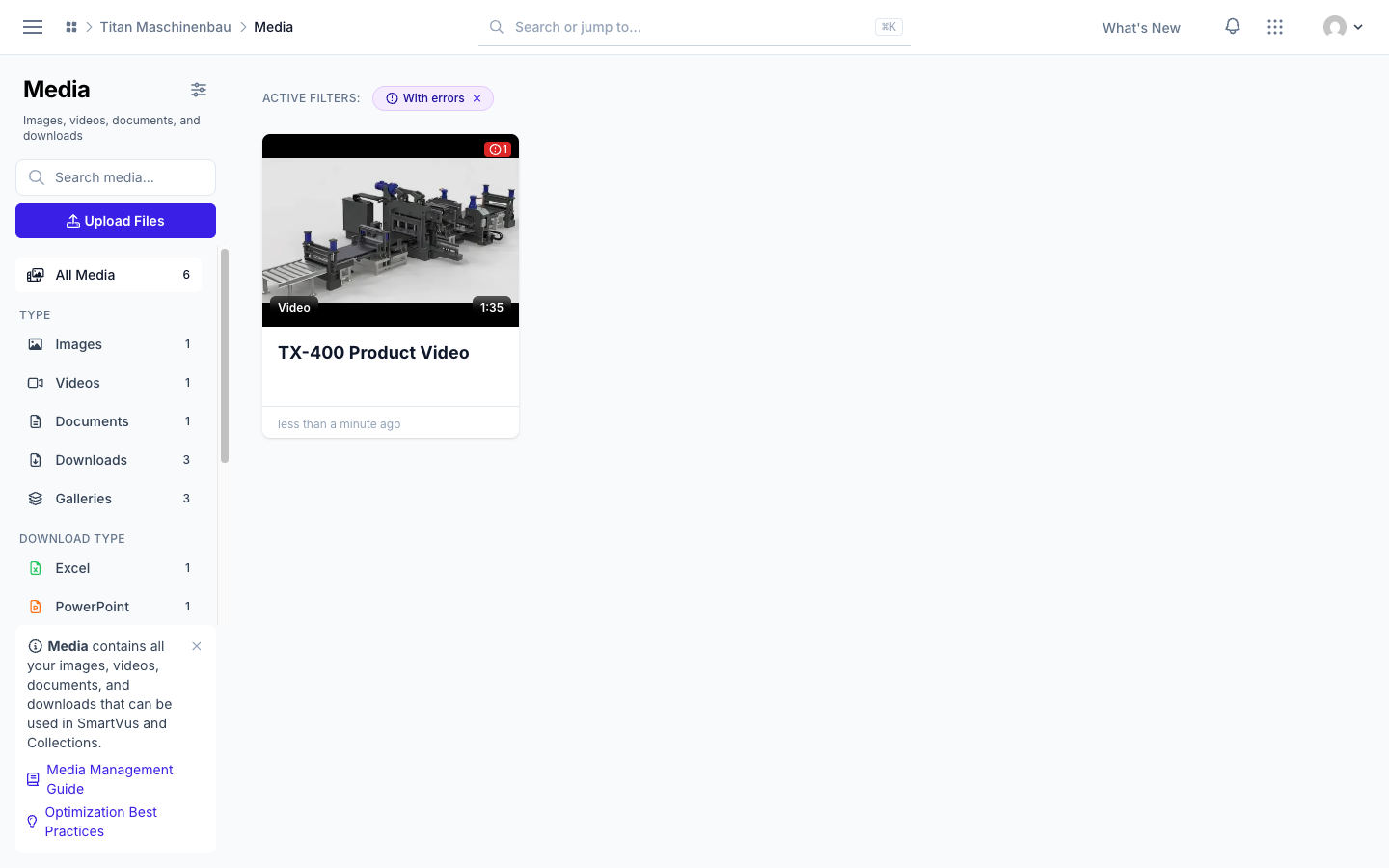
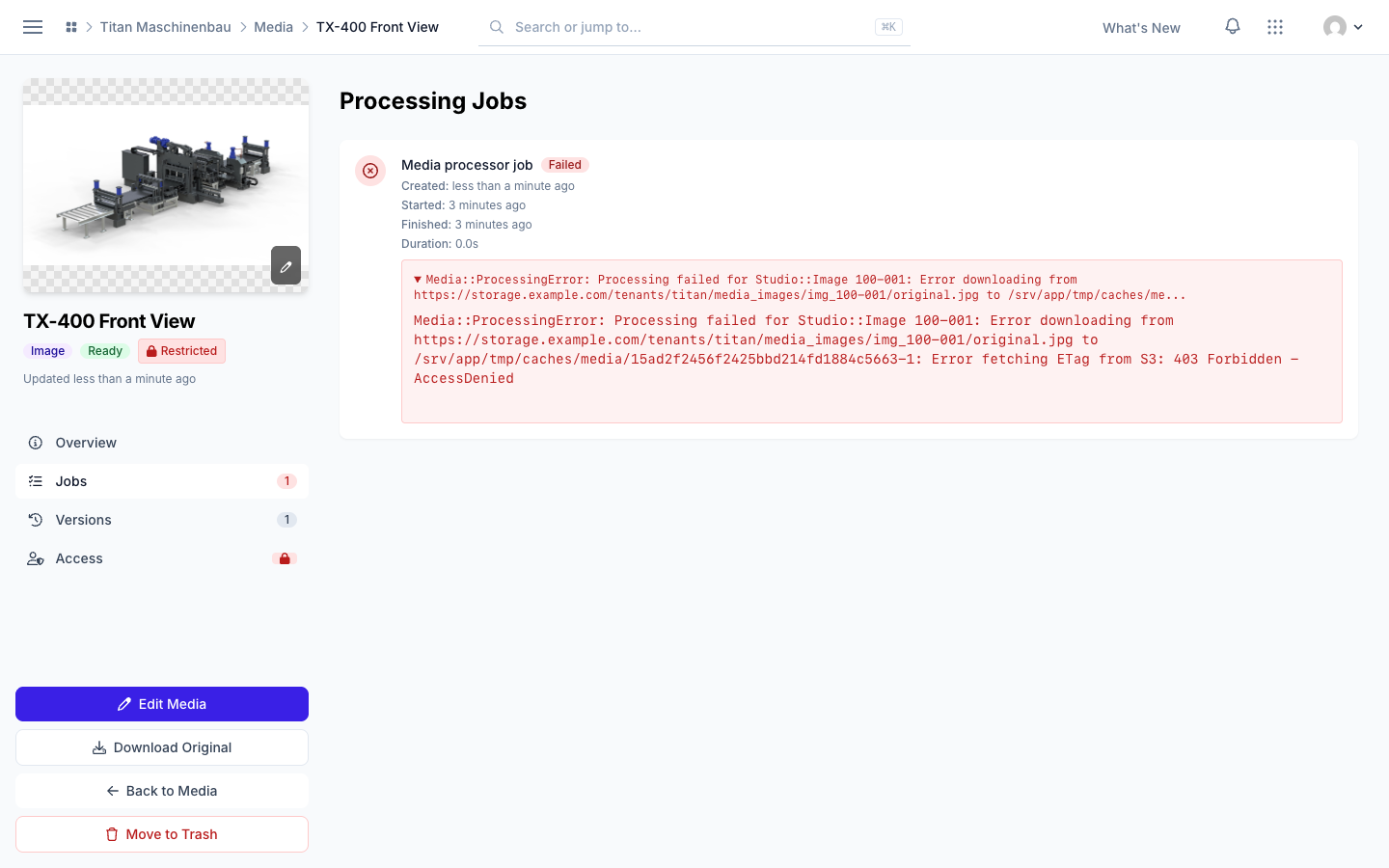
Damaged videos show under Issues. A video with a damaged file is listed under "Damaged files" on the Issues page; Fix now starts a new optimized copy right away, and the video page shows its progress. With With issues or With errors on, the media library lists the kinds of issues with their counts.
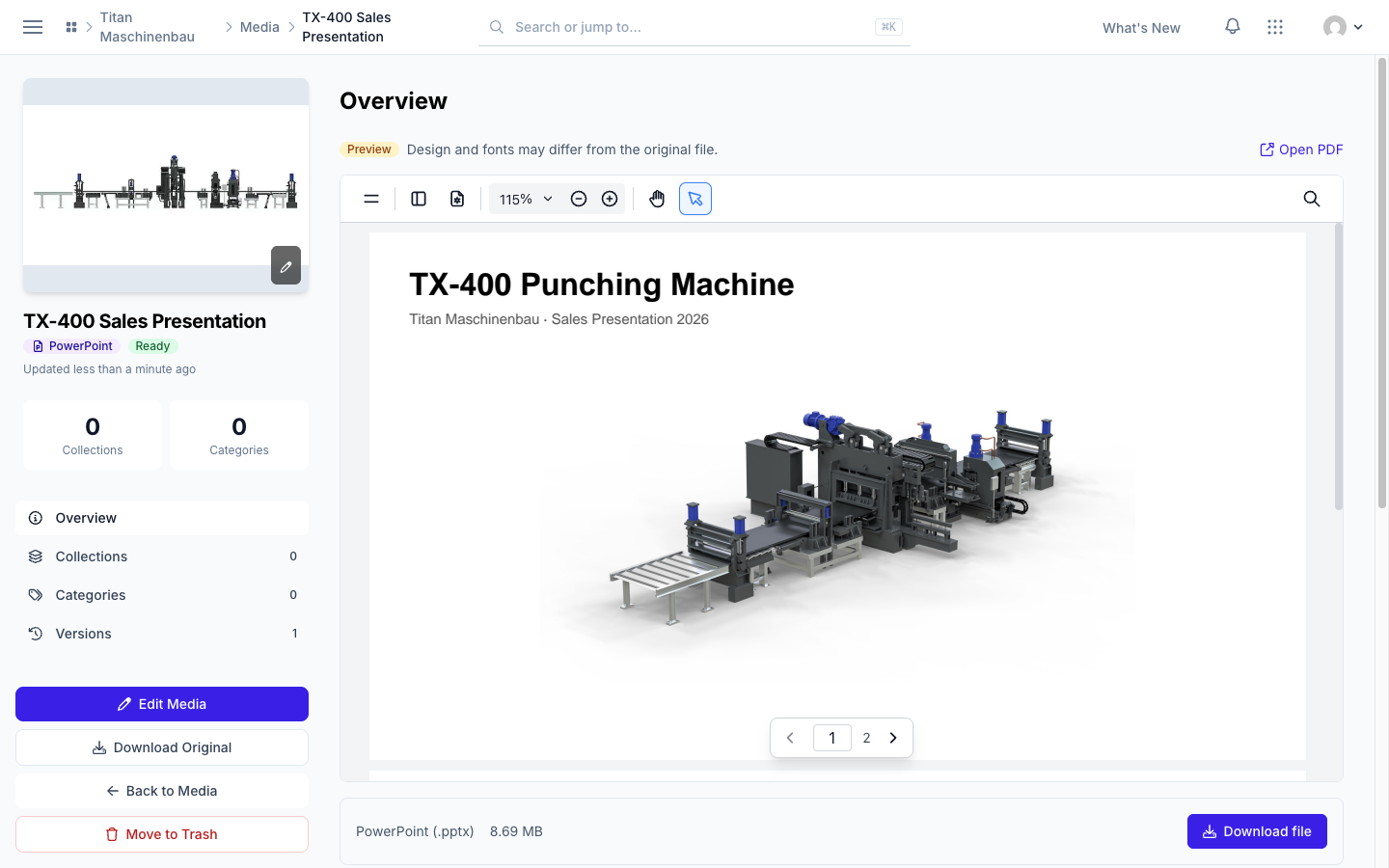
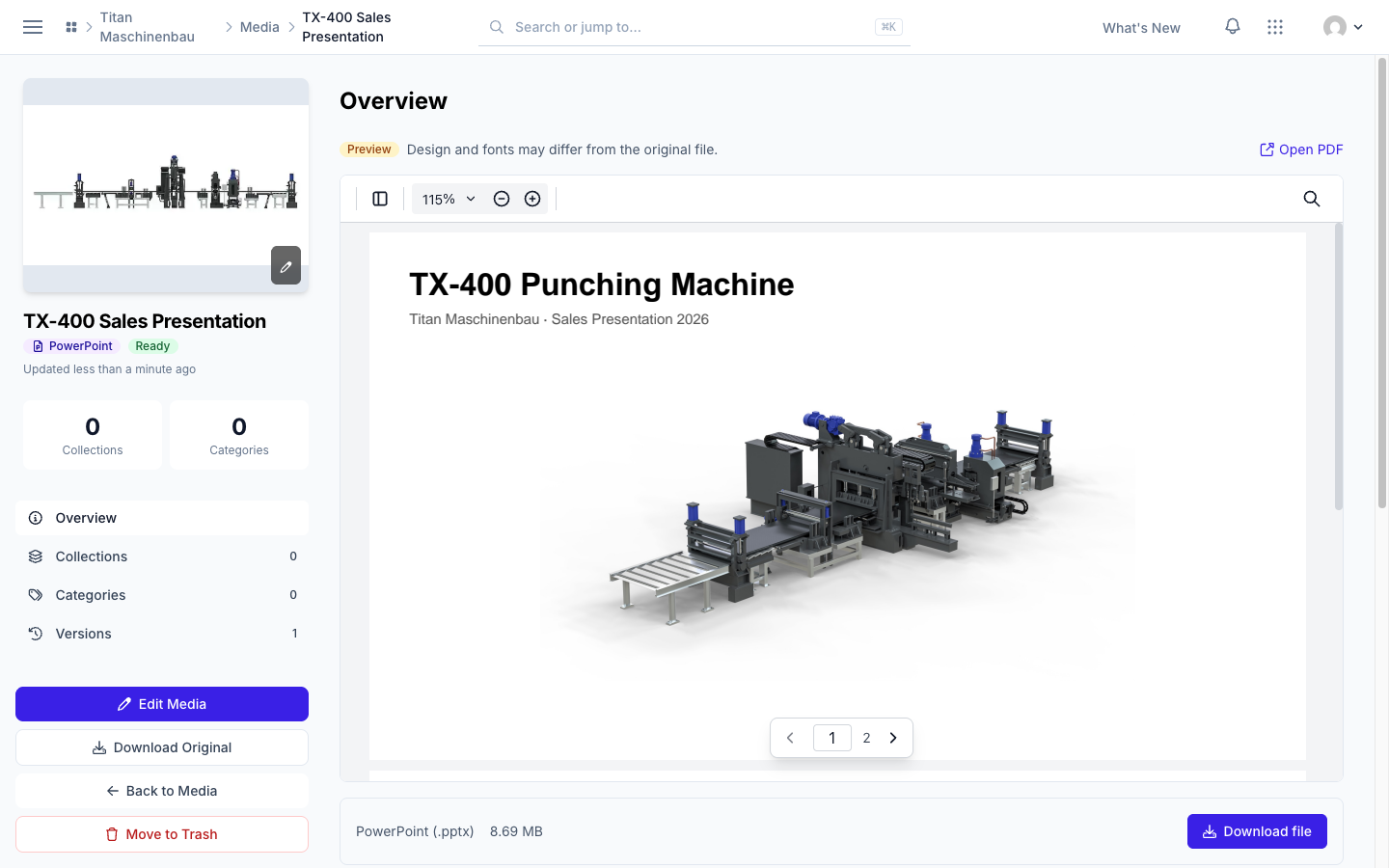
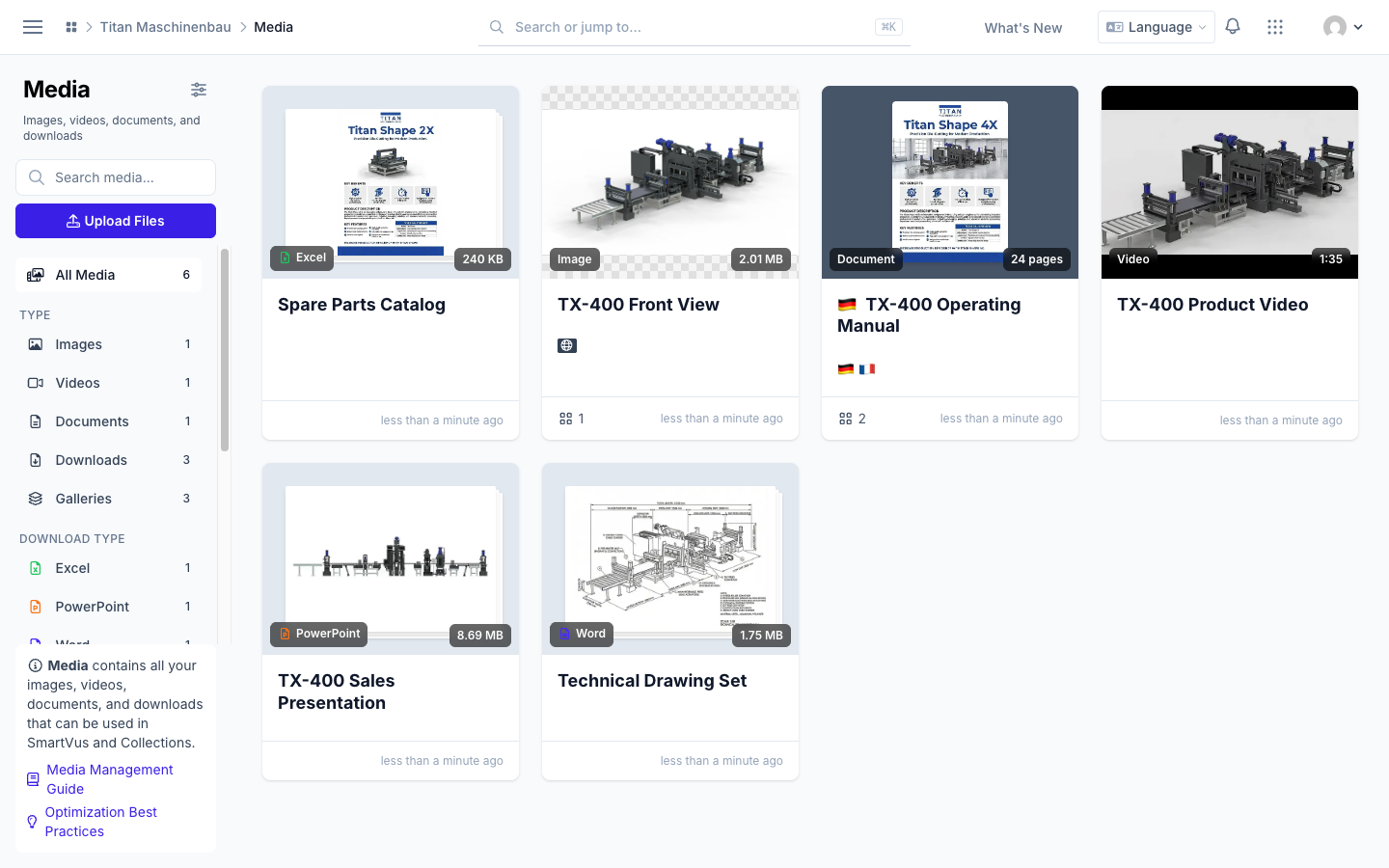
Office files show their PDF preview on their media page, and the badge says "PowerPoint", "Excel" or "Word".
Smaller PDF previews. Previews of presentations leave out video and audio; the media page says when a presentation holds them. Fewer font warnings: Calibri Light and Arial Narrow get a free font with the same letter widths.
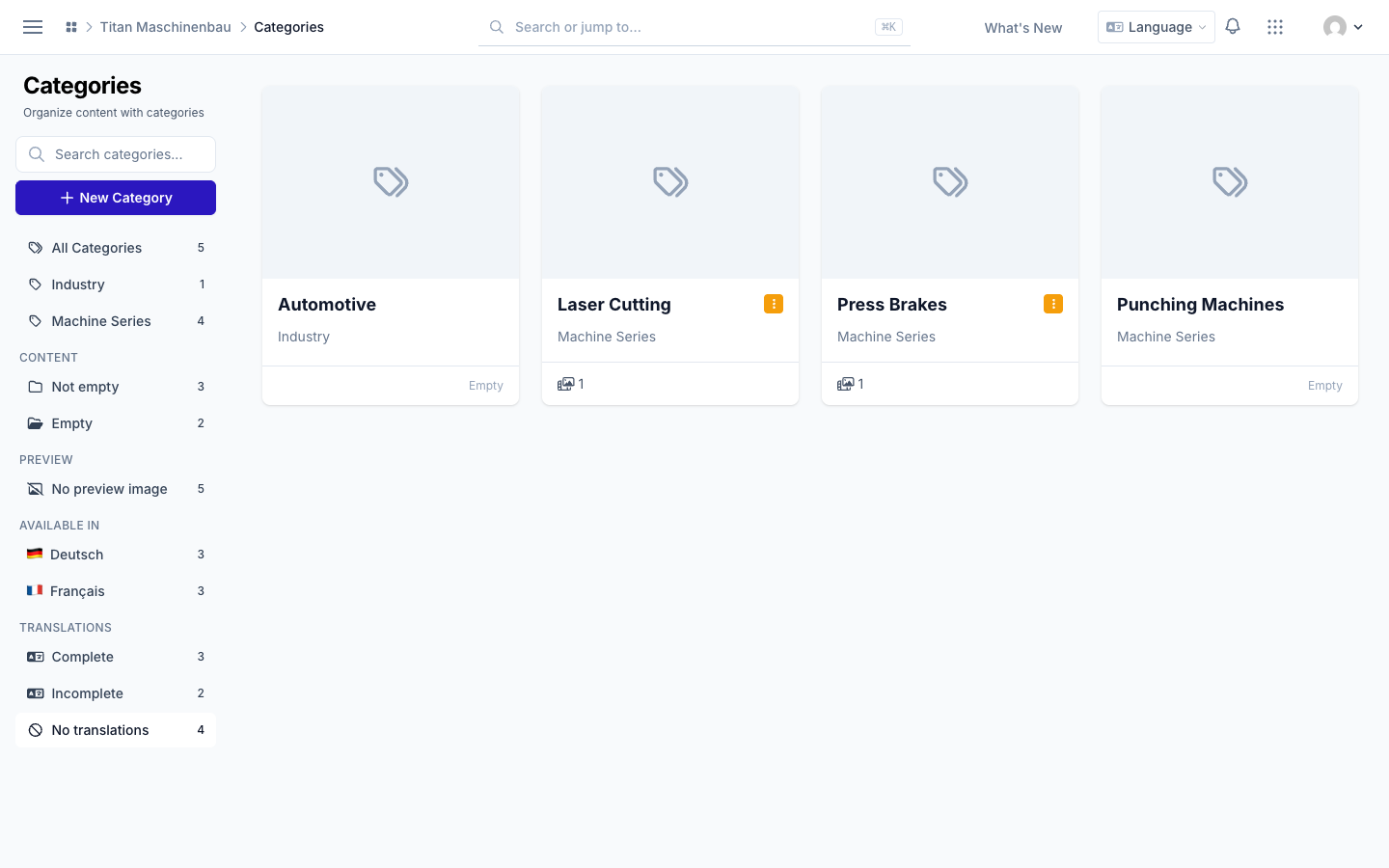
Find categories without translations with the new No translations filter.
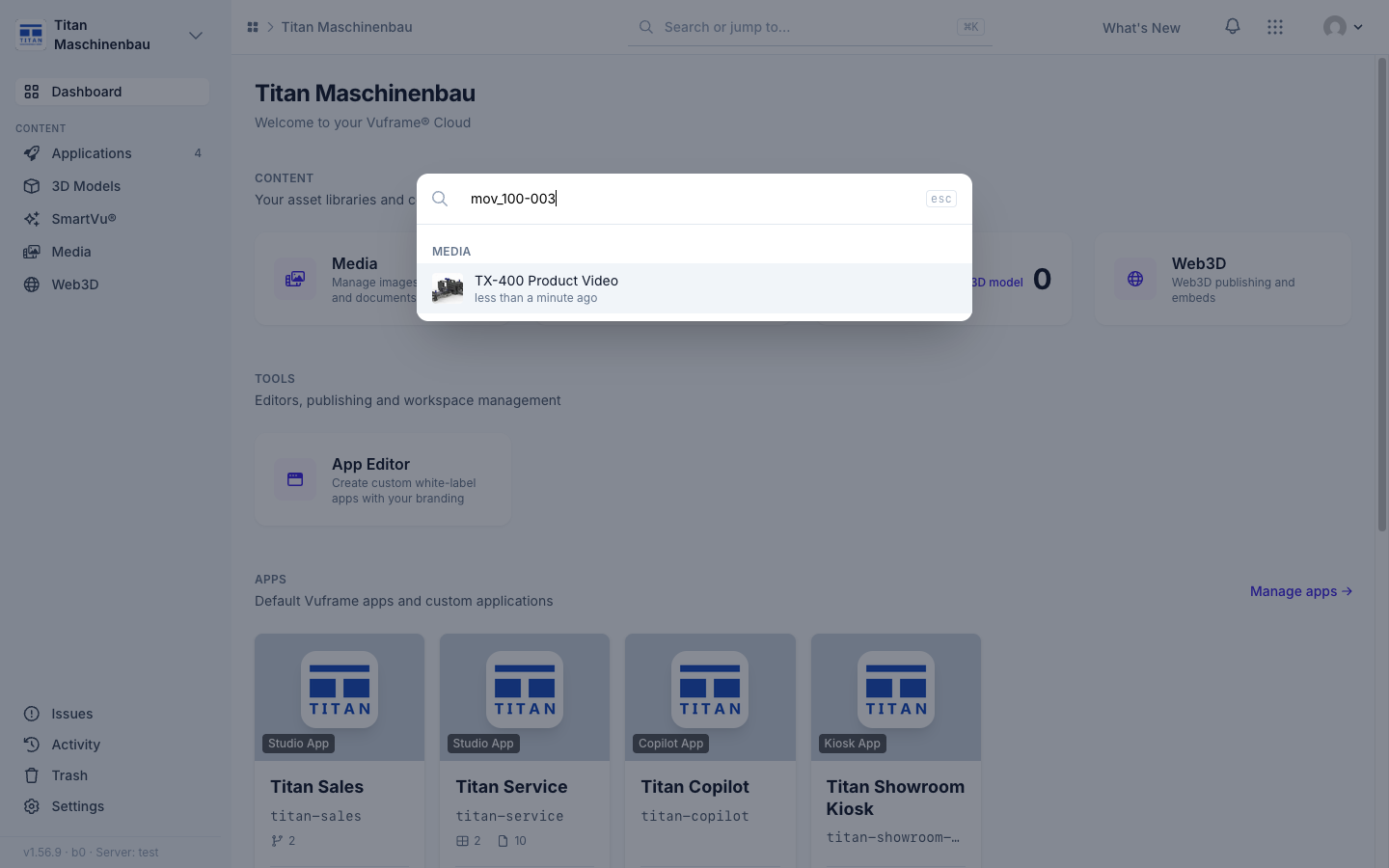
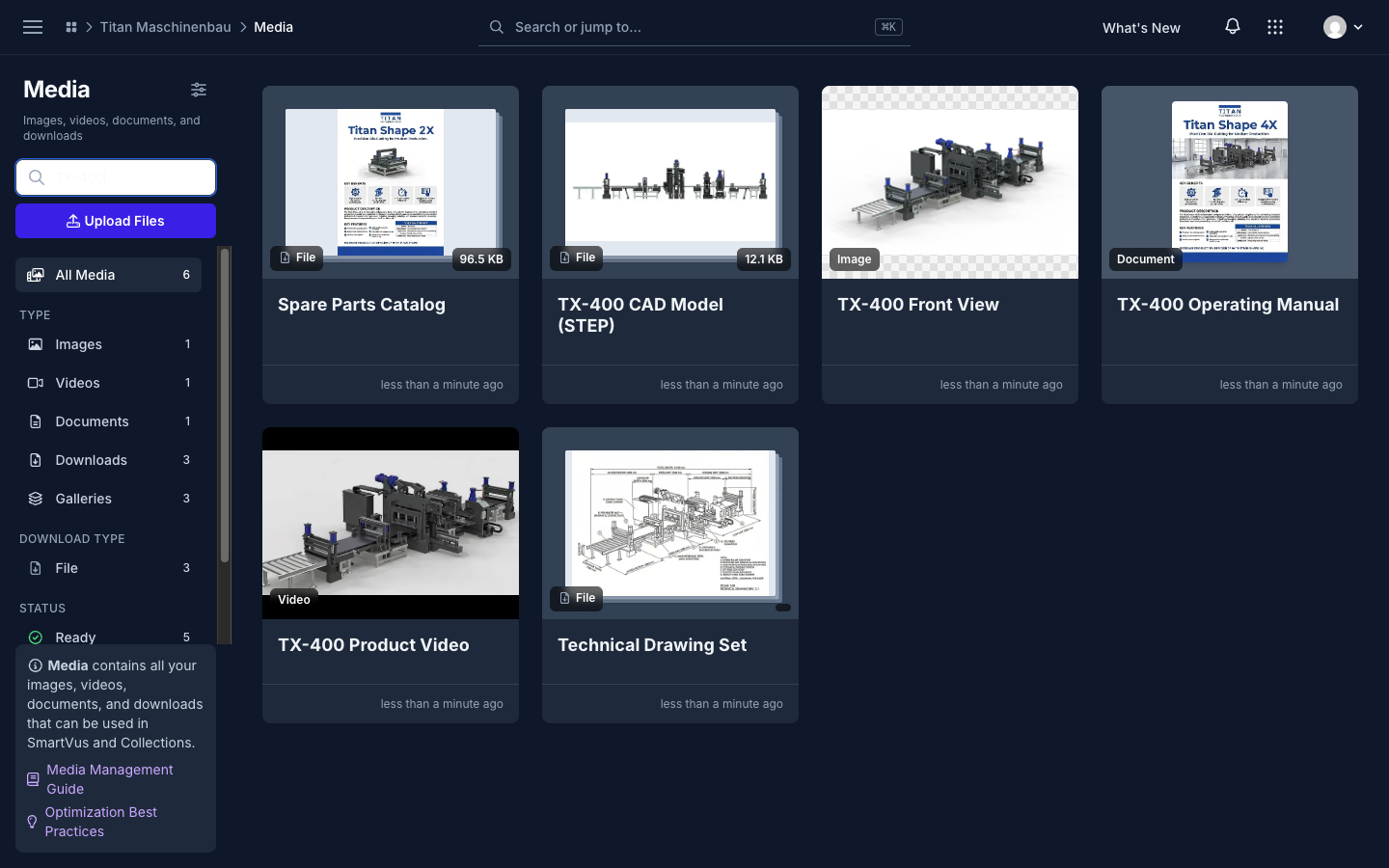
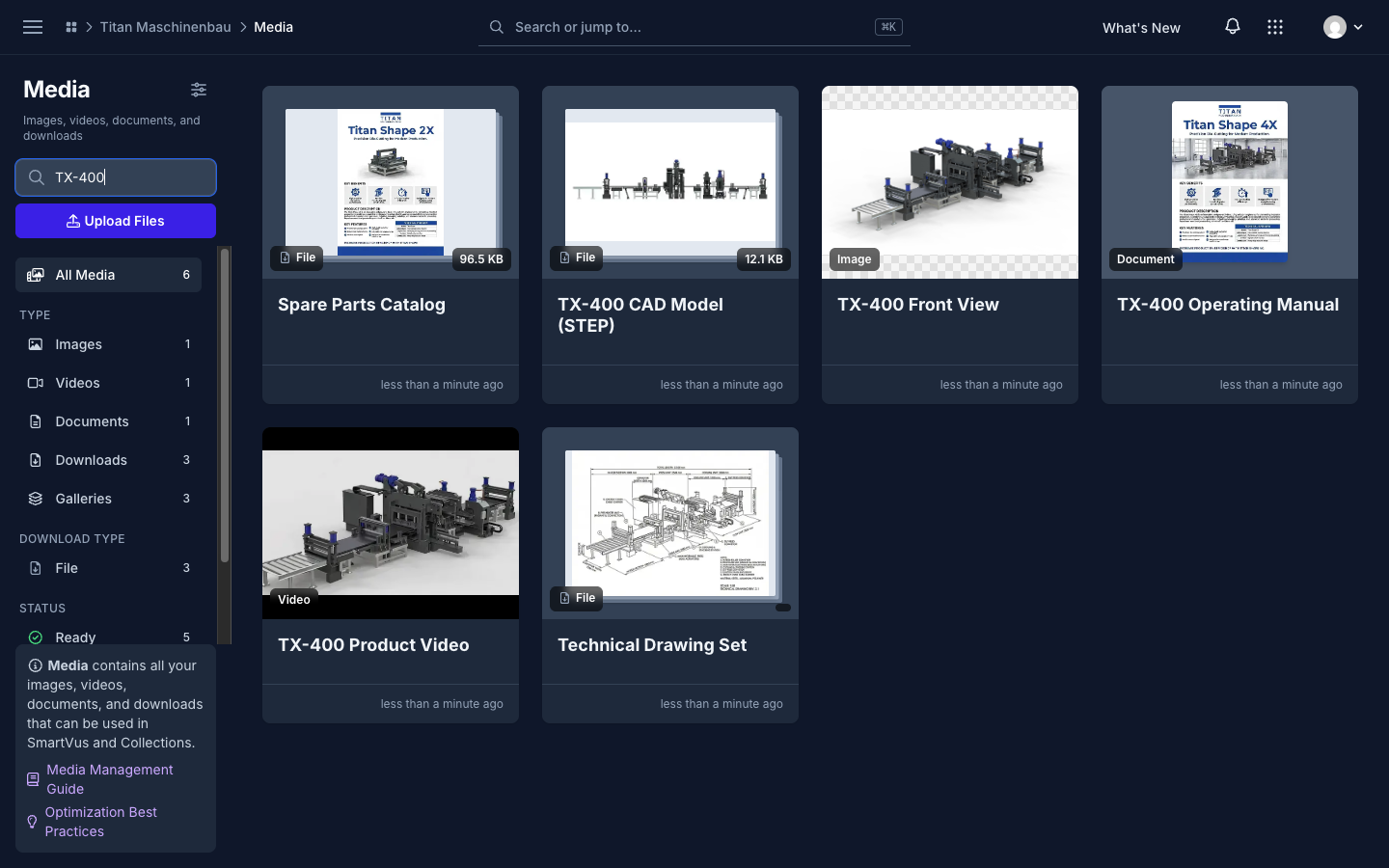
Cmd+K finds items by ID, for example 1wb-08q or mov_1wb-08q.
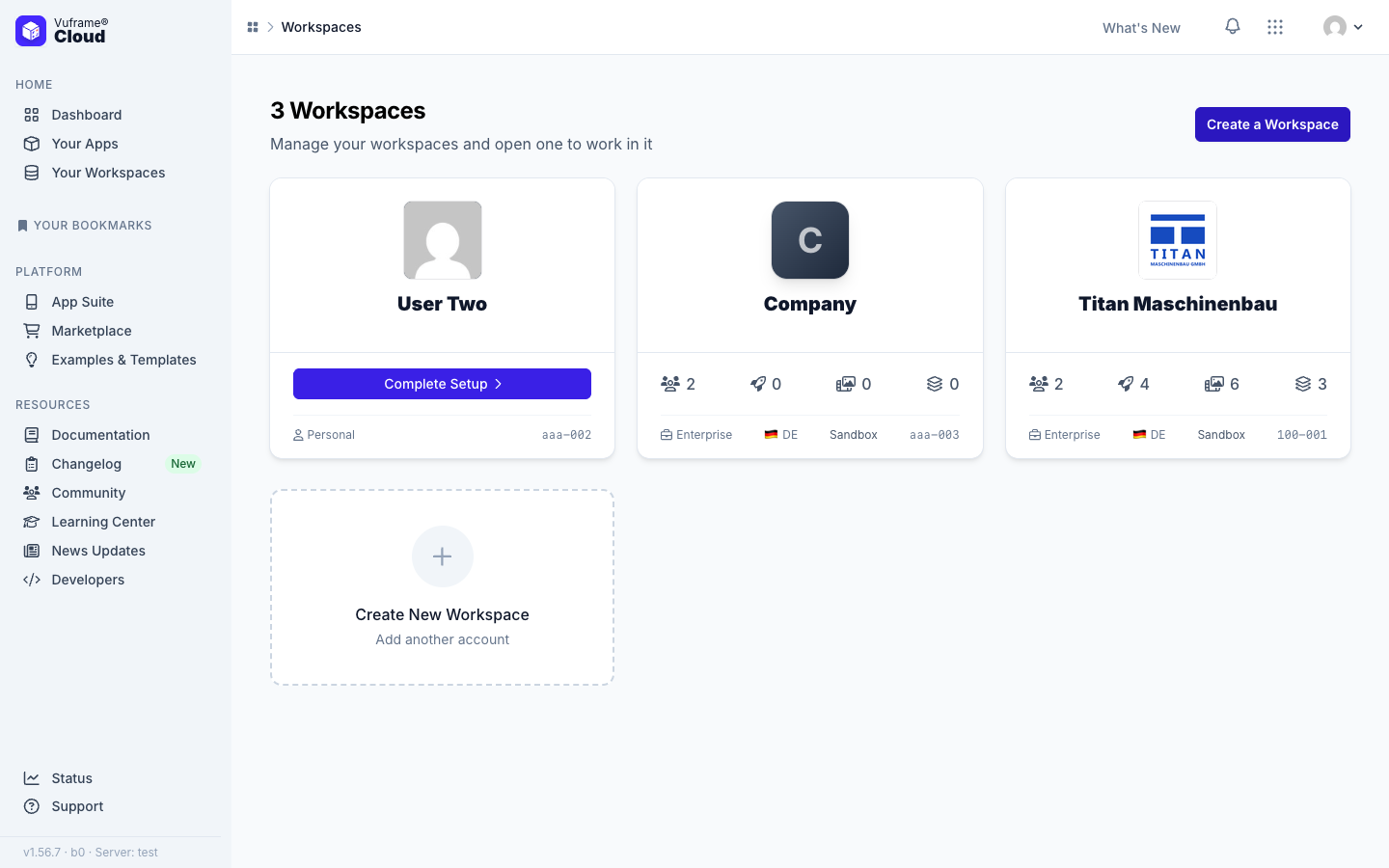
Click a workspace card to open it on the Workspaces page.
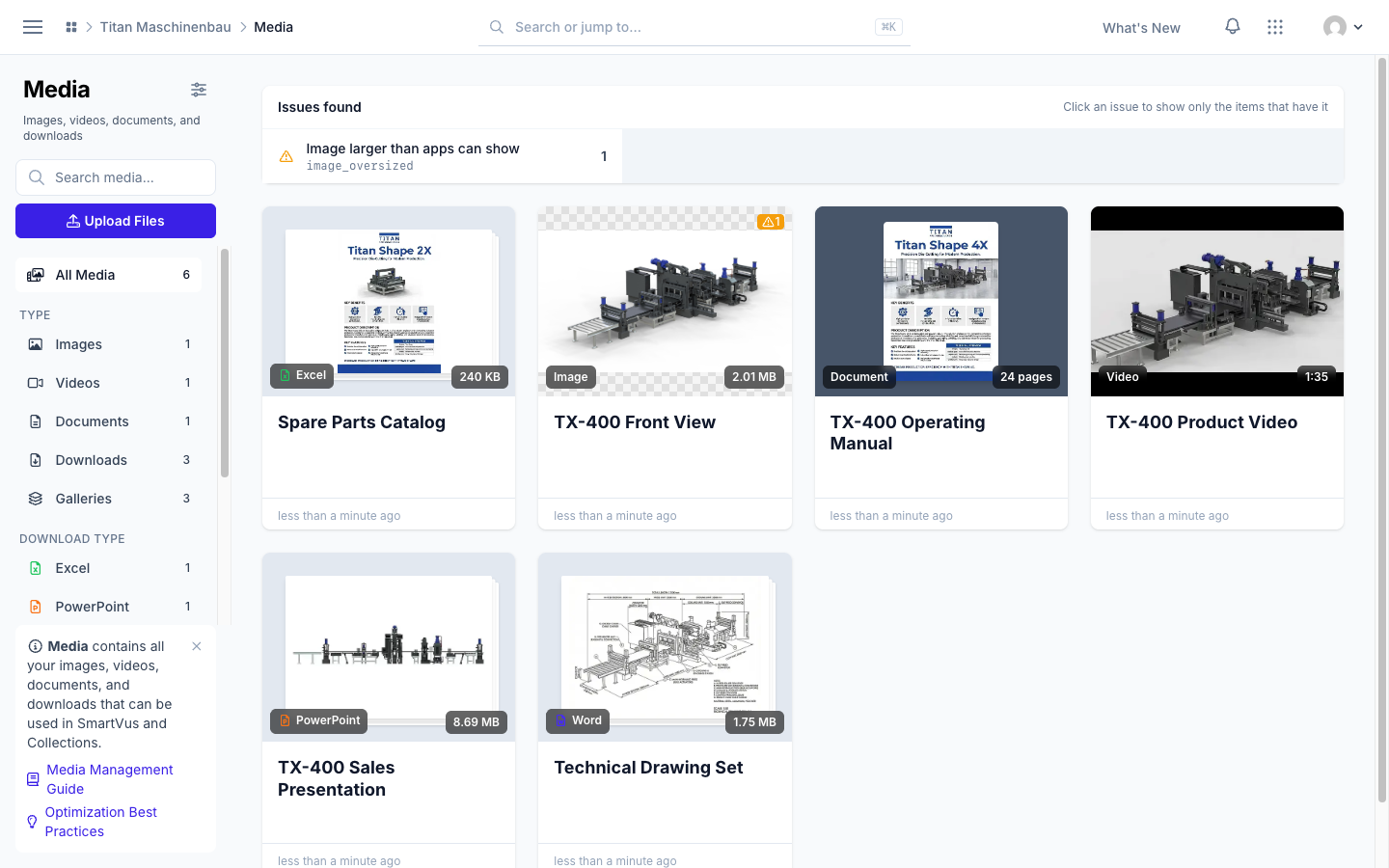
Very large images get a scaled copy of 8,192 pixels for your apps and are marked Image larger than apps can show.
Video copies are never larger than the original. When your upload is already a good web video, your apps get the upload itself.
Published files carry no hidden upload data such as GPS positions, device names or authors. Files are only re-encoded when that makes them smaller or browsers need it. Publish your apps again to get the cleaned files.
Damaged videos are caught before they are published. Vuframe® Cloud reads every part of a video and checks the stored copy; a damaged copy is made again.
PDF previews load again, in a simpler viewer.
Videos play to the end in apps. An optimized copy that is shorter than the video is never used.
Optimize again works the first time, and failed optimizations run again on their own.
Apps in workspaces without user groups open again. Publish the affected apps once more.
Imports respect your sorting. A category you delete stays deleted, and a link you removed stays removed, also when the source still lists it.
A rename shows in every language.
Duplicate categories are reported only within one category type.
Vuframe® Cloud v1.55.0 lets you create and fill galleries yourself, makes a PDF of every Office file for your apps and links iOS apps to their App Store page.
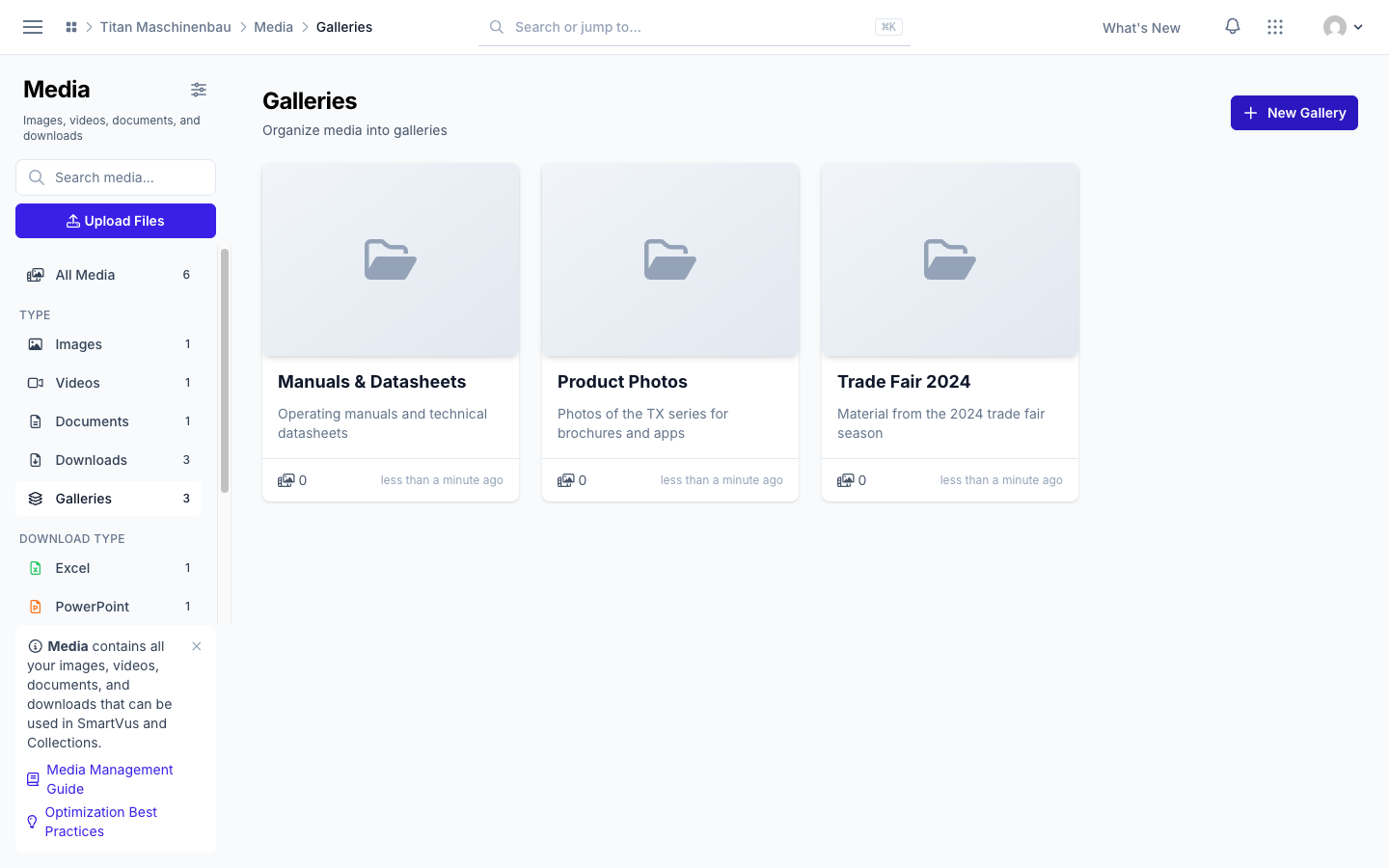
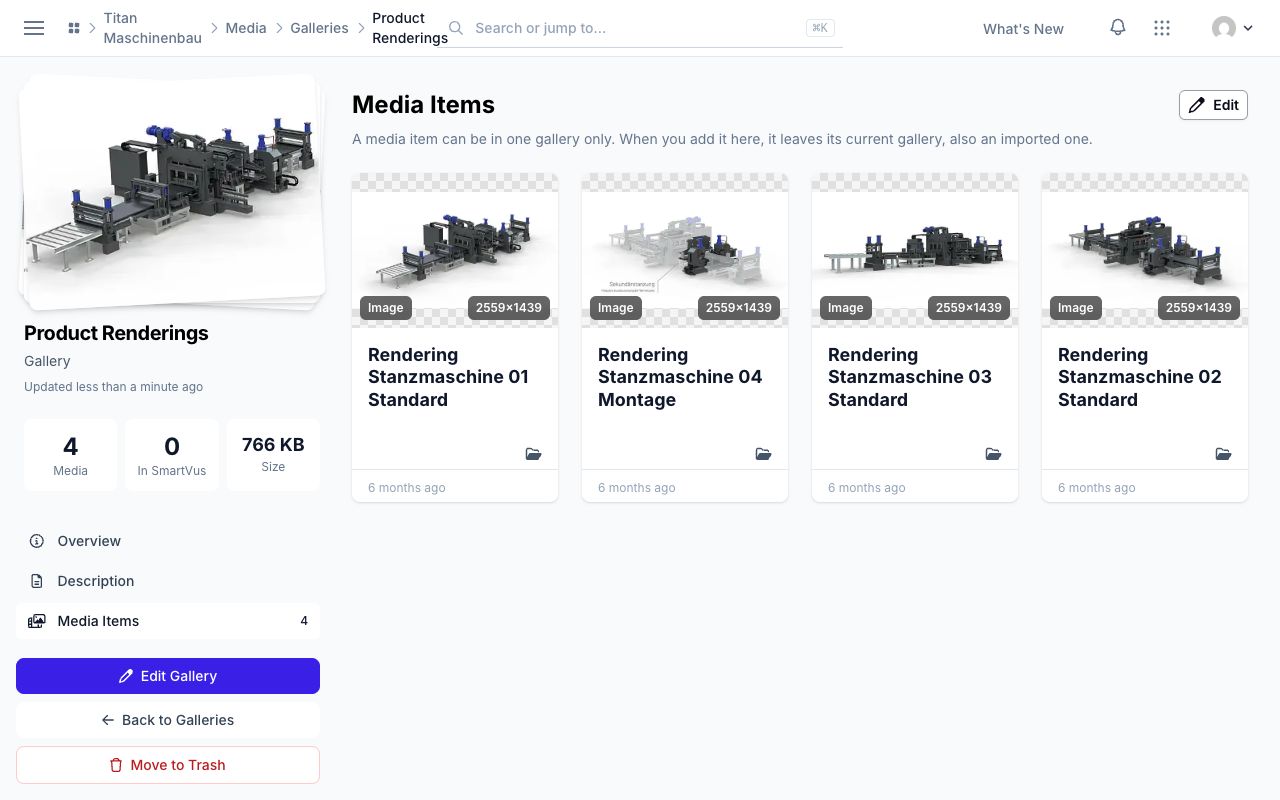
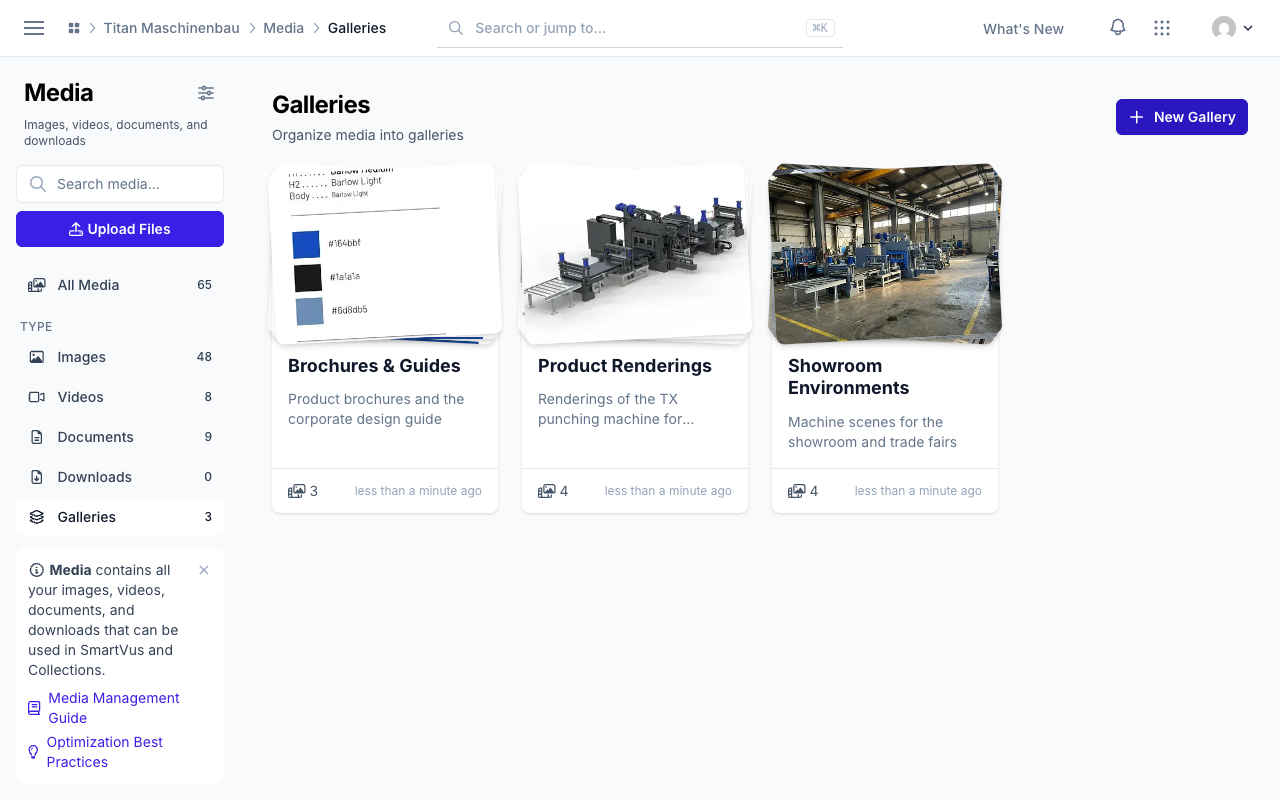
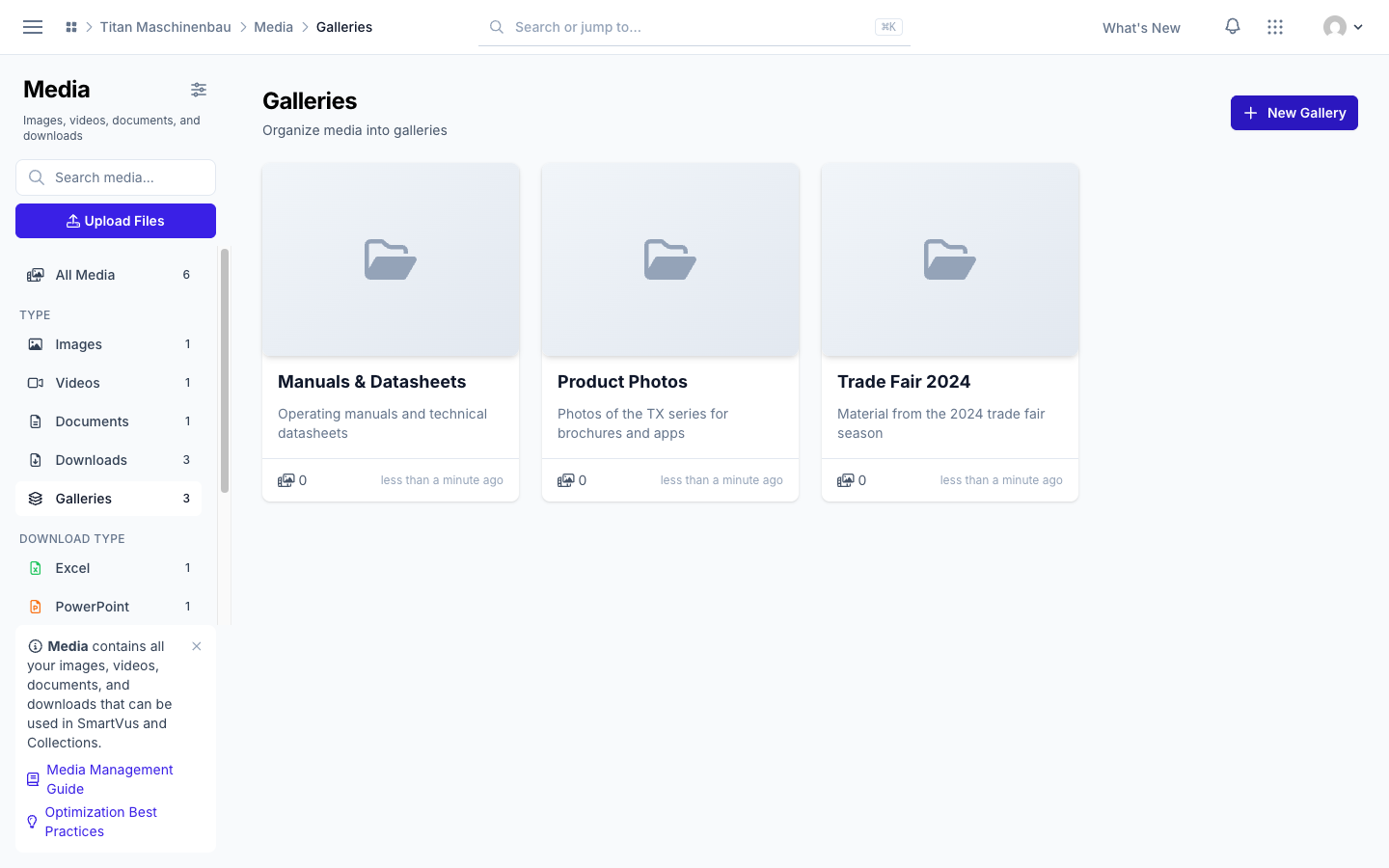
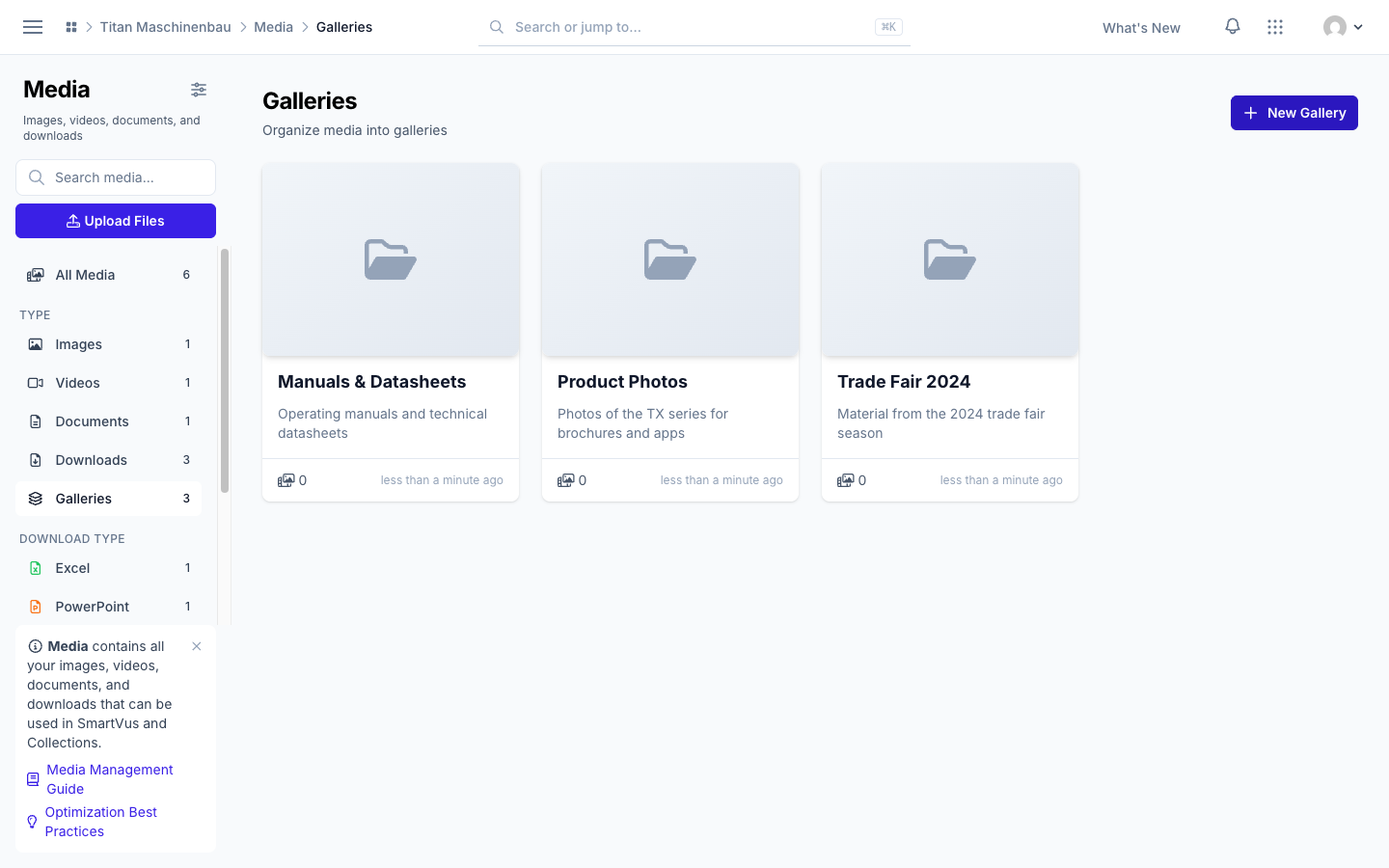
Create, fill and trash galleries. Click New Gallery on the Galleries page. Open a gallery, go to Media Items and click Edit to add media. A gallery you no longer need goes to the trash with Move to Trash; its media stay in your library.
PDF previews for Office files. Vuframe® Cloud makes a PDF of every Word, Excel and PowerPoint file and publishes it with your apps, so apps can show the file also when they cannot open the Office format. Office files without a preview image get one from the first page.
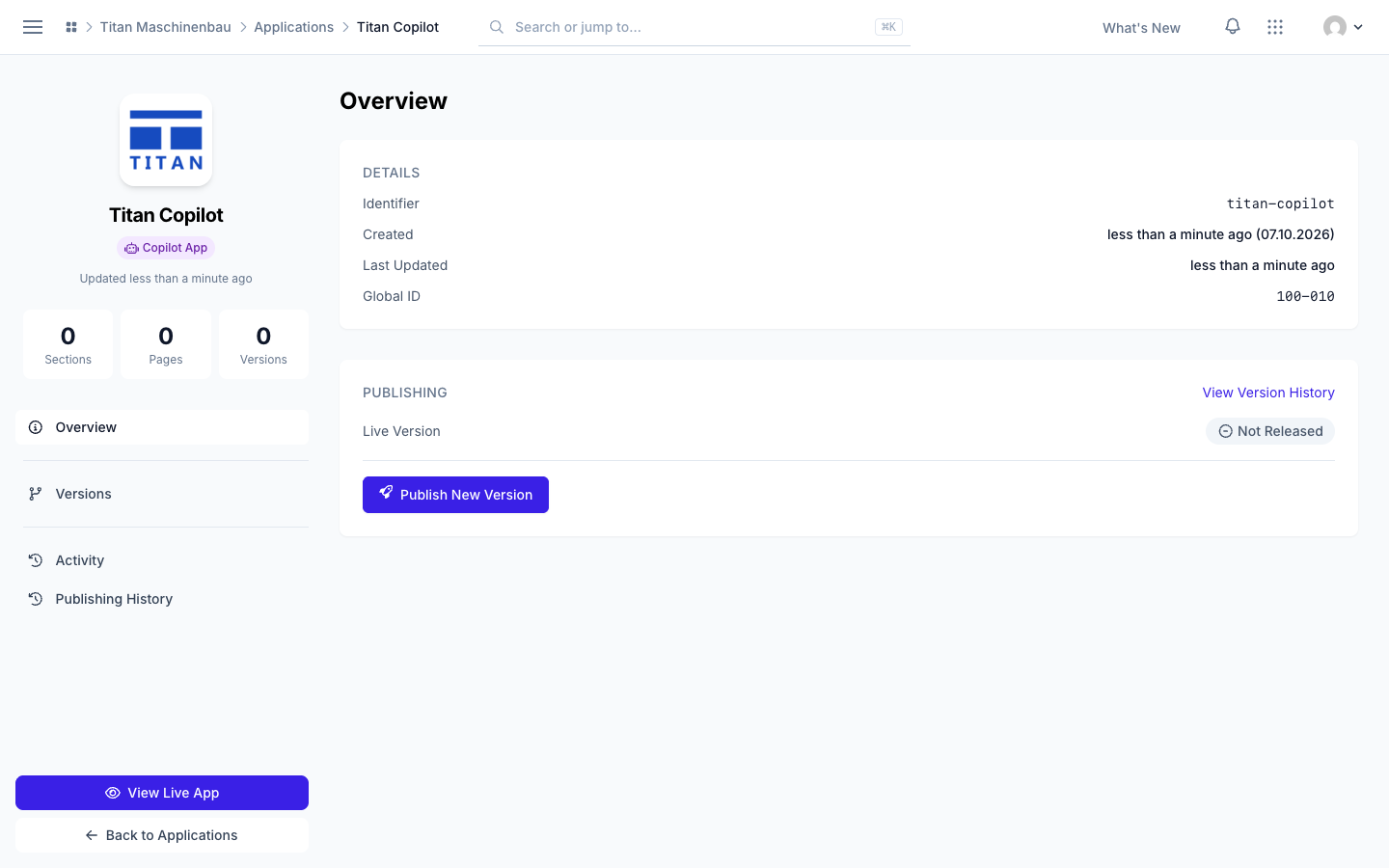
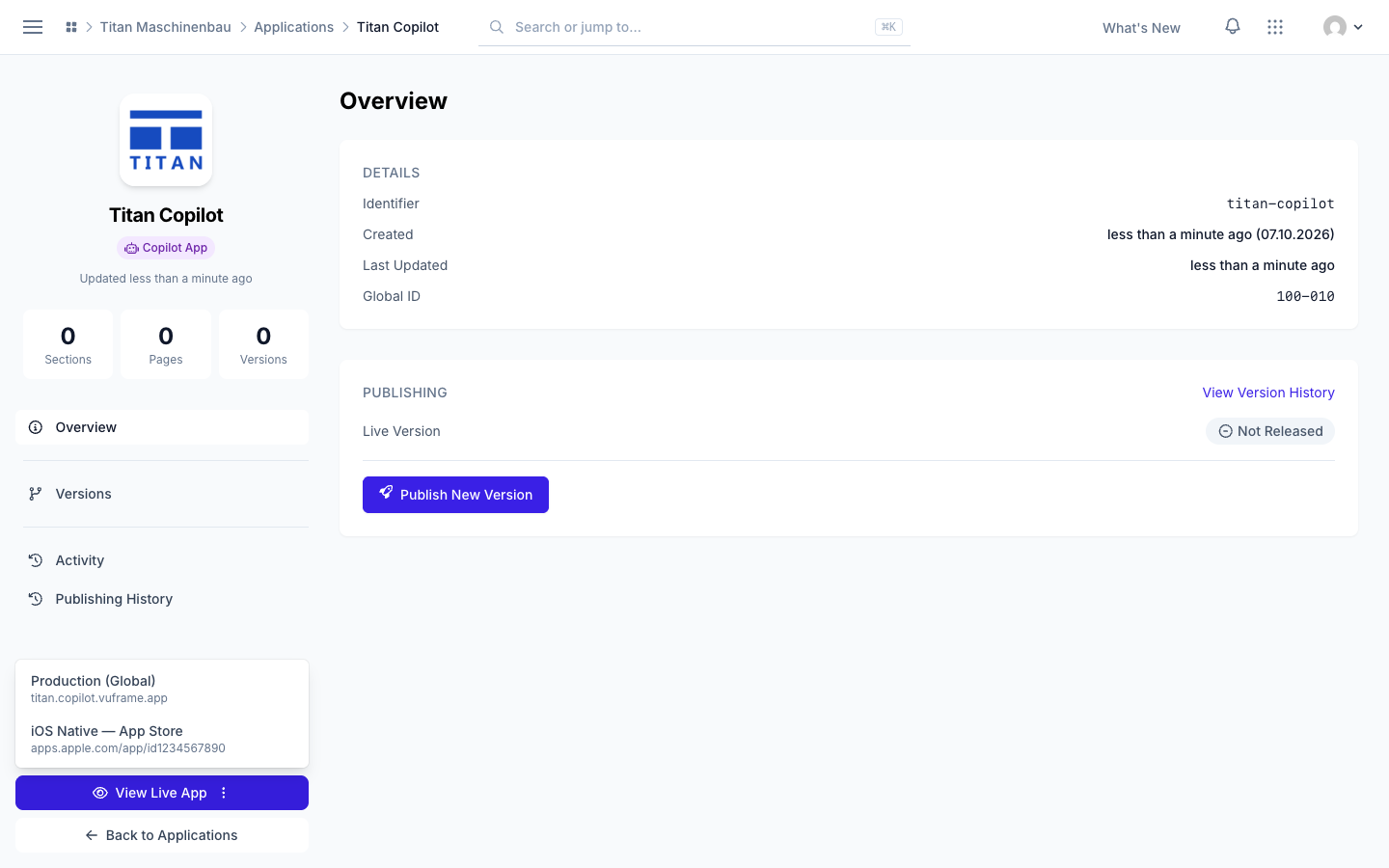
App Store link for iOS apps. When your app is released in the App Store, View Live App opens its App Store page. An app with several live addresses shows a menu to choose from.
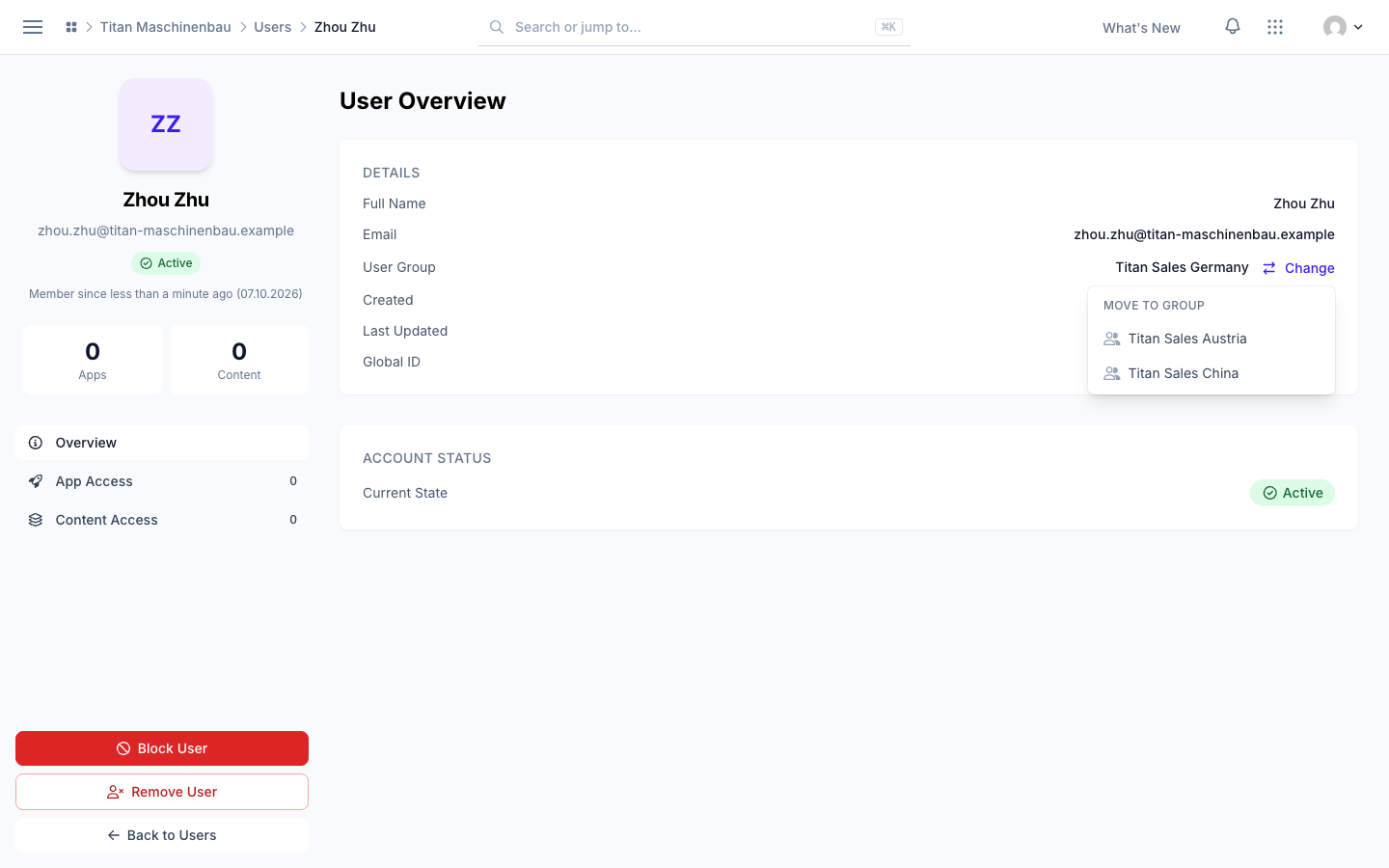
Move a user to another user group. On the user's page, click Change next to User Group and select the new group. The user sees the content of the new group from the next login. The list shows only the groups you can assign. Workspace admins can also click Add Users on a group's page; these users leave their current group.
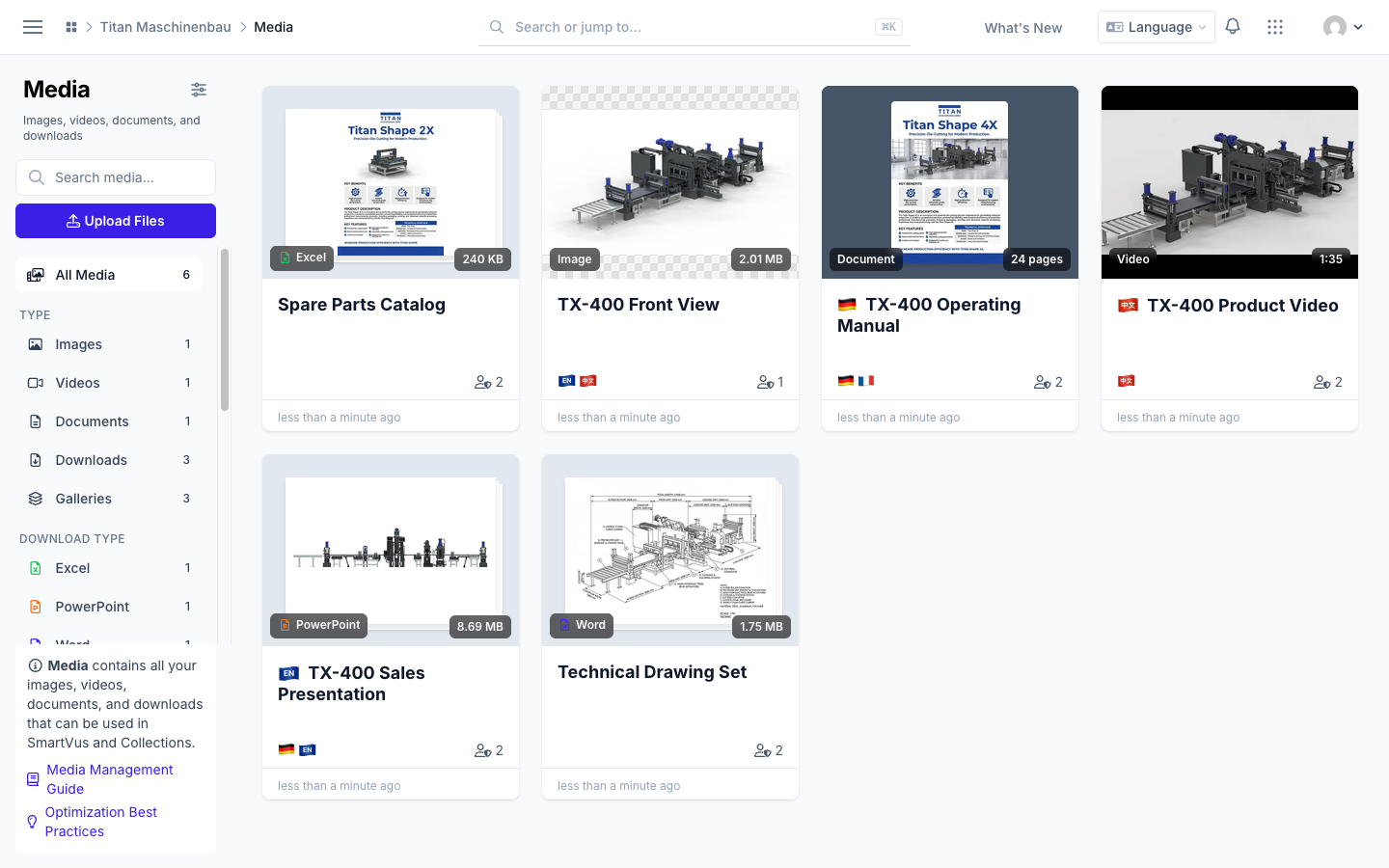
Galleries show a stack of previews of their newest media, and the stack fans out when you point at it.
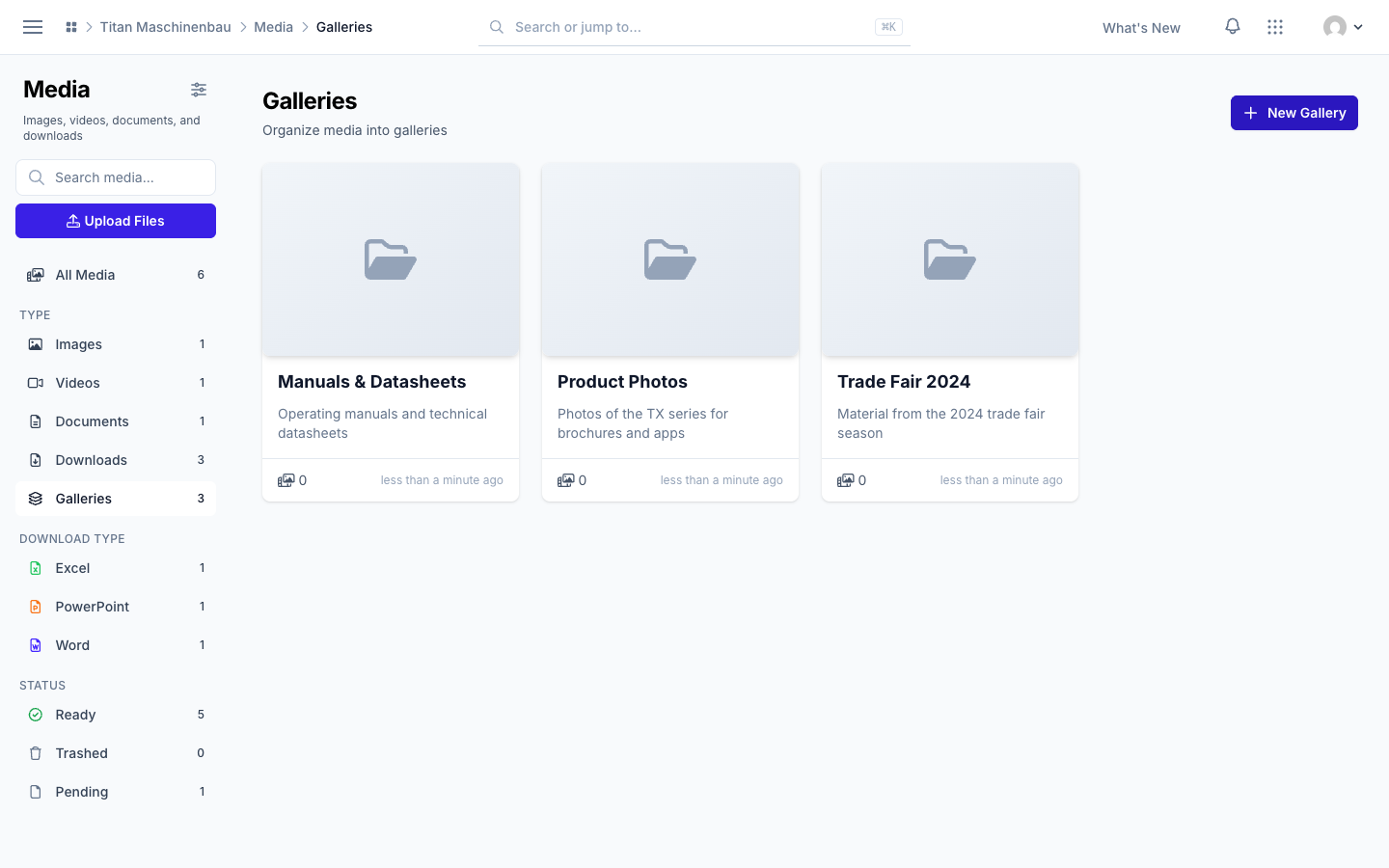
The Galleries page has the same sidebar as All Media, with search, upload and all filters.
Find categories without a preview image with the new No preview image filter. Merge into… shows each category with its preview and category type.
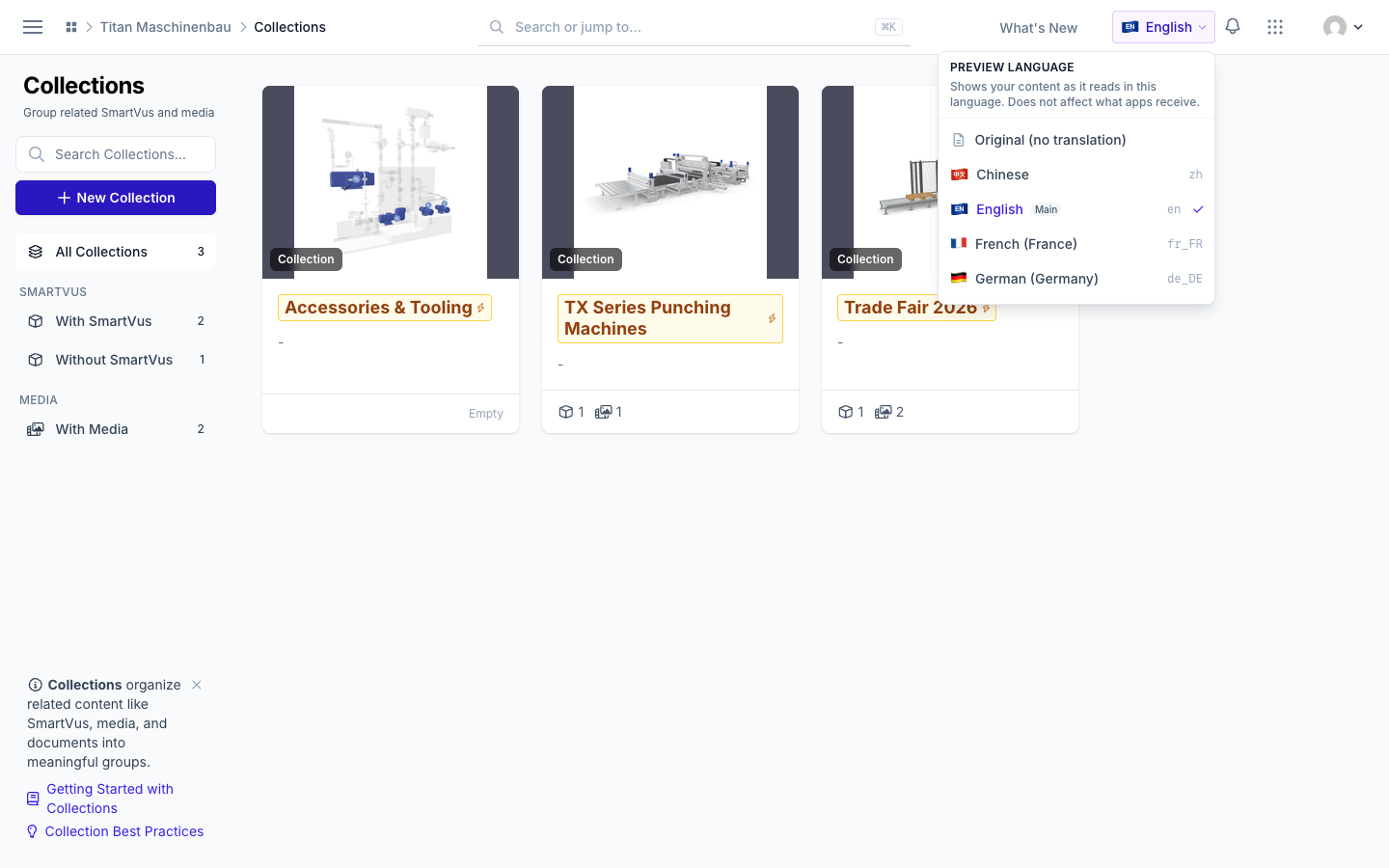
EN and 中文 badges everywhere, also in the Preview language picker. The first entry is now Original (no translation), and your main language carries a Main tag.
Sidebar tips can be hidden with the × in their corner.
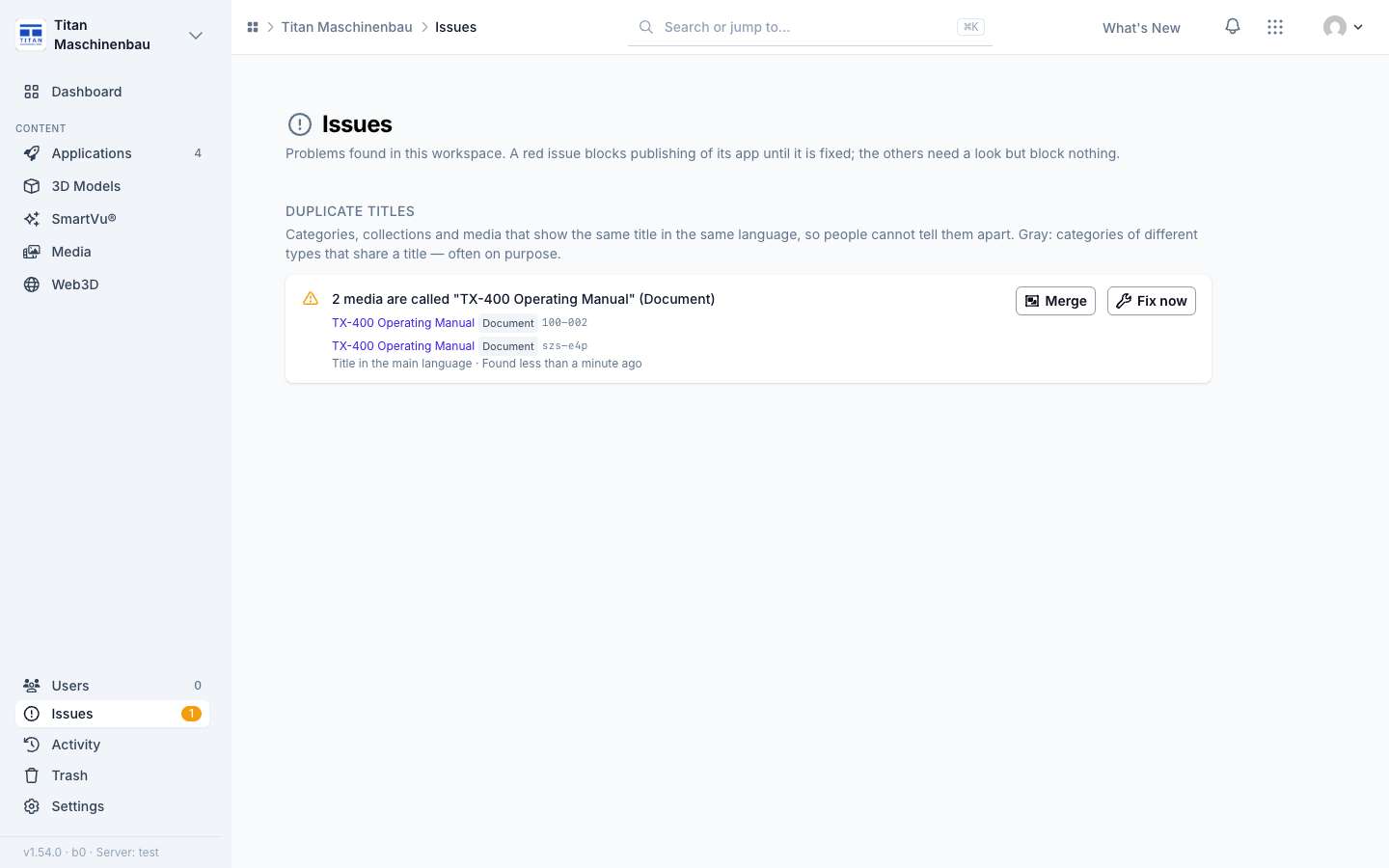
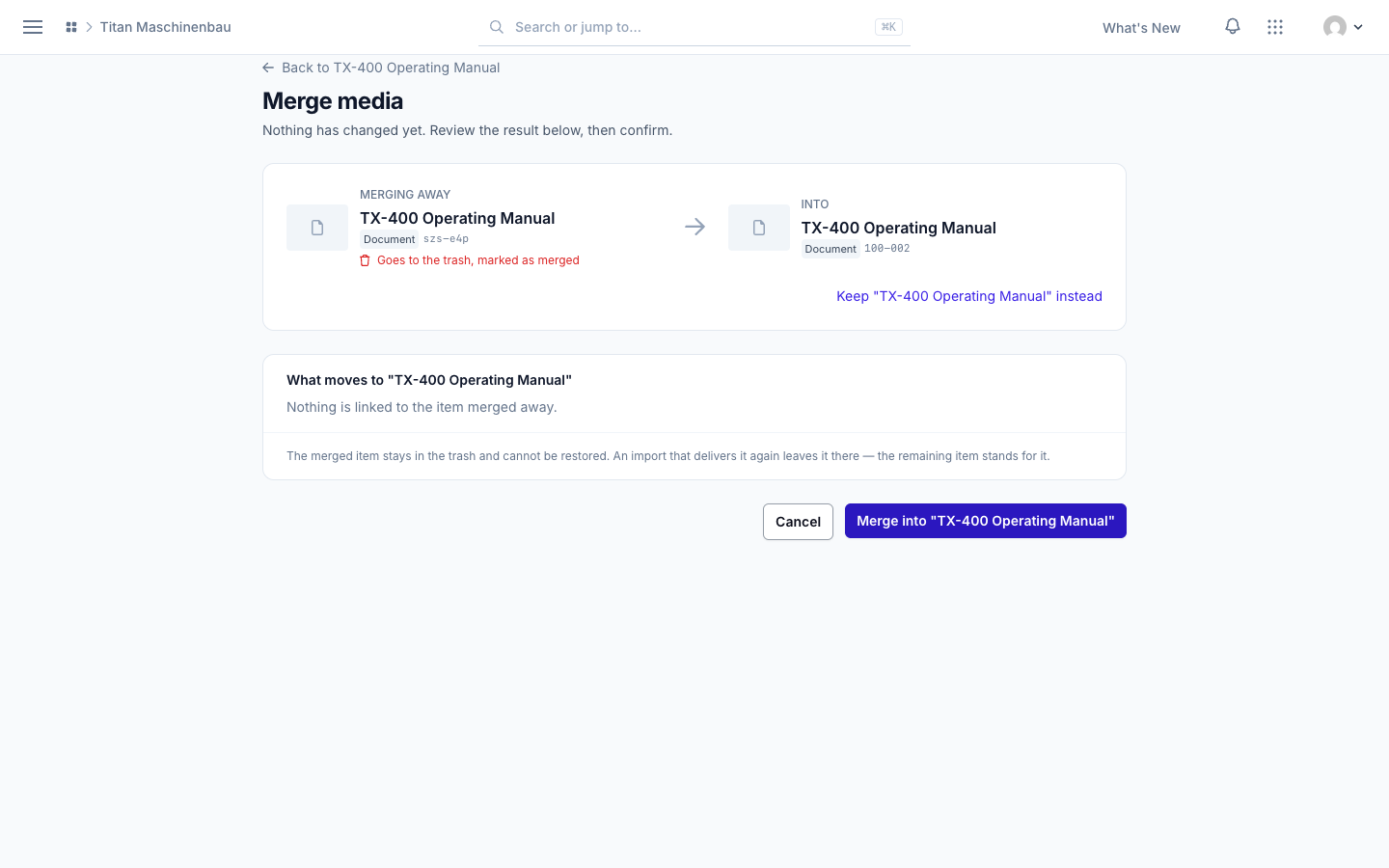
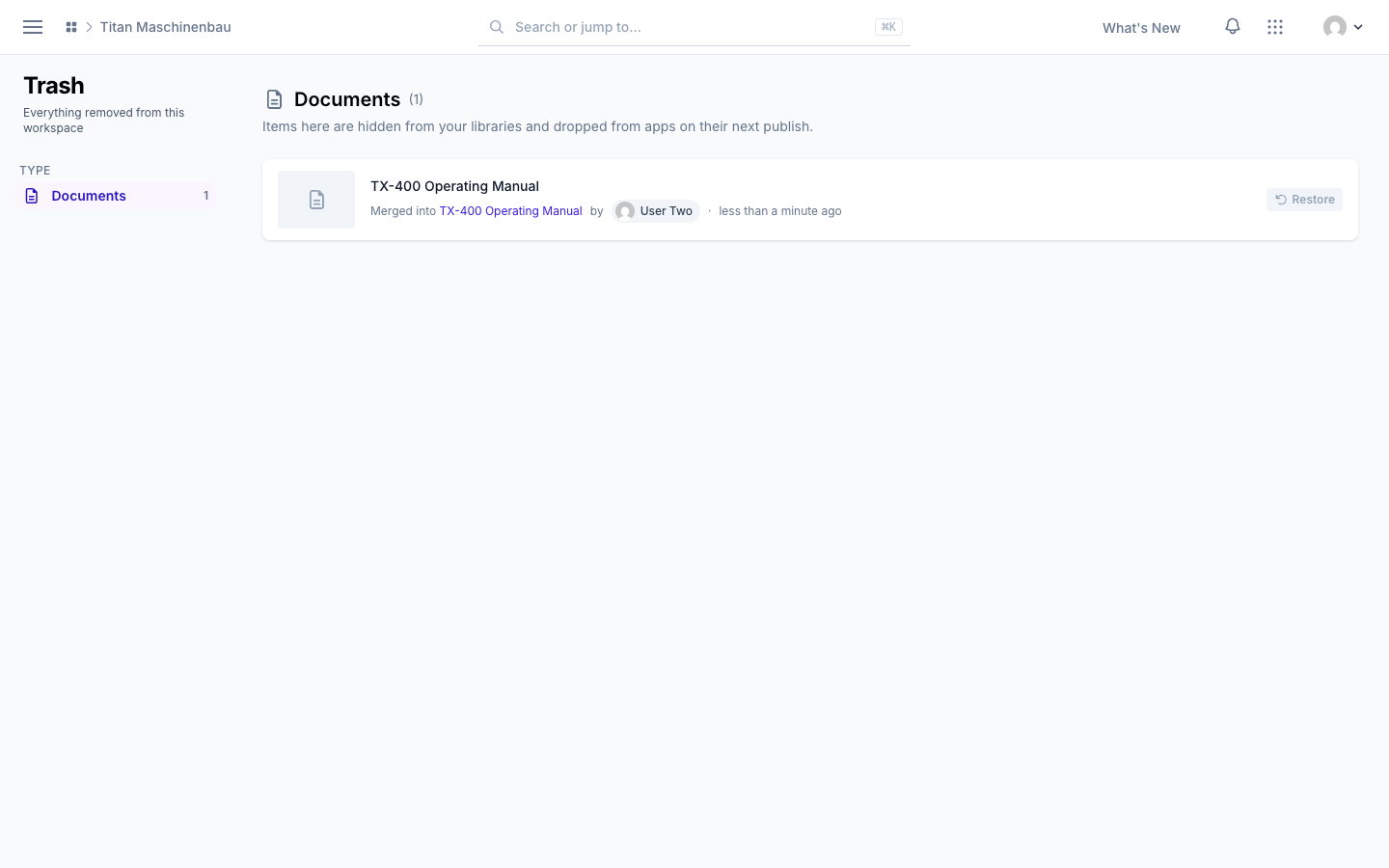
Merge identical media items. When two media items are copies of the same file, the Issues page offers Merge. A preview shows everything that moves to the item that remains: categories, tags, collections, SmartVu® links, group access and hotspots. App pages that showed the merged copy show the remaining item. The merged copy goes to the Trash, marked Merged into. Admins and editors can merge.
Imports keep your renames. An import updates a title, description or translation only while it still holds the value the import wrote. Your own changes stay.
A merge resolves its duplicate at once, so the page you land on no longer shows it.
A preview that fails to load is tried again and then shows a neutral file icon instead of the browser's broken-image symbol.
Vuframe® Cloud v1.53.4 finds duplicate titles, adds Fix now to every issue and shows a preview for each version of a media item. E-mails now name your workspace and show its logo.
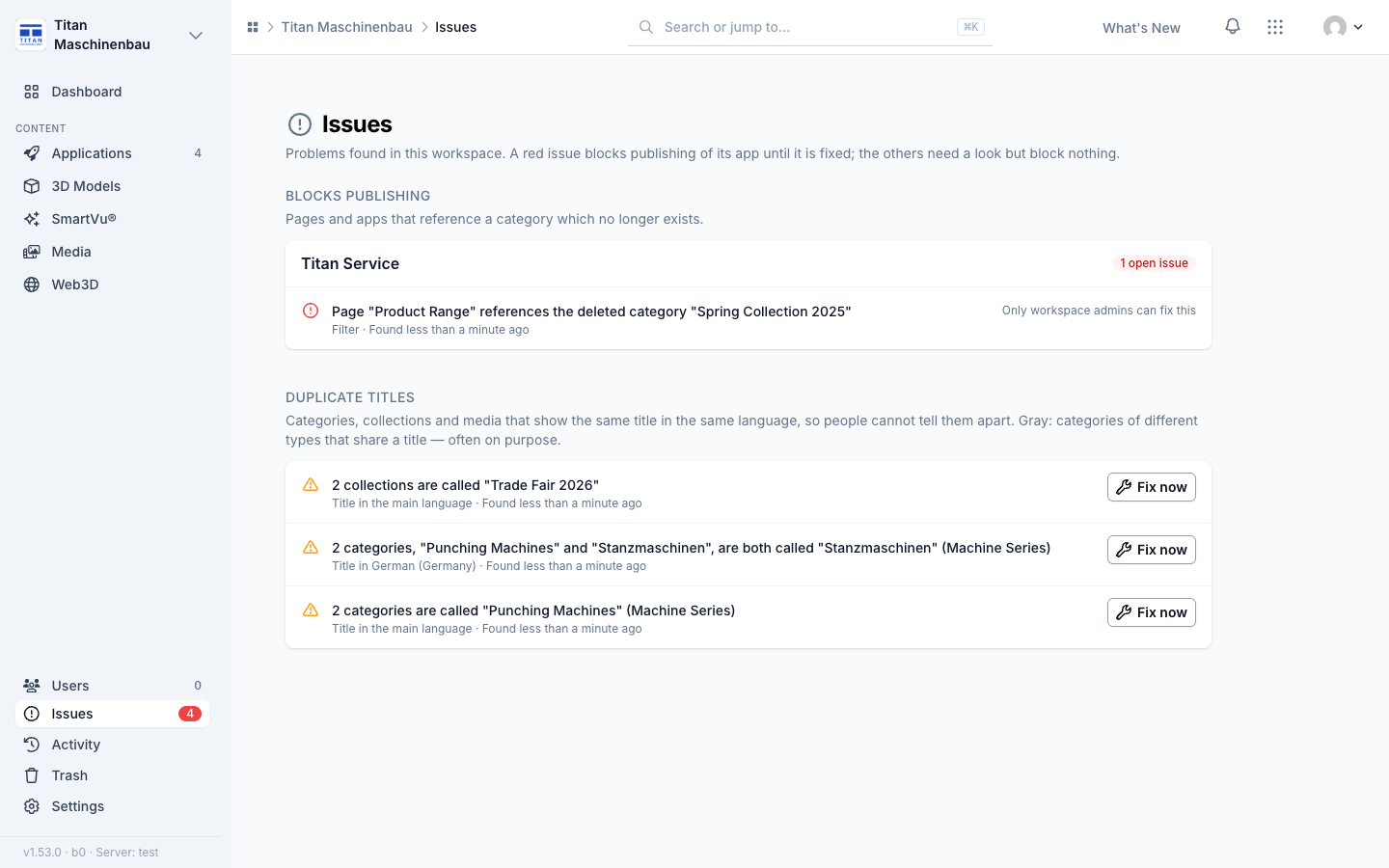
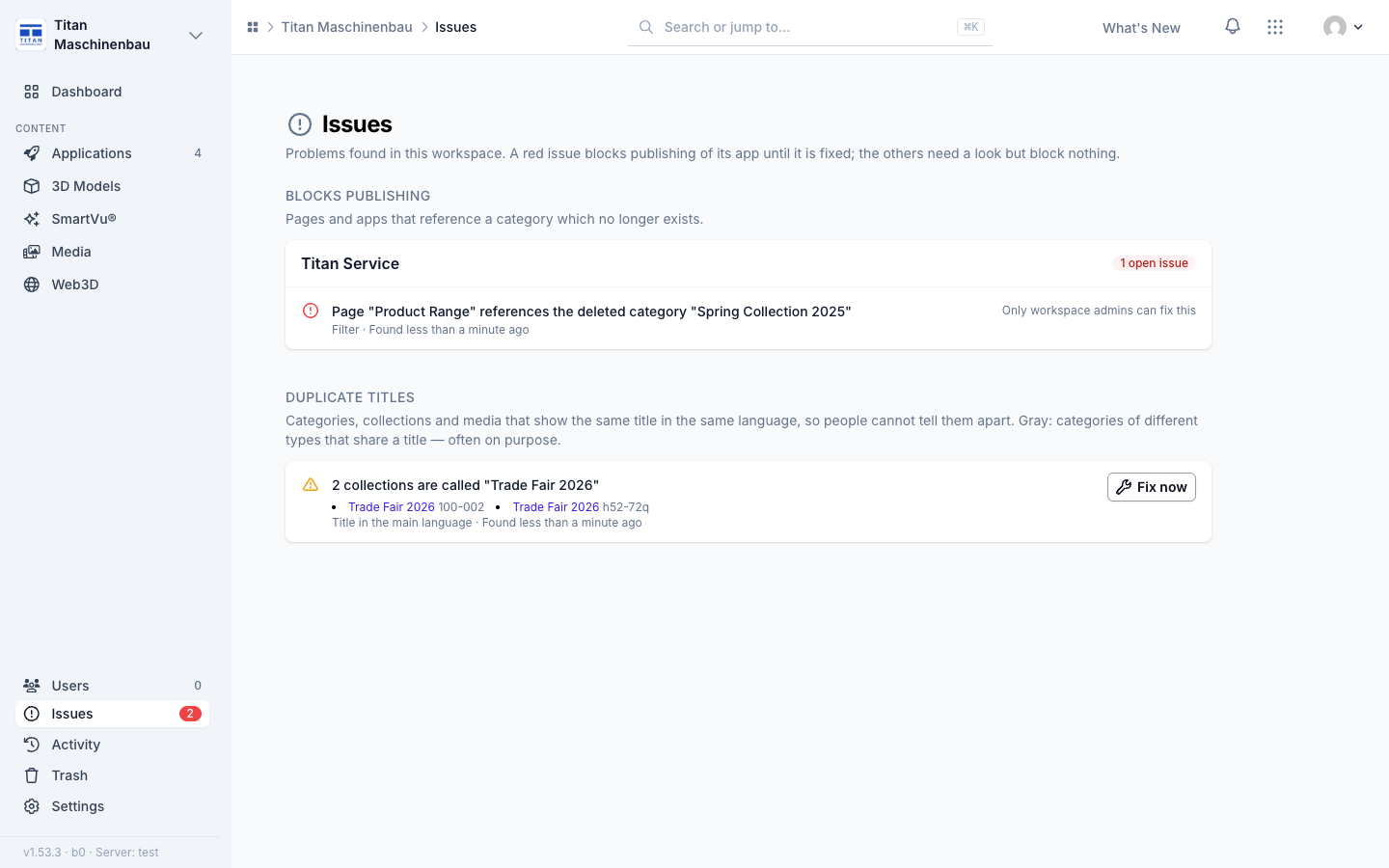
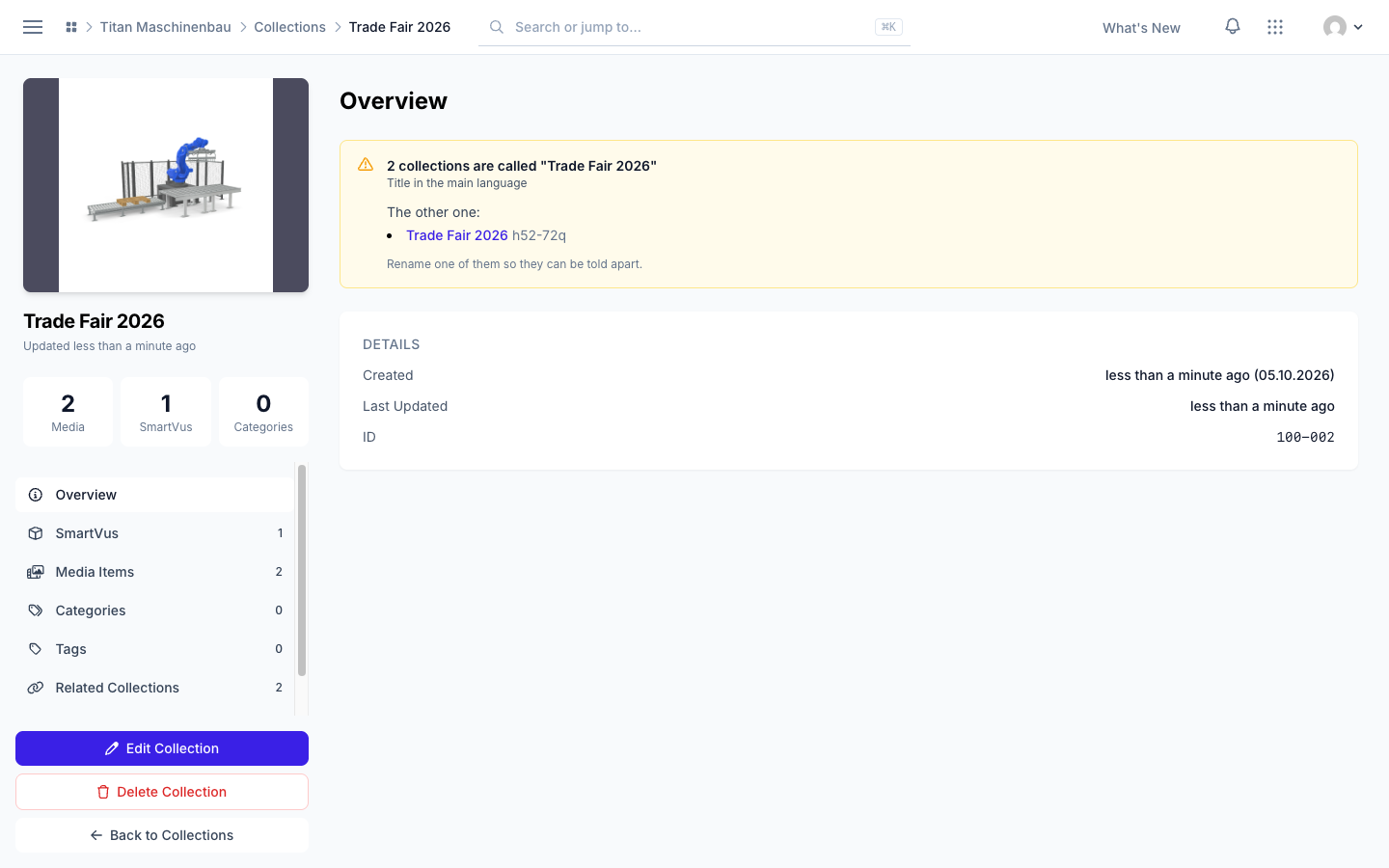
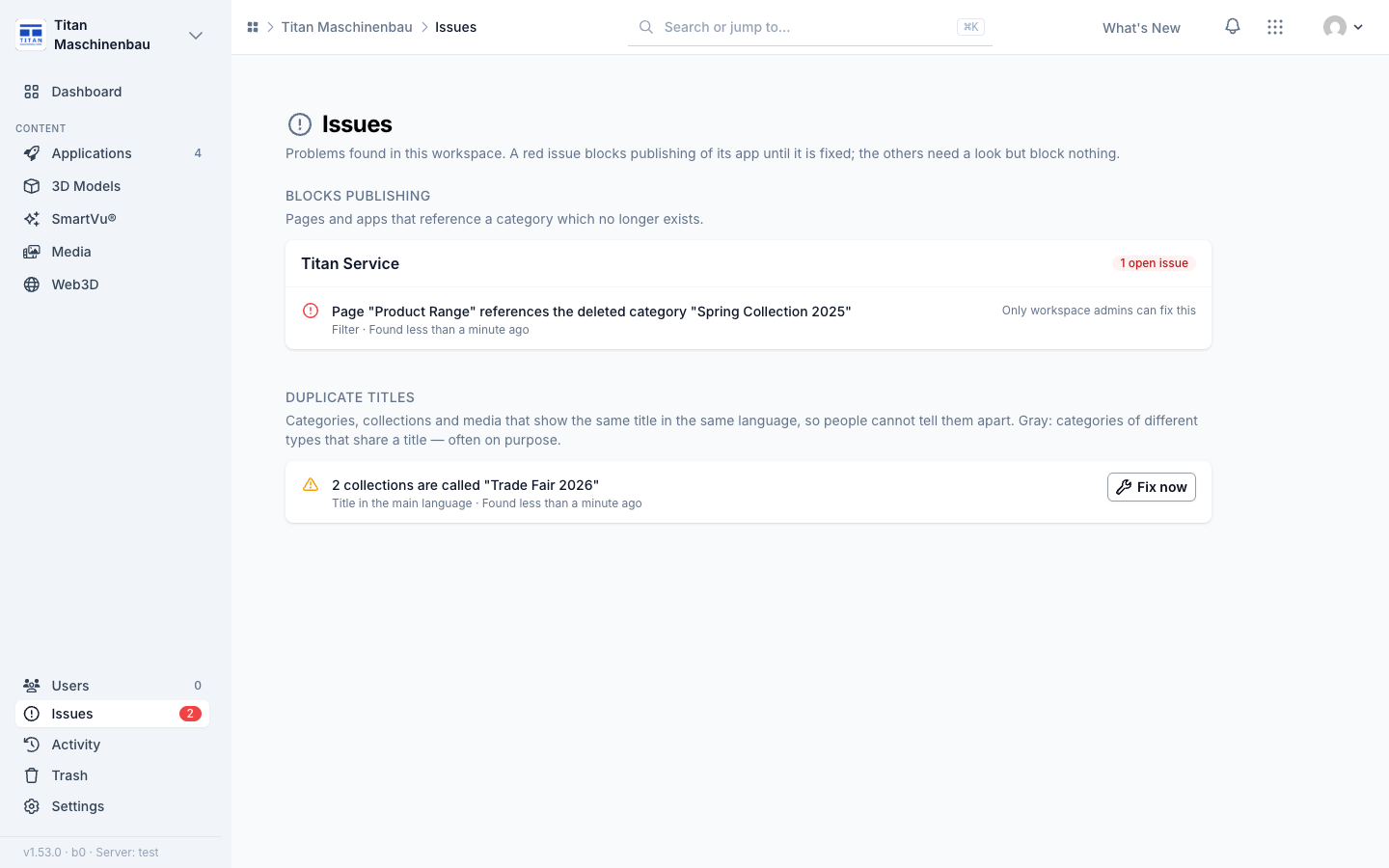
Duplicate titles. The Issues page lists categories, collections and media that show the same title in the same language — translations included. Duplicates never block publishing. Each item in a duplicate shows the issue on its own page and links the other one.
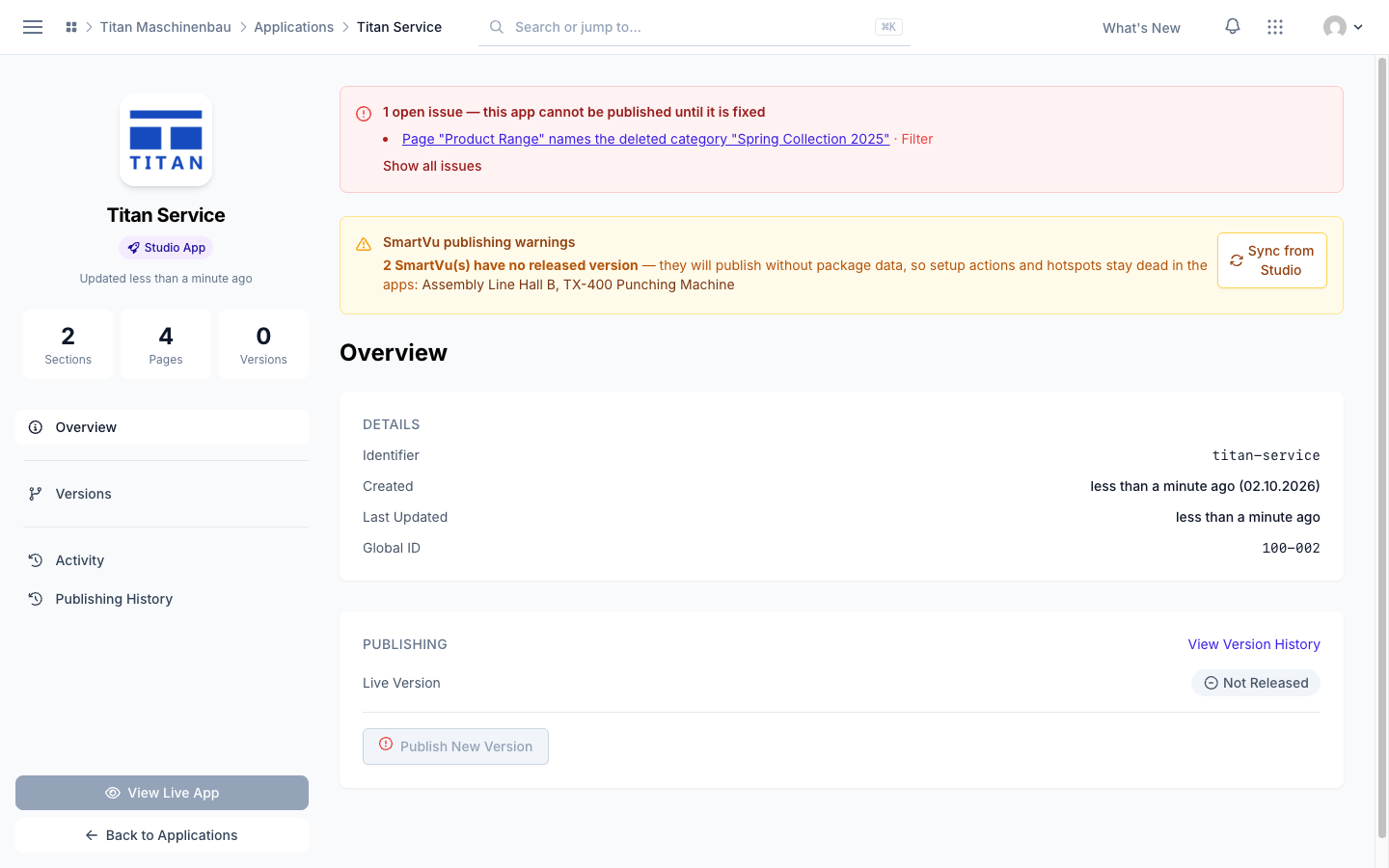
Fix now. Every open issue has a Fix now button on the Issues page, on the home page and on the app page. It opens what needs the change.
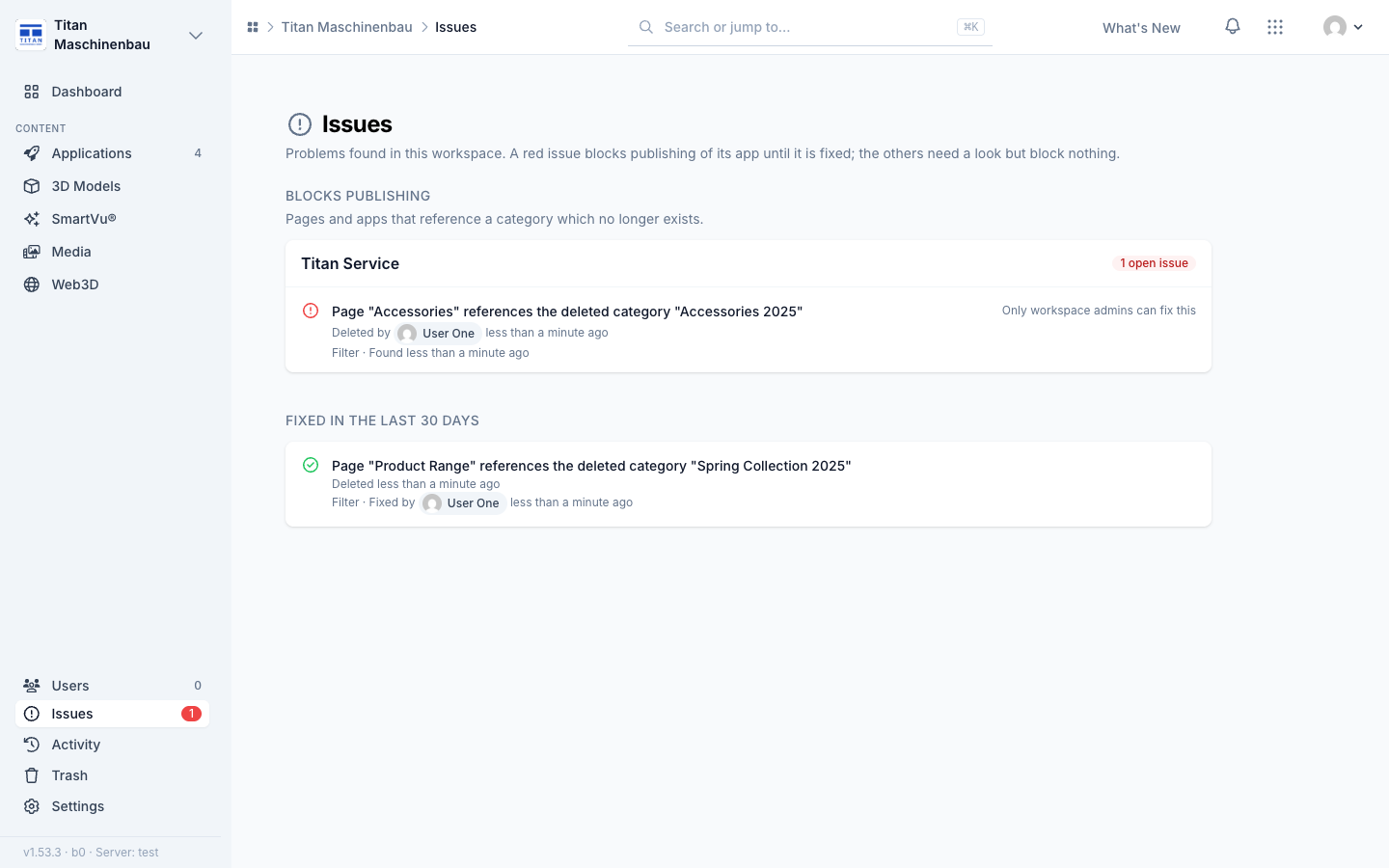
Who deleted and who fixed. An issue about a missing category says who deleted it or which category it was merged into. Under Fixed in the last 30 days, every issue names who fixed it.
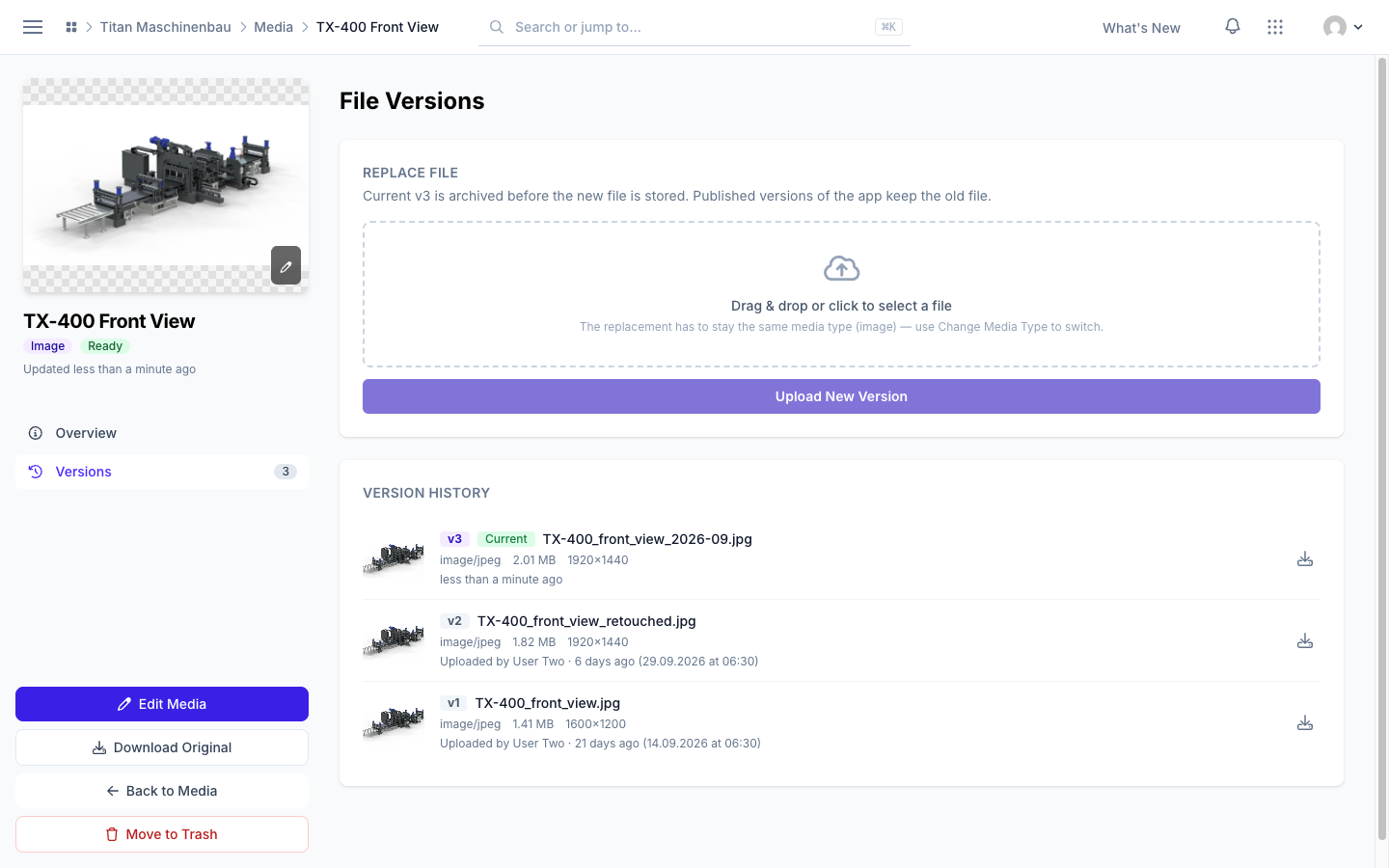
Media version history with previews. Each version in File Versions shows a preview, the original file name, size, dimensions, who uploaded it and when, with a download button.
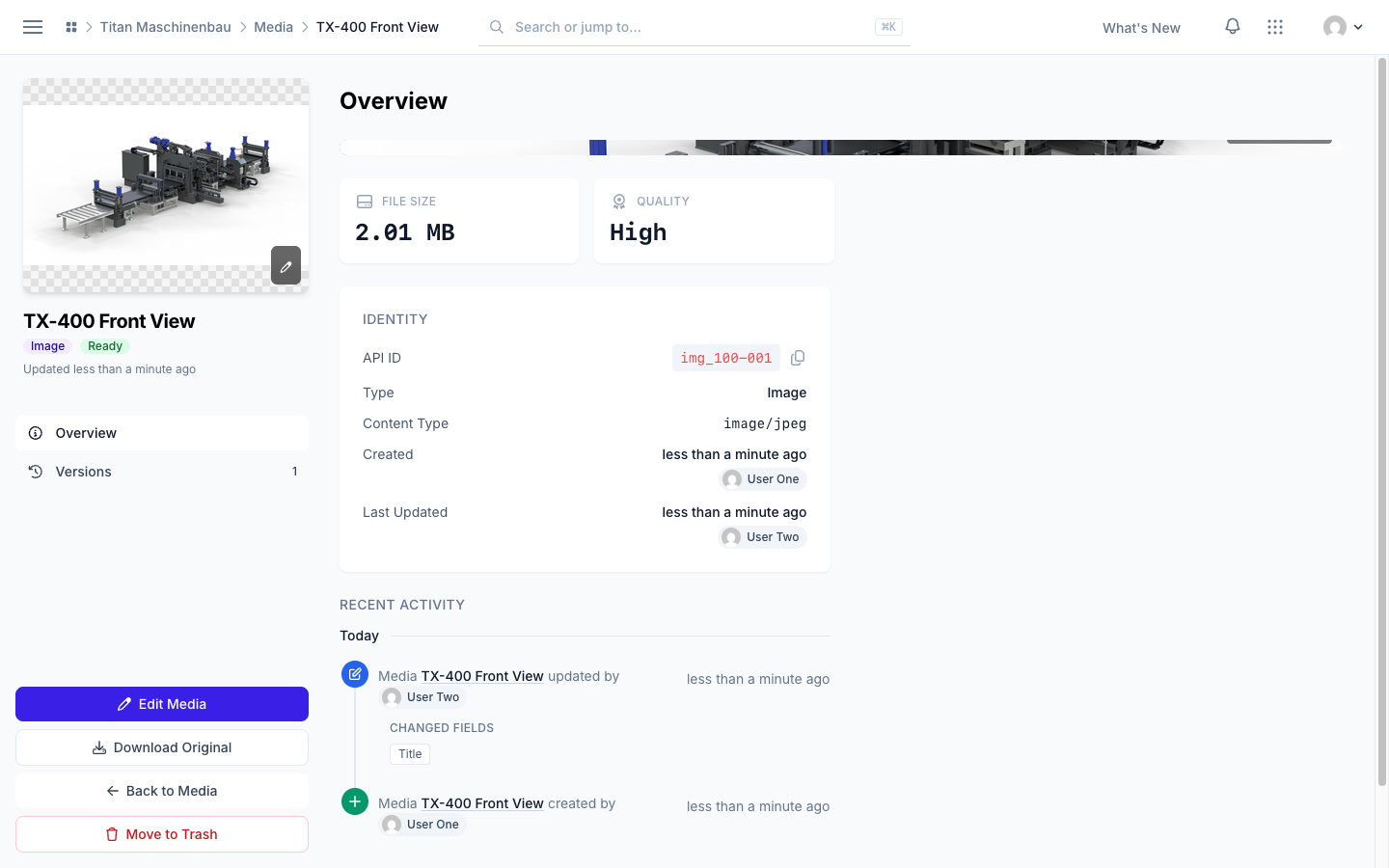
Who is behind a media item. The Identity card names who created and who last changed the file, and Recent Activity below lists what happened to it.
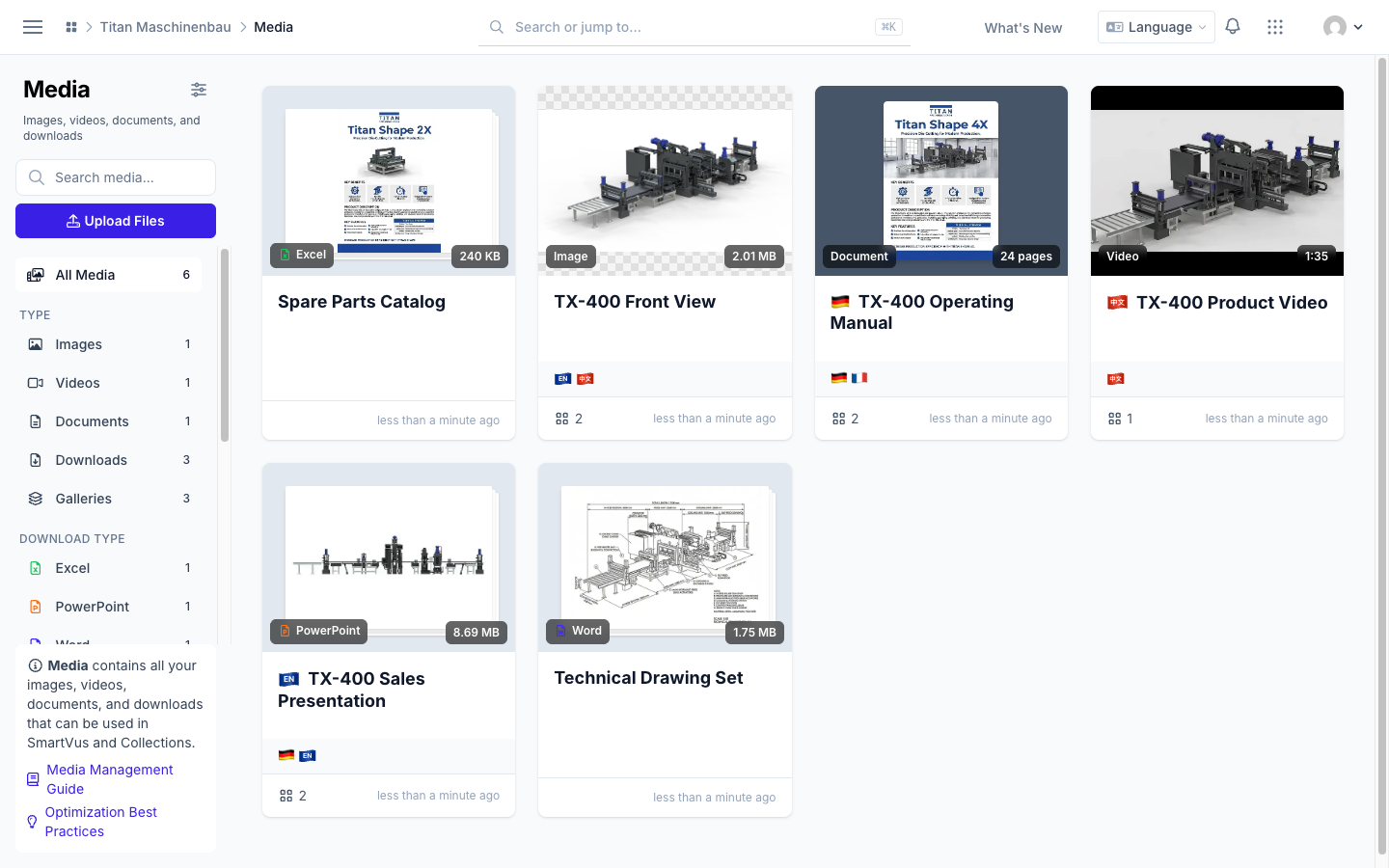
Media cards in one row. Languages on the left; gallery, categories, tags and the number of user groups on the right. The trash button is no longer covered.
English and Chinese have their own flag: an EN and a 中文 badge.
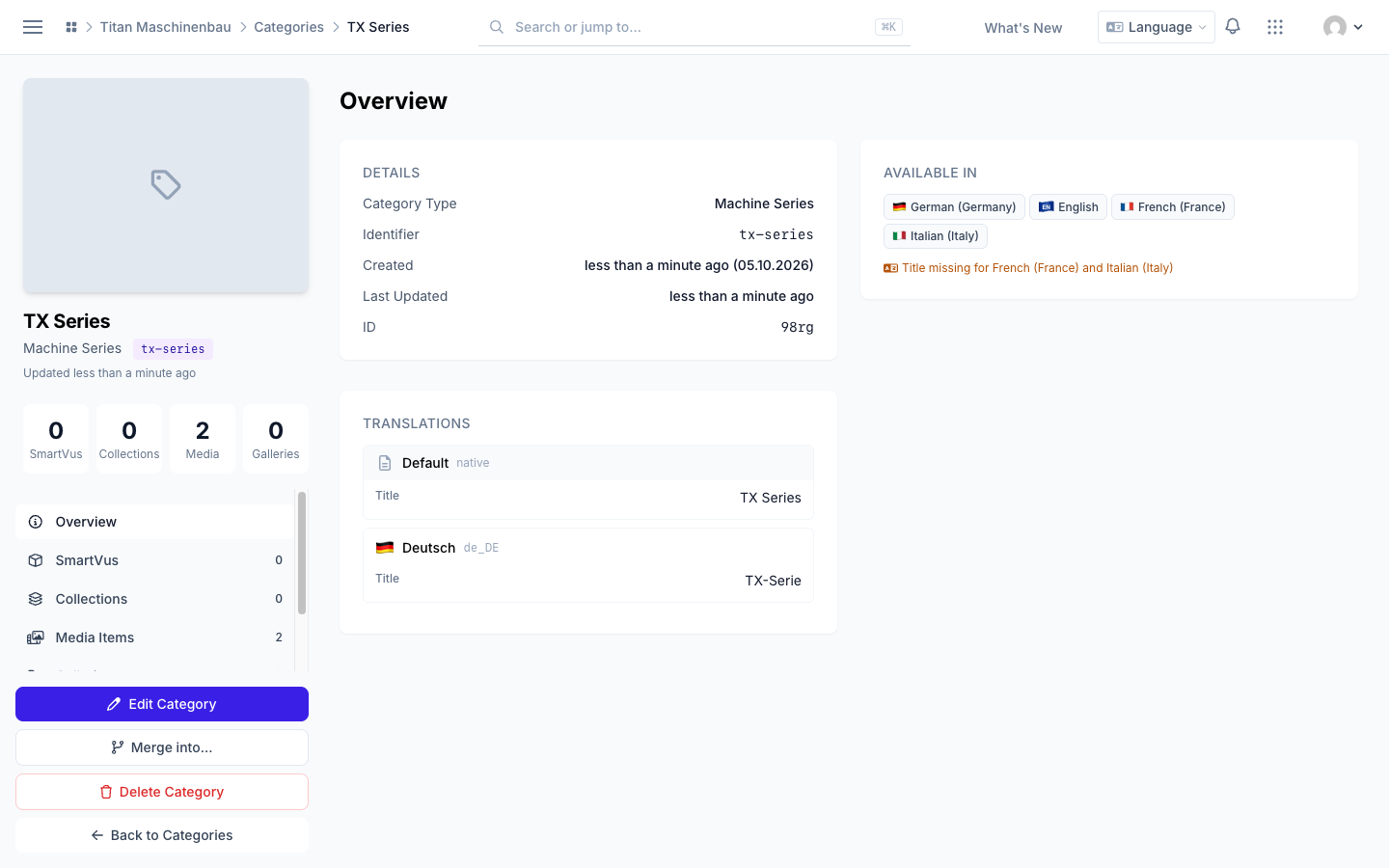
Category page in two columns. The Overview shows details, languages and translations side by side, and "Title missing for …" names only the languages that really have no title.
E-mails name your workspace. The issue e-mail names the workspace in its subject, and every e-mail shows your workspace logo at the top. The Vuframe® Cloud logo in the footer is smaller, and the login-code e-mail has the same footer as all others.
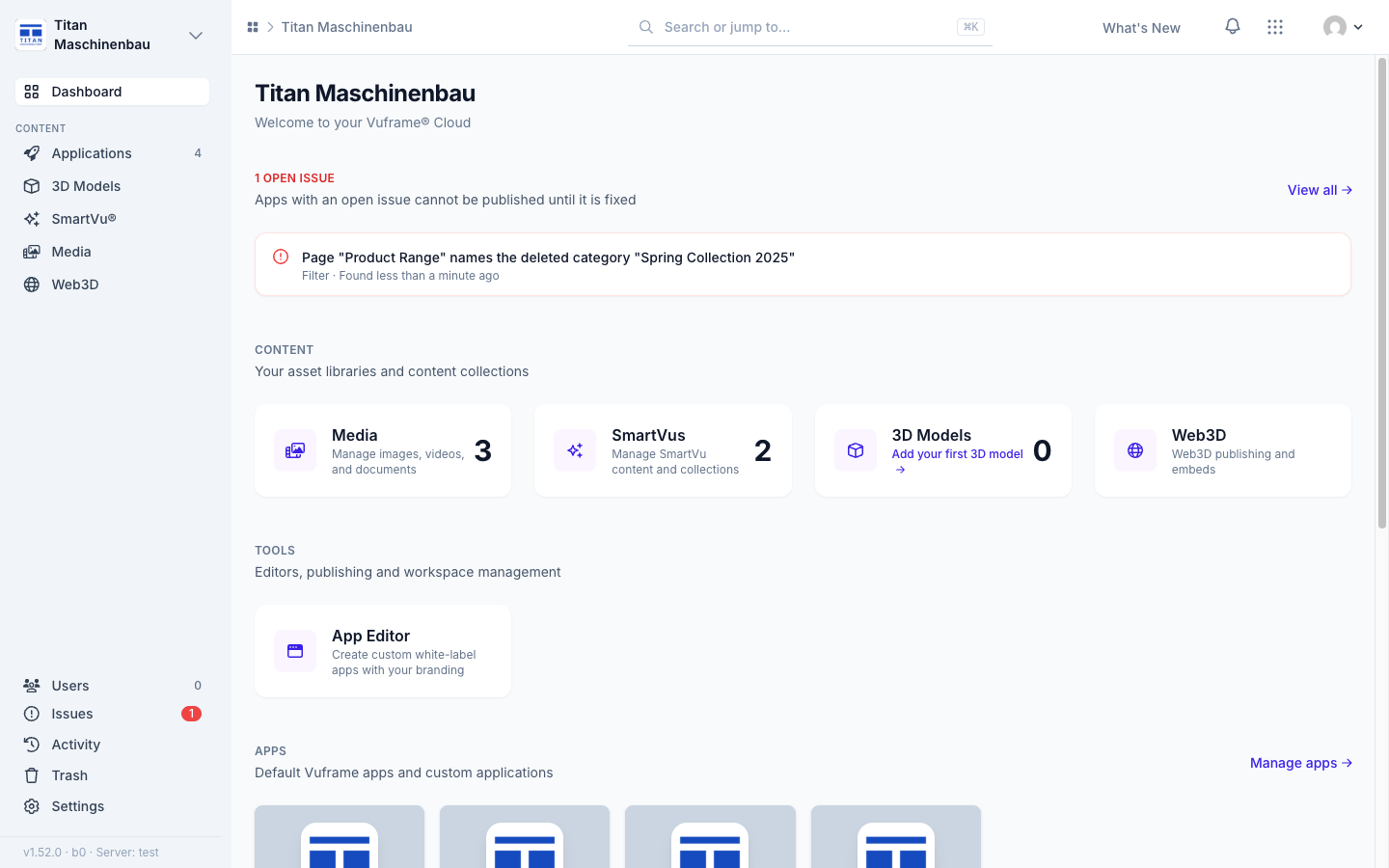
Issues page. When a category is deleted, every app page that used it is listed as an open issue under Issues in the sidebar, grouped by app. Open issues also show on the workspace home page and in the app editor's page tree. Admins and editors get an e-mail when new issues are found.
An app with an open issue cannot be published. The app page lists its issues in a red box and Publish New Version is disabled until the page is fixed.
Merging categories keeps app pages working.Merge into… now moves every reference on app pages to the category that remains: filters, the category a page shows, subcategories, the category order and the categories an app excludes. The Merge category page lists what was repointed. The same happens when an import merges two language versions of a category.
Vuframe® Cloud v1.51.15 brings the command palette (Cmd+K), one trash for the whole workspace and the languages of each file on its card. Sign-in now always uses a code sent to your email address.
Command palette. Press Cmd+K (Ctrl+K on Windows) on any page, or click the search field in the top bar. "Go to" lists the pages you can open; type two or more characters to search SmartVu®s, media, 3D models, collections, apps and categories by title. Use ↑ and ↓ and Enter to open an item.
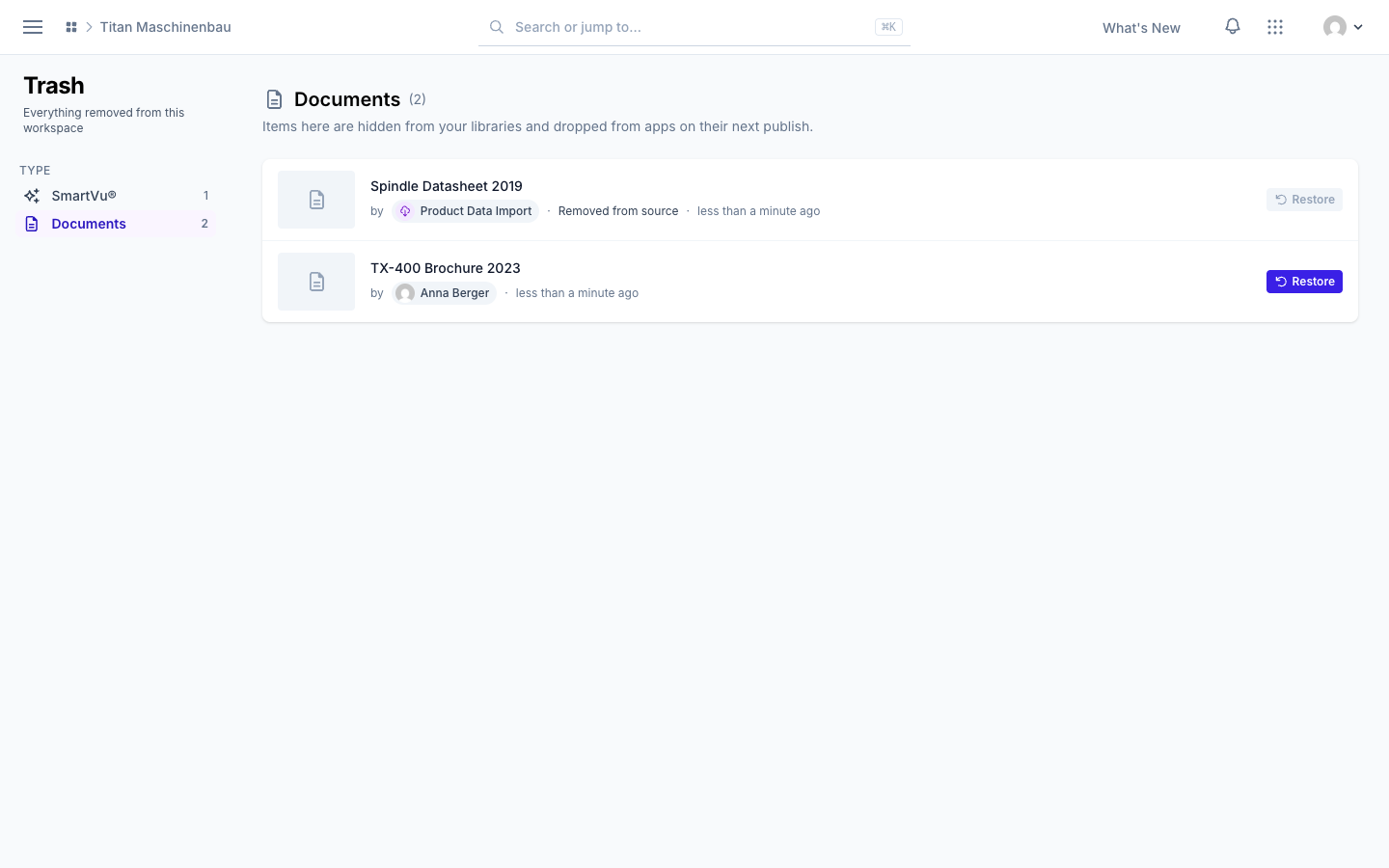
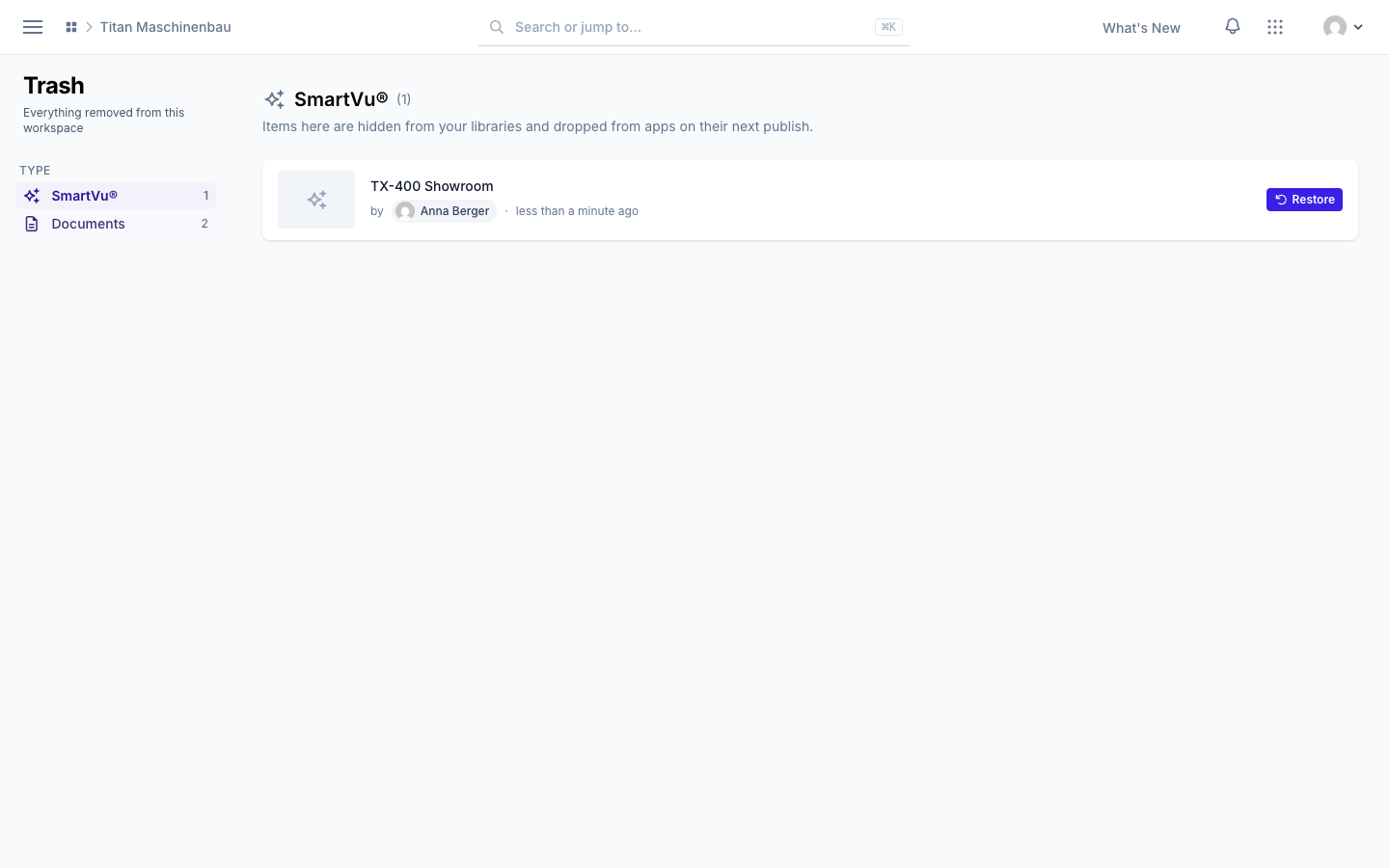
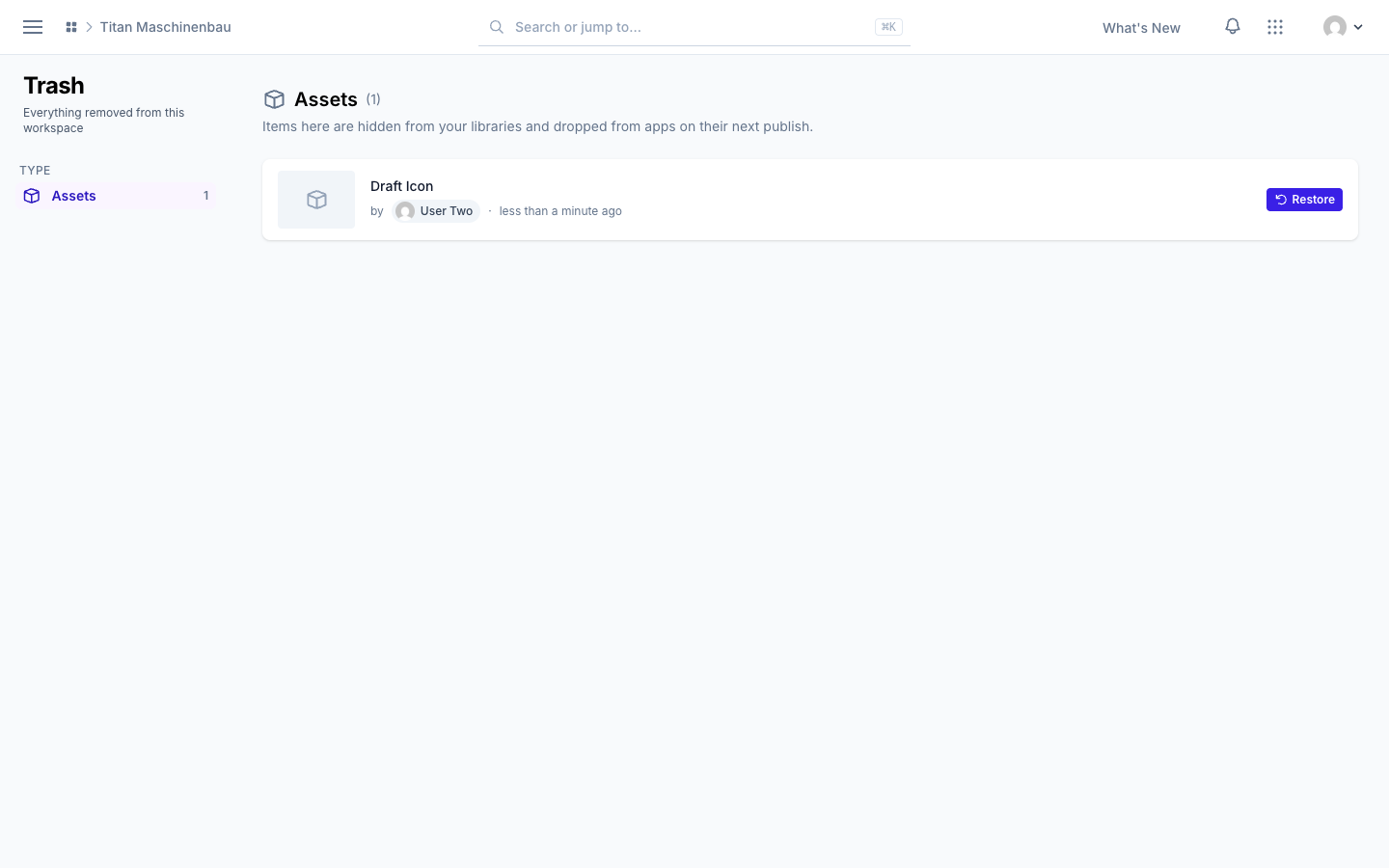
Trash for the whole workspace. Open Trash in the sidebar to see everything that was removed, sorted by type, with who removed it and when. Restore brings an item back. Items an integration removed because its source no longer offers them come back on their own when the source offers them again.
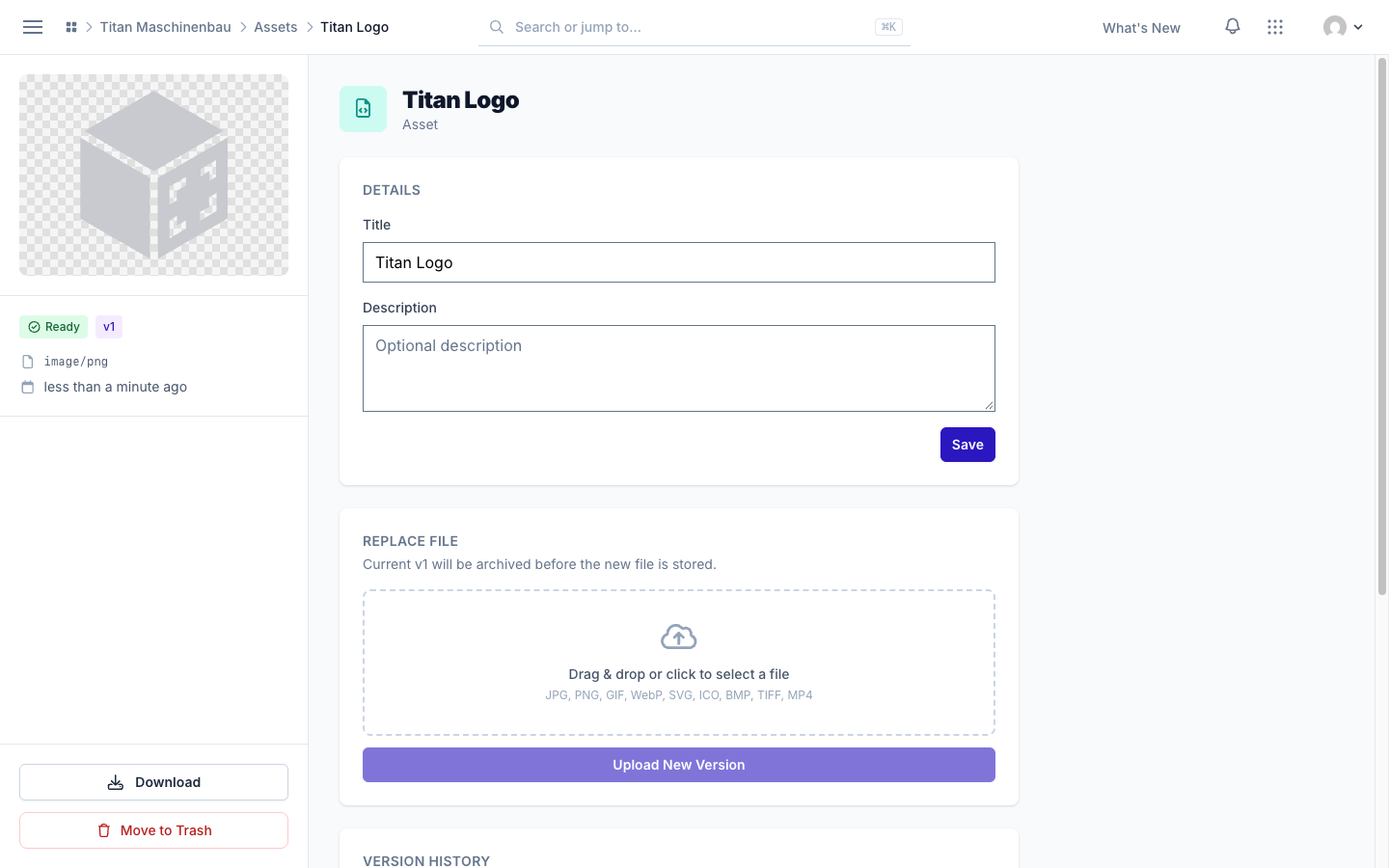
Assets can go to the trash. Open an asset and click Move to Trash. It leaves the asset library and, with the next publish, your apps. Restore brings it back unchanged.
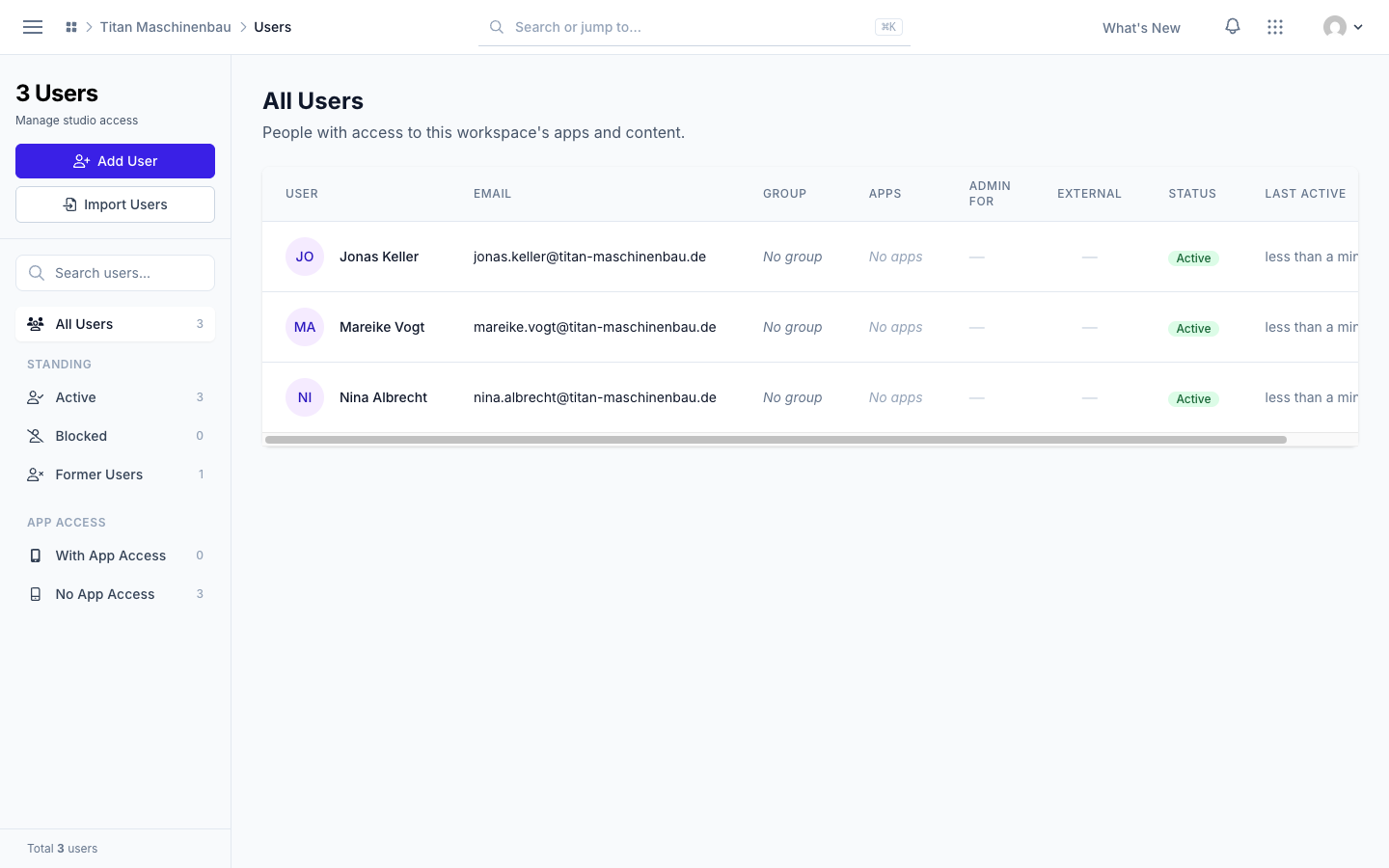
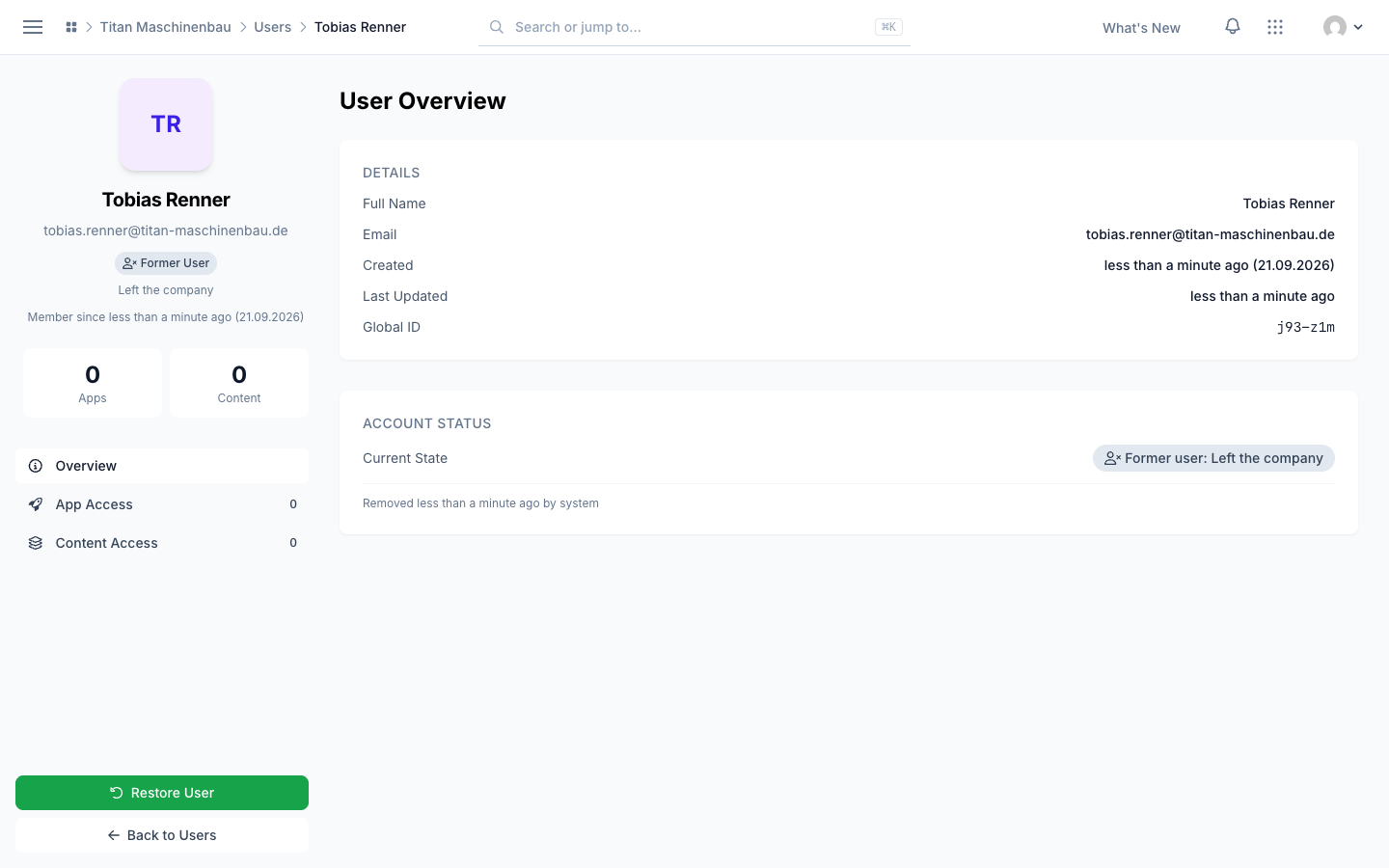
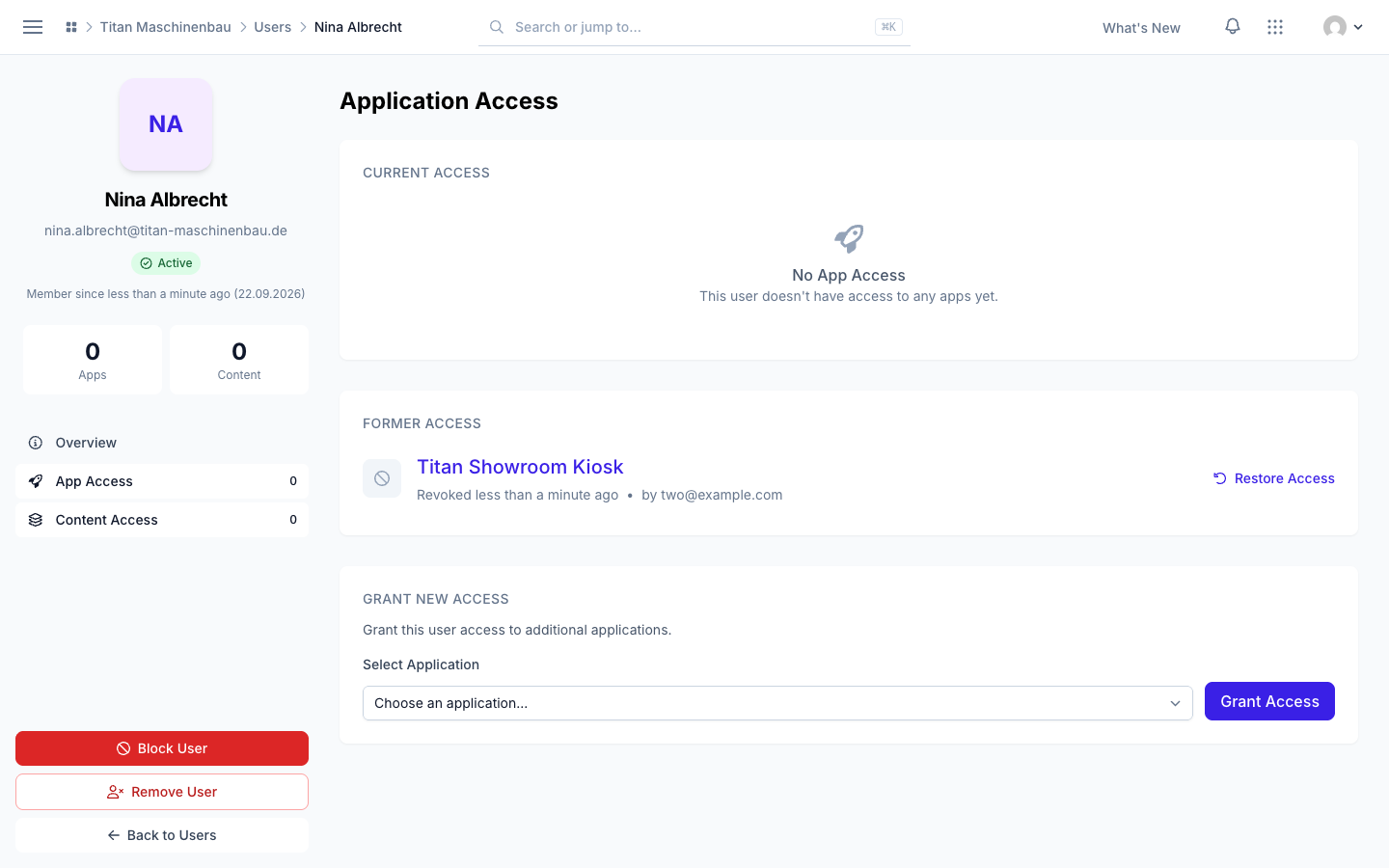
Remove and restore users.Remove User on a person's page takes away all of their app access and moves them to Former Users. Their record, their user group and their history stay. Restore User brings them back. Team Members has a Former Members list with the role of each person, who removed them and why, and a Restore link. The Users list has a new Standing filter: Active, Blocked and Former Users. An app you revoke shows under Former Access, with the date and who revoked it; Restore Access gives it back. Blocking a person now affects only that workspace.
Media files show their languages. The flag before the title shows the Detected Language of the file, the flags below show the languages it is Available in. The file's page has a new Language card.
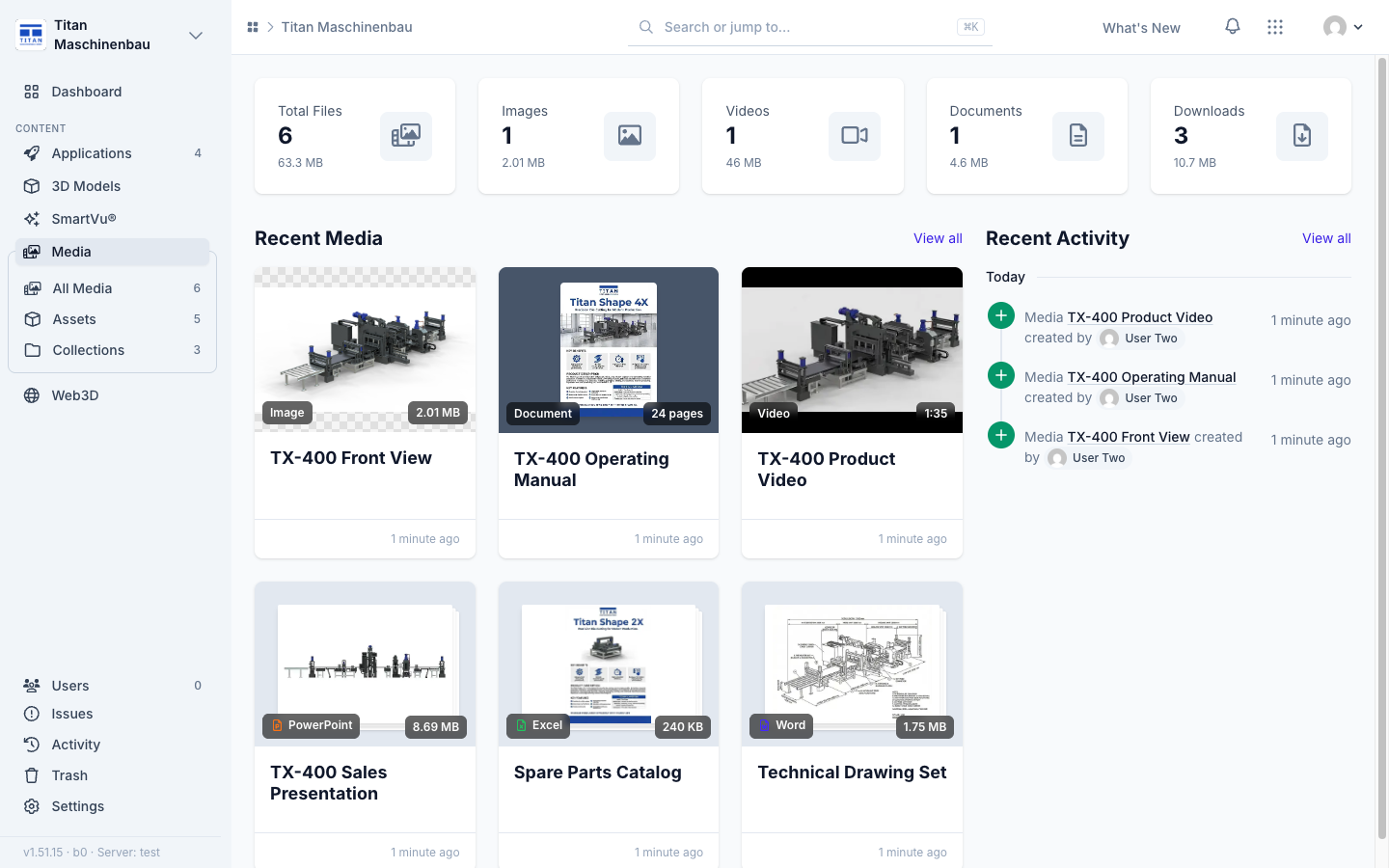
Media library overview with Recent Activity. Next to Recent Media, a new column lists who added, changed, trashed or restored media, galleries and assets.
The activity feed loads as you scroll. No more page numbers. An import from an integration stays one row with the counts for the whole import.
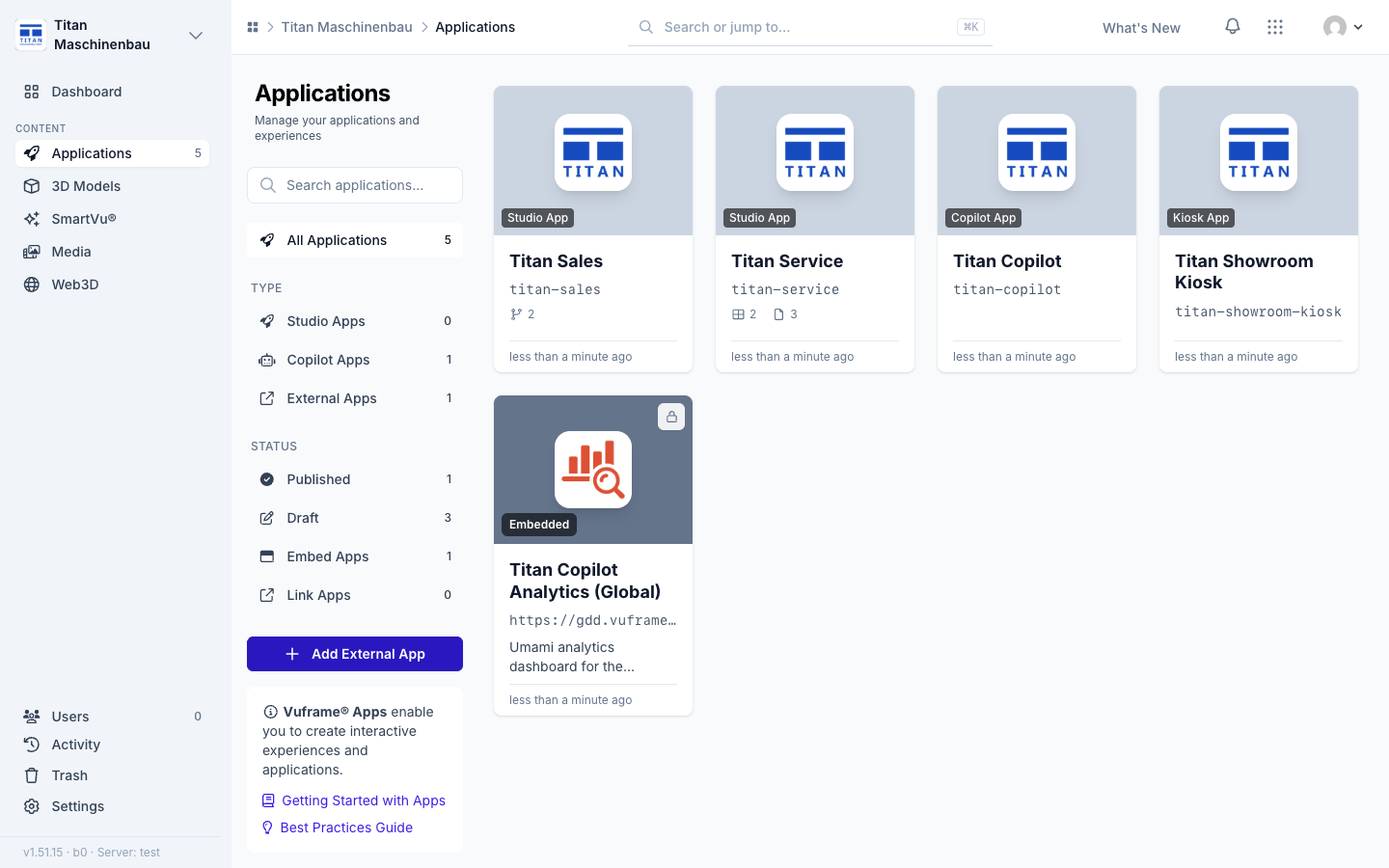
An analytics dashboard for every live edition of a Copilot app, also for editions added later. Dashboards without their own icon show a standard analytics icon.
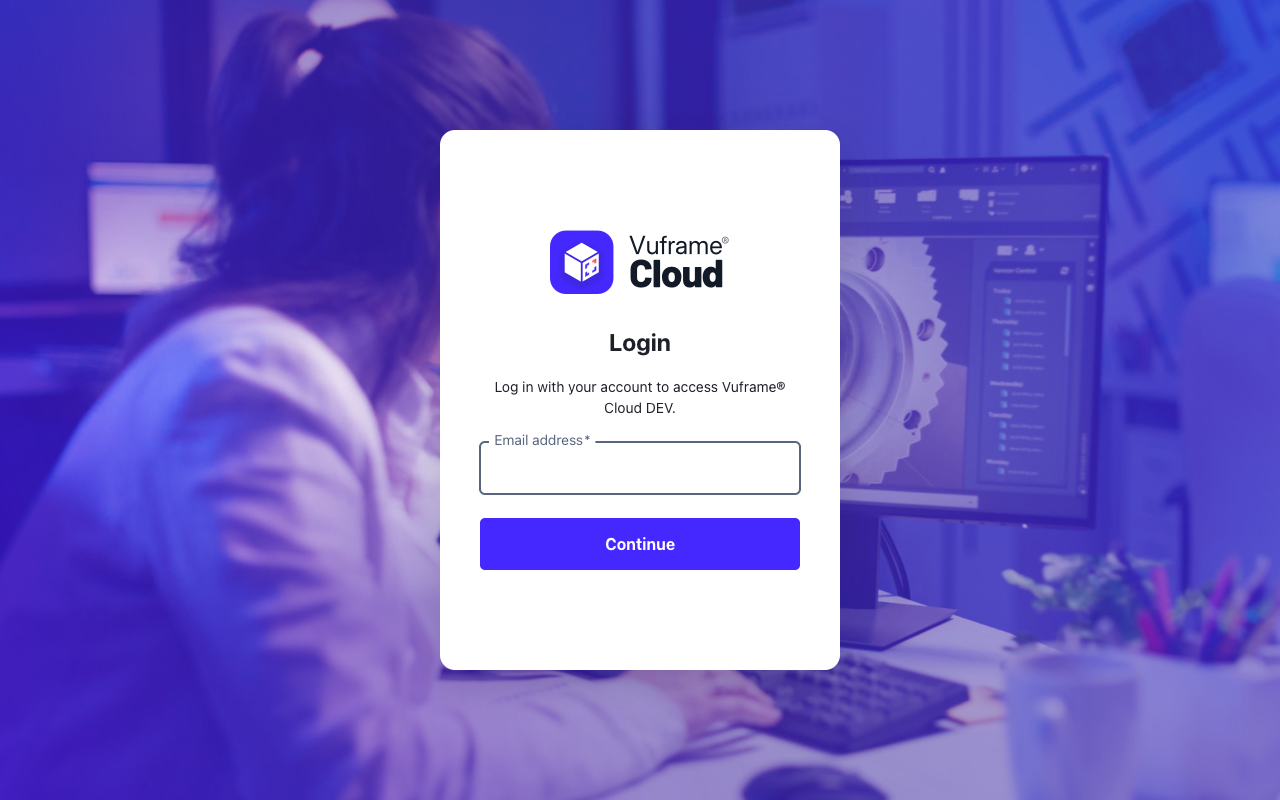
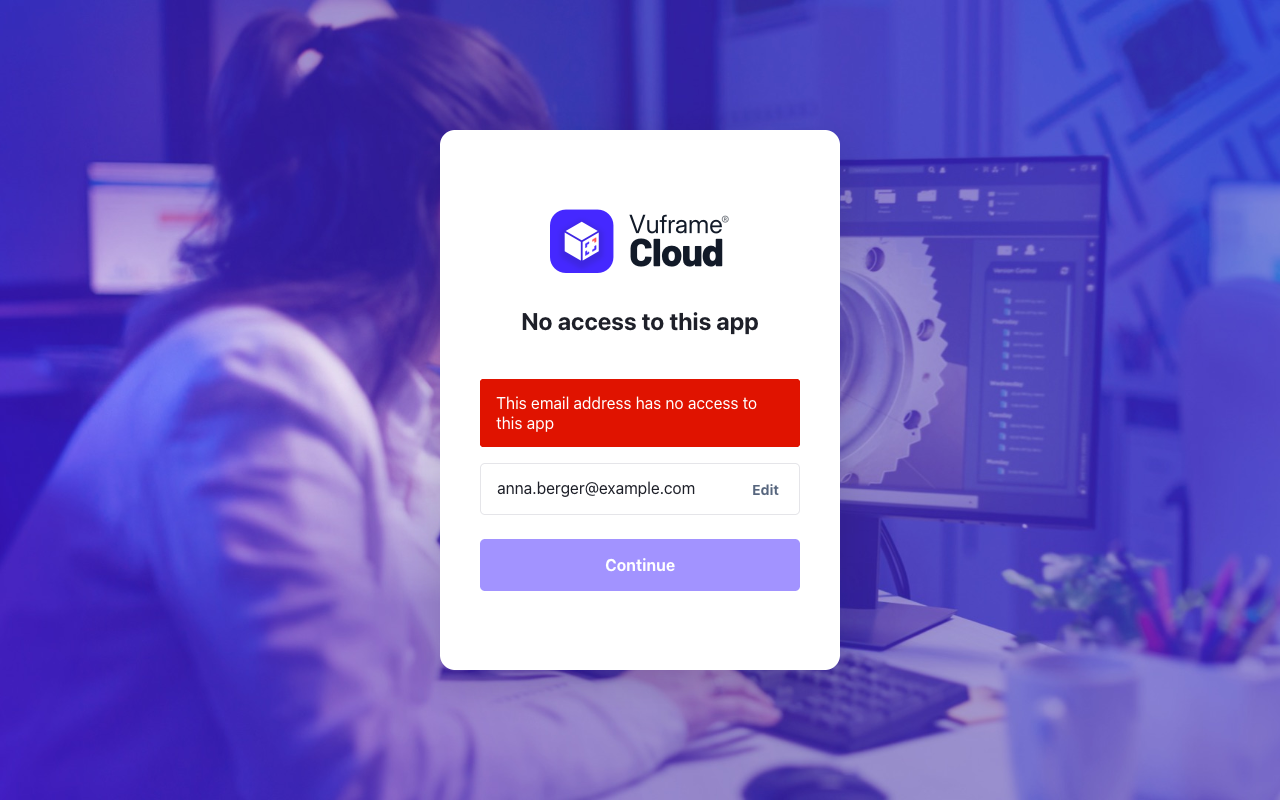
Sign-in uses the email code only. The sign-in page asks only for your email address. An address without access is told so at once: "This email address has no access to this app". The other sign-in methods show as "Coming soon".
Your sign-in stays tied to your account. You are signed out once when this update goes live.
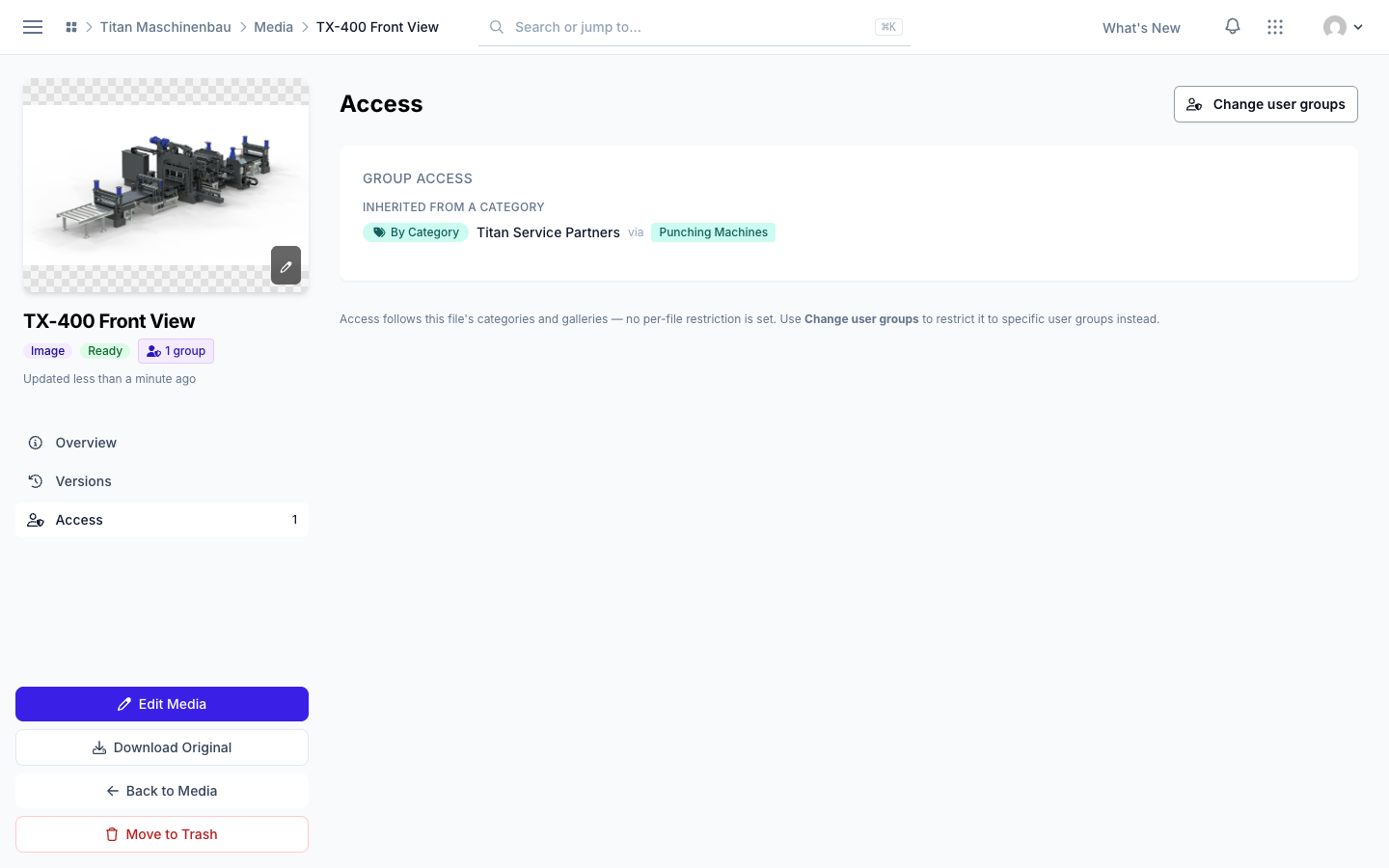
Clear access wording. The Access section of a file now says whether the file has its own restriction, follows its categories and galleries, or reaches only the default group. The library filter is now Per-file restriction (Media) and Per-item restriction (SmartVu®s, collections) and lists the items that really have one.
App counts show current access only. The Apps and App Access numbers on a person's page and the Apps column of the Users list count only the apps the person can open now. Revoked apps stay under Former Access.
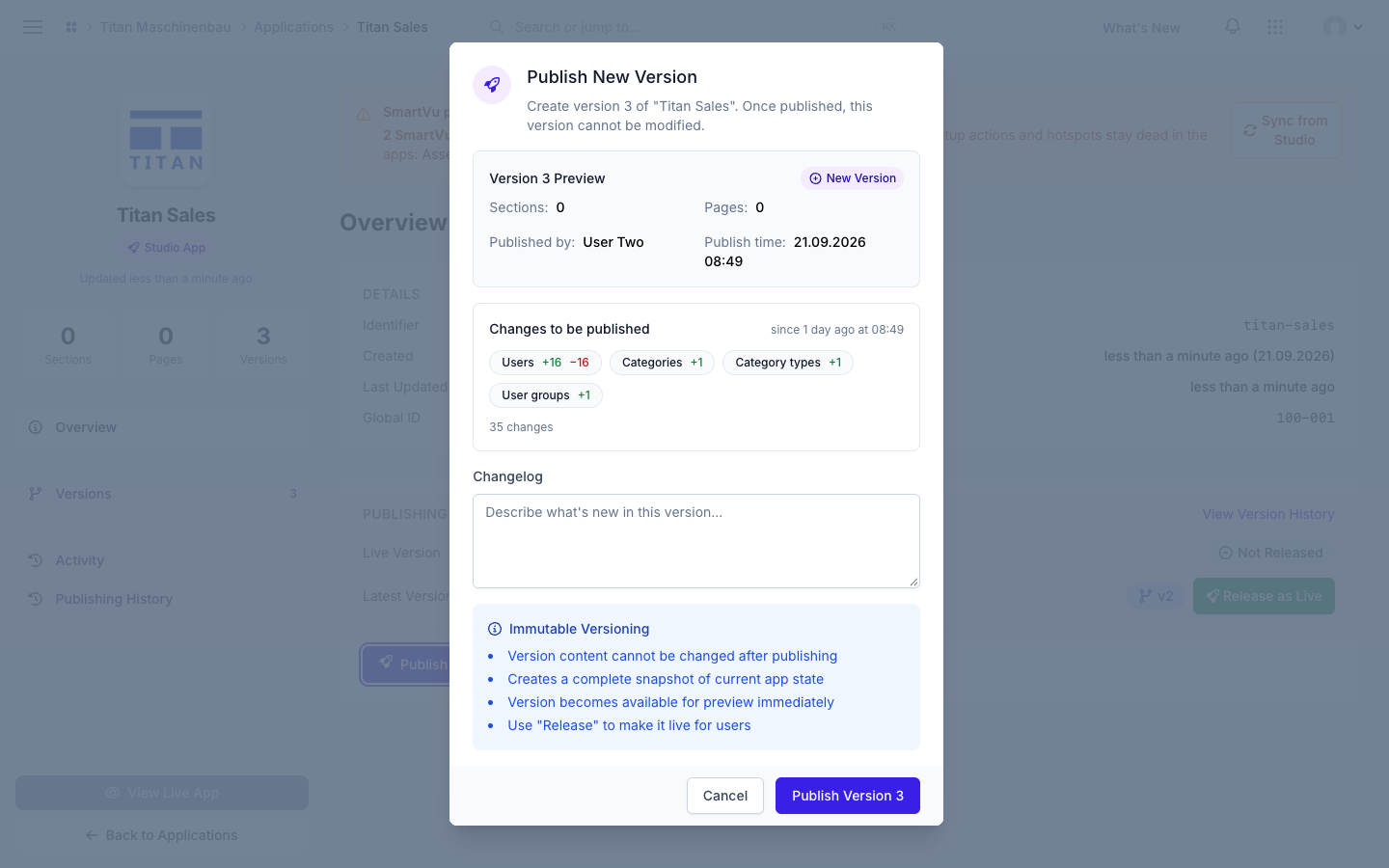
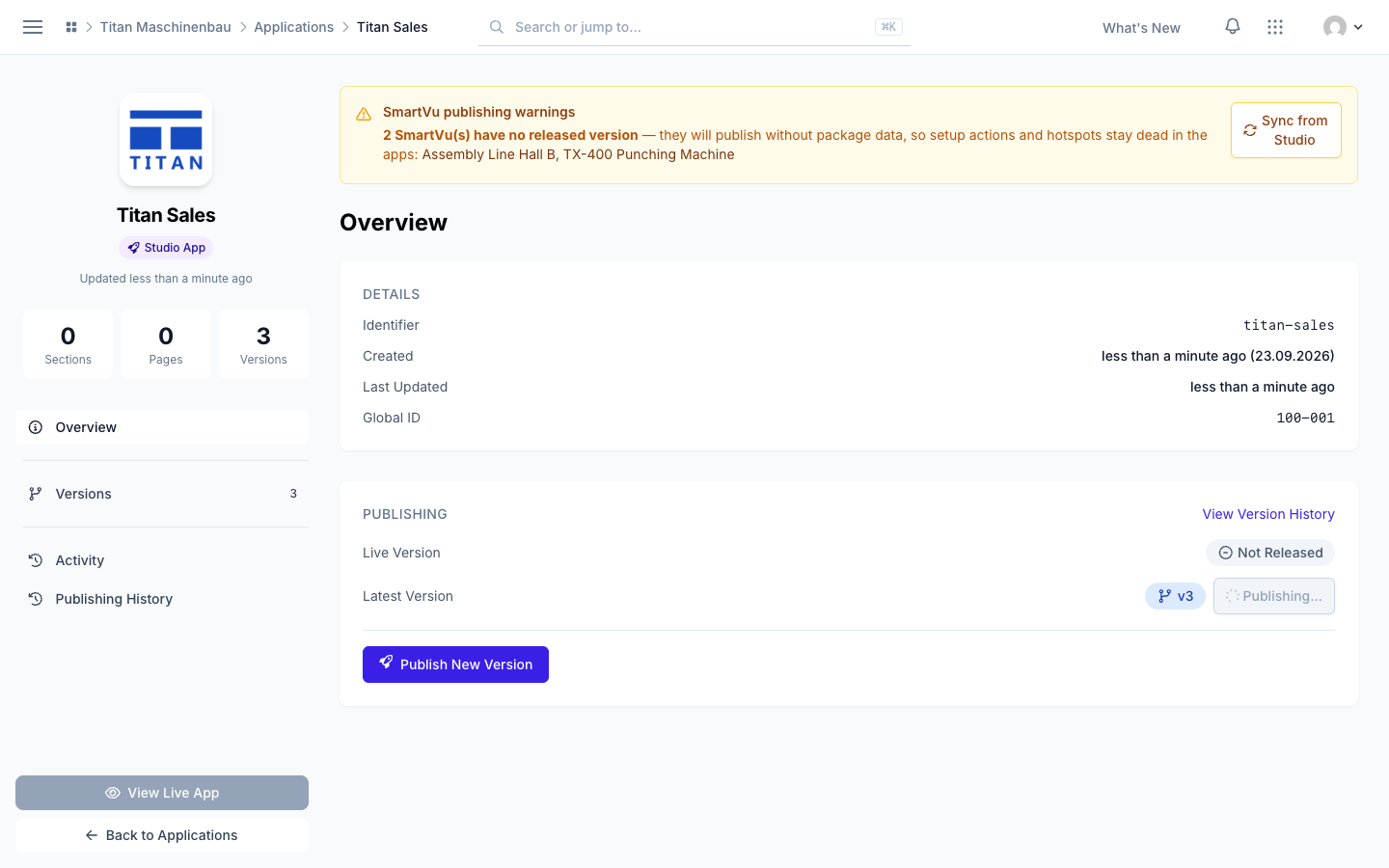
Publishing. The publish dialog shows the version number that will really be created, and View Live App opens the live app. A publish that is interrupted now ends as "Failed" with a clear reason, and publishing again reuses the same version number. A version that is still publishing shows Publishing… instead of Release as Live.
Dark mode. Text fields, text areas and drop-downs follow the dark color scheme, so what you type is readable.
Media in the trash stay hidden from counts, lists, pickers and filters everywhere, and a gallery in the trash is no longer published to your apps.
Videos play everywhere. Vuframe® Cloud checks the content of each video and converts videos that browsers cannot play. Existing videos are converted automatically; publish your apps again to ship them.
Published documents open instead of downloading. PDFs, images and videos in published apps carry their real file type, so they open in the viewer or play inline.
Previews for SmartVu® media in apps. Every published SmartVu® now carries a small preview for each document, image and video, so the sidebar and media popups load fast. Publish your apps again to get them.
Changes from September 2026 up to 1.50.3. SmartVu®s imported from Vuframe® Studio now follow Studio on their own, you can choose the preview image of a media file, admins and editors get an email when an app version is published or released, and SmartVu®s can be moved to the trash.
SmartVu®s from Vuframe® Studio stay up to date. Every night Vuframe® Cloud takes over the version you shared in Studio; Sync from Studio does it at once. The SmartVu® page shows a Studio Mirror card with the Studio version and an "Update available" badge. The app page warns before a publish when a SmartVu® is behind Studio. New SmartVu® versions now come only from Studio, so the publish and release buttons on SmartVu® pages are gone. (1.45.0, 1.48.0, 1.49.0)
Choose the preview of a media file. Click the pencil on the thumbnail of a media file: pick another PDF page, a video frame or any moment of the video, or upload your own image. A Custom badge marks your choice, and it stays when the file is processed again. (1.45.3, 1.45.5)
Emails on publish and release. All admins and editors of the workspace get a notification and an email with the version's changelog when an app version is published or released. A notification opens a page with its full text. (1.46.0)
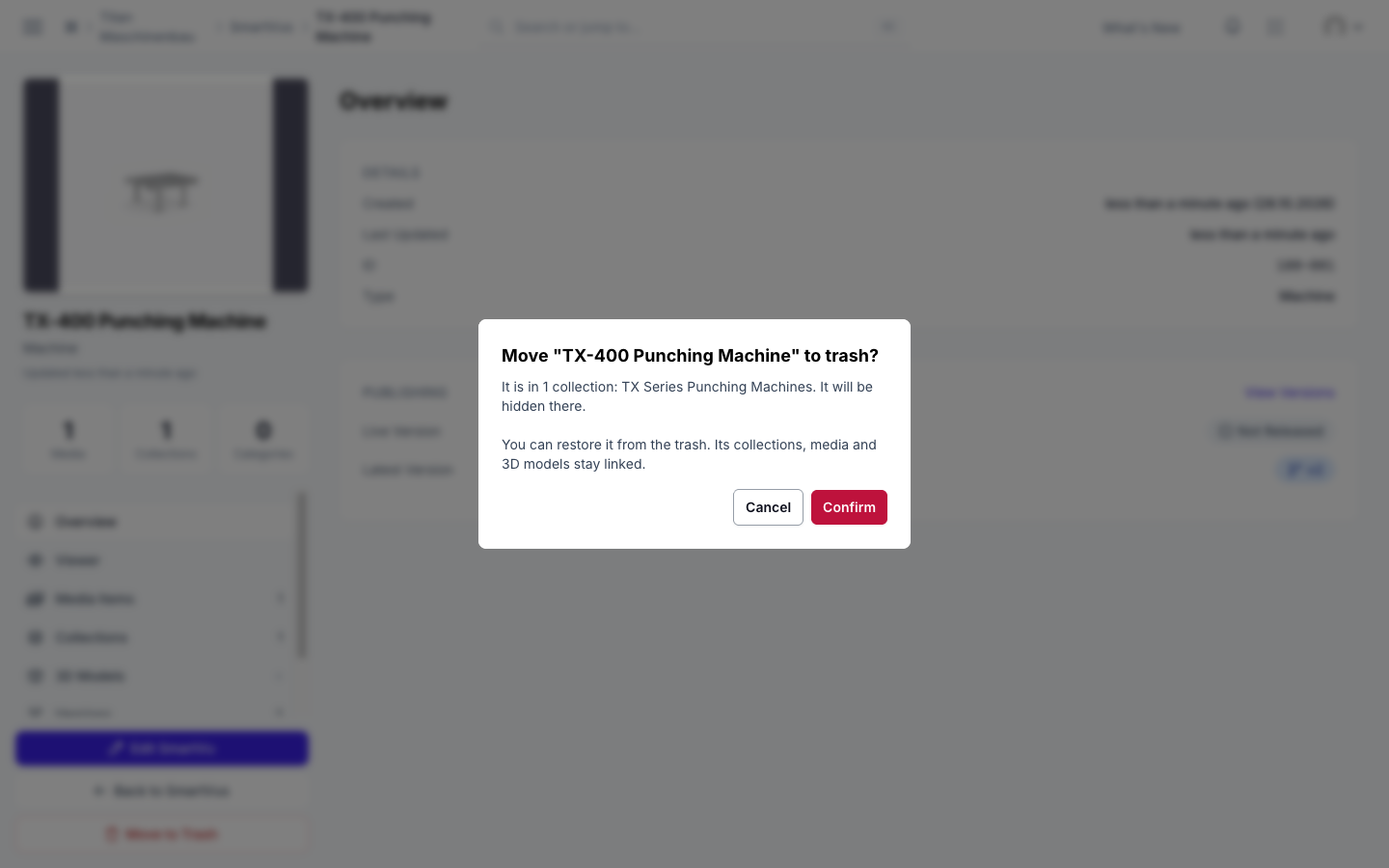
SmartVu®s can go to the trash. Click Move to Trash on the SmartVu® page or on its card. The dialog names the collections it is in. Your apps drop it with the next publish; Restore brings it back with its collections. (1.50.0)
The Activity page is fast and says who did what. Each row names the person, with avatar, and links the changed item. SmartVu® syncs from Studio have their own rows and name the SmartVu®. Show timestamps adds the exact time. (1.45.4, 1.47.0, 1.47.1)
Clear message for people without an invitation: "You're not in a workspace yet", with a hint to ask a colleague. Invitations sent, accepted and withdrawn now show in the member history. (1.45.6)
The app page opens about twice as fast. (1.49.5)
Team members who manage users can import app users from a file. The file must name a user group they may assign. (1.49.5)
Invited colleagues get straight in when they sign in, instead of seeing "Account not yet approved". (1.45.2)
The dark theme is readable on every page. (1.49.1)
Previews reach the app. A preview you picked for a media file, and a replaced preview of a collection or SmartVu®, now show in the published app too. Publish your apps again. (1.49.3, 1.50.3)
The publishing email shows the app icon, and its subject starts with the app name. (1.49.4)
Changes from August 2026 up to 1.44.2. Editors can now publish and release apps and see what a publish contains, a replaced media file is kept as a version, files larger than 100 MB upload, and publishing a large app is fast again.
Editors publish and release apps. On an app, editors see Overview, Versions, Users and Publishing History and can publish, release and roll back. Changing how the app is built — Configuration, Sections & Pages, the Editor, Extensions, Deployments — stays with workspace admins. (1.39.0)
See what a publish contains.Unpublished changes counts the media, collections, SmartVu®s and pages added, changed or removed since the last version, above the versions table and in the publish dialog. Each version row shows the same counts. A second card lists what is published but not yet live. (1.39.0, 1.39.1)
Media files keep their versions. Drop a new file on the File Versions section of a media item: the old file is kept in the history with date and uploader, and the new file is processed. Released apps keep the old file until you publish again. (1.41.0)
One step to create an app user. A new app user gets access to every app of the workspace with user sign-in. Team members who manage users but are not admins can no longer put a user into the default group that sees all content. (1.40.0)
Change user groups from the Access section. The Access section of a media file has a Change user groups button. (1.41.0)
SmartVu®s reach groups through their collections. A group that sees a collection through its categories now also sees the SmartVu®s inside it. Publish your apps again. (1.41.7)
Publishing a large app is fast again. Apps with many user groups publish in minutes instead of around twenty minutes. (1.41.8)
Translations in one table. Languages with a translation show their text in view; the others sit behind one toggle, with a count such as "2 of 17 languages". (1.42.0)
Scanned PDFs are marked. A PDF that holds only images of text gets a note in its Issues panel. Optimizing a PDF never removes selectable text. (1.43.0)
Copilot users stay signed in longer. Up to 60 days without opening the app and 150 days in total. A second browser tab no longer signs a user out. (1.44.0)
Changes from July 2026 up to 1.38.6. You can merge duplicate categories, read your whole workspace in any of its languages, and give Office files and other downloads to your apps, with preview images. The app editor previews any collection, category, SmartVu® or media file as a chosen user group sees it. "Media groups" are now called galleries, and the dashboard shows the modules you can use.
Merge one category into another. Click Merge into… on the category page and choose the category to keep. A preview shows what moves and what is dropped before anything changes. Content, access and app page filters move to the kept category, and later imports do not create the merged one again.
Read your content in any workspace language. A language picker in the top bar switches all titles to one of your workspace languages. The menu next to a card title lists the title in every language, and every detail page has a translations panel.
Translate app pages, app sections, tags and galleries. App navigation, tag names and gallery names now show in the user's language. Smartvus and galleries also have an edit page.
Downloads reach your apps. PowerPoint, Word, Excel and other download files are published with your apps. Global search can search them, Media Library pages can show Downloads only, and Copilot apps can switch the Downloads section on and off.
The Download Manager extension lets app users save media files to their computer, for all user groups or only chosen ones.
Office files and long PDFs get a preview image of their first page. Large presentations get it faster, and when rendering fails the image saved inside the file is used.
The app editor previews any content. The page tree also lists your collections, categories, Smartvus and media. Click an item and the preview shows it as in the app. A user group selector shows the app as the users of that group see it.
Category pages in apps show chosen subcategories as a row of cards above the content.
Category list pages get their settings and a custom order:Group by type, Show counts, Show empty categories, and the categories that come first.
List pages can hide their header with Show header, and can show their own, translatable heading.
Filter app pages by gallery and by tag. Tags are published with your apps, and global search can filter by gallery and tag.
A category type decides how its categories group their media in the apps: not grouped, by media type or by another category type.
Find content to clean up. The categories and category types lists have a Content filter (Empty / Not empty), category types also a Source filter, and the media library a No language filter under Delivered to.
Download cards name their file type (PowerPoint, Word, Excel, PDF, ZIP), and the media list has a Download Type filter.
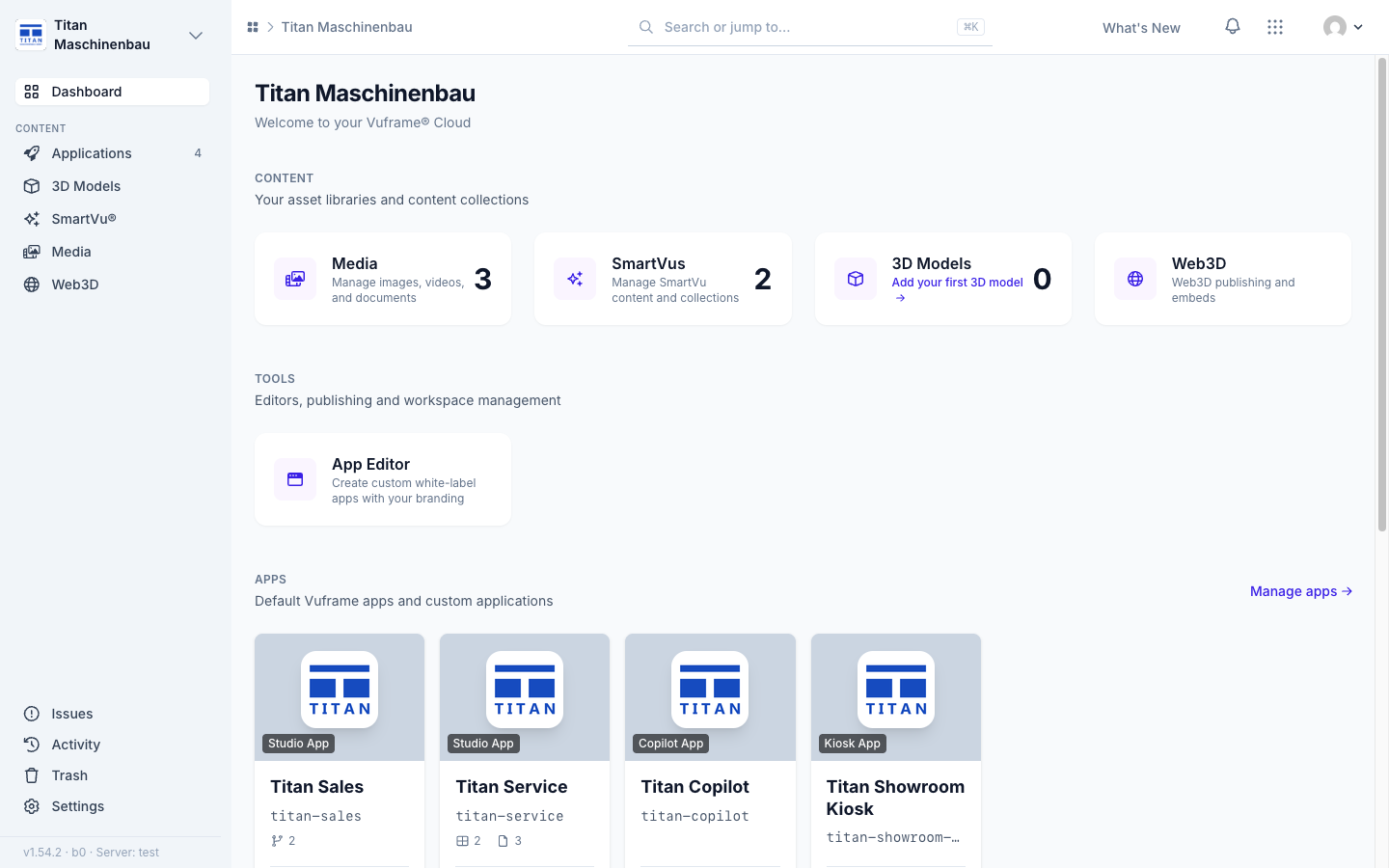
The dashboard shows the modules you can use, the recent activity and, in a new workspace, a getting-started checklist. With one workspace only, Vuframe® Cloud opens its dashboard directly.
"Media Group" is now called Gallery everywhere in Vuframe® Cloud. Category pages show the galleries filed under them.
The same detail sidebar on every content page, also on the edit pages, with Back in the same place and an Access section on categories, collections, Smartvus and media.
Members see only the modules they can open, and a module they were not given explains that the account administrator must grant access.
The role "Member" is now Member (read-only).
Faster pages in large libraries. Collection, category and tag pages show 48 media at a time, and pickers search the whole library while you type, with Load more.
The app editor preview names the page you are looking at, and filter rules with long option lists have a search field.
Fewer settings that did nothing. Detail pages no longer offer Show navigation, Show related and Show subcategories; list pages no longer ask for Items per page; the auto-generated badge setting is gone.
Pages load once when you navigate, instead of showing an old copy first.
A storage outage no longer takes Vuframe® Cloud down, and 3D model pages load faster.
Global search settings use plain labels:Search Media Groups and Search Tags.
Apps receive a new release within a minute, and rolling back to an older version goes live too. A version shows as live only after apps can get it.
Invited people can sign in and accept their invitation at once, also after you resend it.
Detail page settings stay as you set them and reach your apps, and subcategory picks in the app editor save.
Settings you switch off in an extension stay off in your apps.
Page filters show only what you selected, and collections in apps list only media the app has.
Saving a media file works again in workspaces with languages.
Pages that showed errors open again: the dashboard and Applications with an external app, the Activity page, media, gallery and user group pages, publishing notifications, and New Collection in large libraries.
Correct counts: galleries and categories show all their media, and Total Files counts downloads.
The Select a Record picker finds every record when you type.
The home page links to Help & Support instead of dead resource links.