Get started in your workspace
A workspace holds the content of one company: its media, Smartvus, collections, apps and users. You can be a member of more than one workspace. Each workspace is separate. Workspaces do not share content.
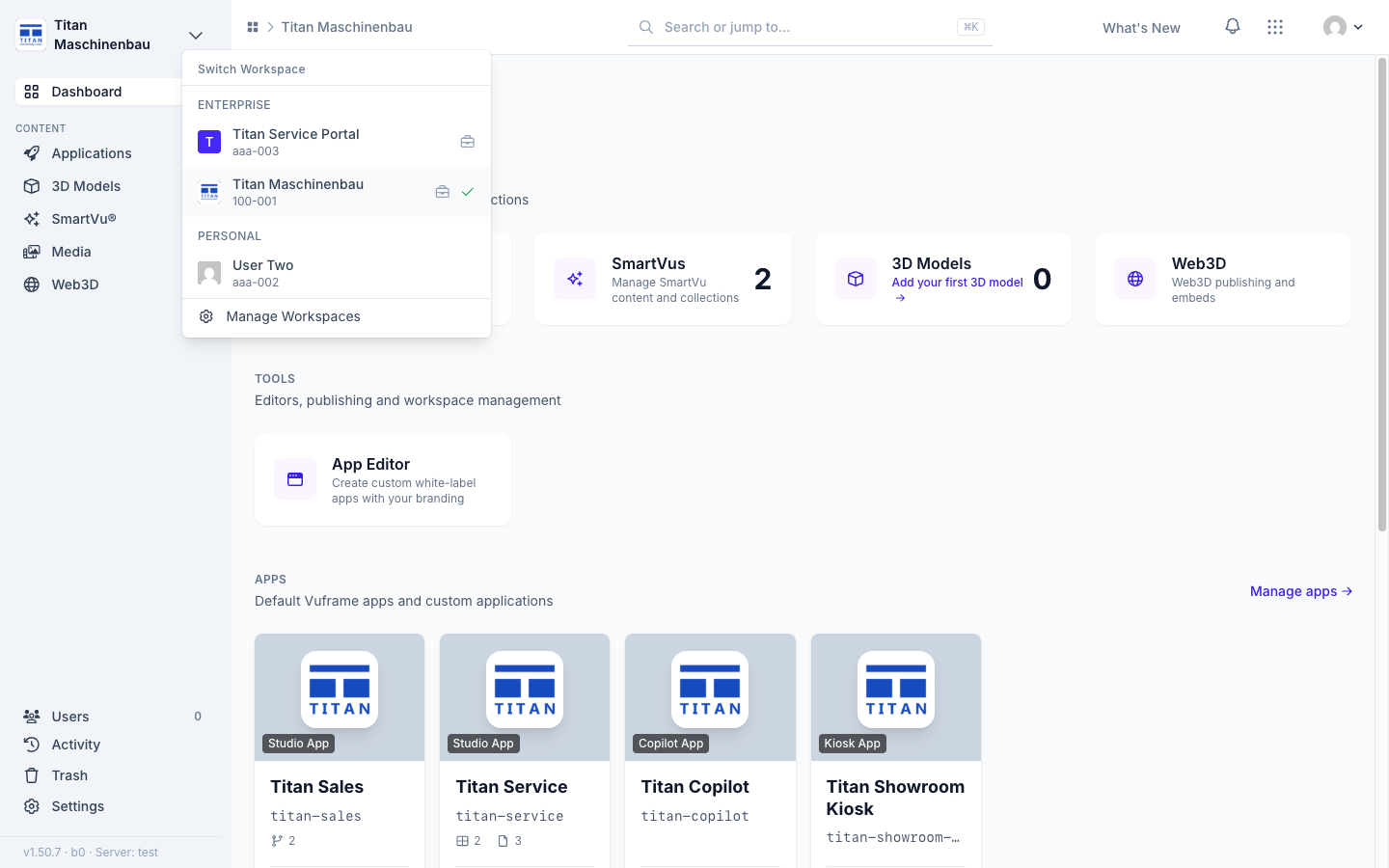
The workspace name at the top of the sidebar opens the workspace switcher. The sidebar shows all the pages that you can open. The dashboard shows one card for each module, with the number of items in it.
Switch to a different workspace
- Click the arrow next to the workspace name at the top left.
- The list opens below Switch Workspace. Company workspaces are in the group ENTERPRISE. Your own workspaces are in the group PERSONAL. Below each name, you see the workspace ID, for example
100-001. - A green check mark shows the workspace that you are in. A number with a group icon shows how many members the workspace has.
- Click a different workspace. A message confirms the switch, and the dashboard of that workspace opens.
- To see all your workspaces, click Manage Workspaces at the end of the list. The Workspaces page shows each workspace as a card. Click a card to open that workspace. To make a new workspace, click Create a Workspace.
Each address in Vuframe® Cloud starts with the workspace ID. For example, the Media library of the workspace above is /100-001/media-library. Thus a link that you copy always opens a page in one specified workspace.
Read the dashboard
The dashboard is the start page of a workspace. To go back to it, click Dashboard in the sidebar or click the workspace name.
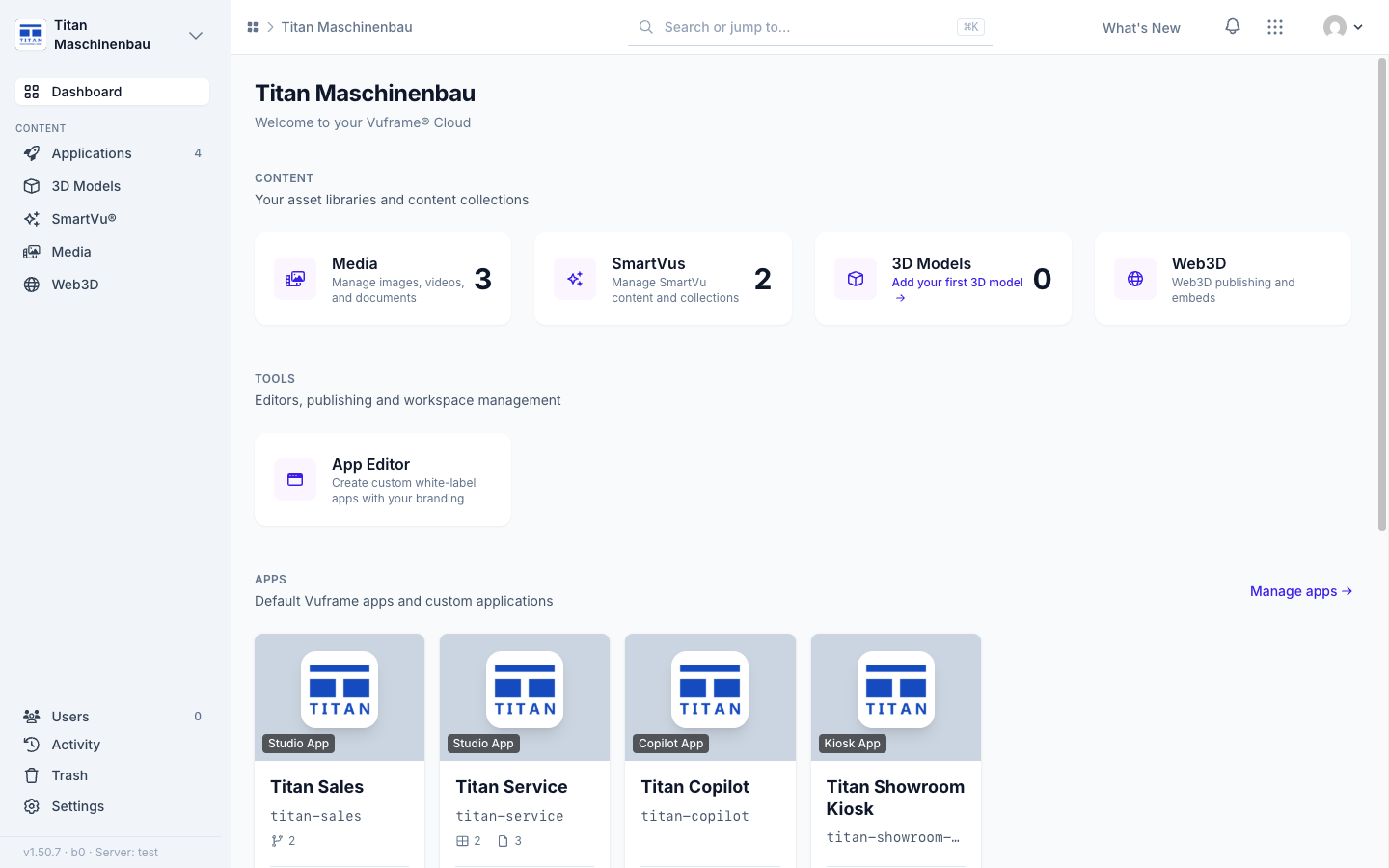
| Part | What it shows |
|---|---|
| Title | The workspace name, with Welcome to your Vuframe® Cloud below it |
| CONTENT | One card for each content library that you can open: Media, Smartvus, 3D Models, Web3D. The large number is the number of items in the library. |
| TOOLS | One card for each tool that you can open, for example App Editor or User Management |
| APPS | The four apps with the most recent changes, and Manage apps |
| Recent activity | The last changes in the workspace. View all opens the full list. |
A card with the number 0 shows a first step: Upload your first media, Create your first Smartvu or Add your first 3D model. Click the card to open that library.
When a workspace has no content, the box Get started with your workspace shows above the cards. It lists these first steps and puts a check mark next to each completed step. It also has Get help & support. To close the box, click the × at its top right. The box stays closed in this browser.
Use the sidebar
The sidebar is the same on all pages. It does not show the entries that you cannot open. Thus your sidebar can be shorter than the sidebar of an administrator.
| Group | Entries |
|---|---|
| — | Dashboard |
| CONTENT | Applications, 3D Models, SmartVu®, Media, Web3D |
| TOOLS | User Management, Catalog (only with the Catalog extension) |
| Extensions | Extensions, Integrations, Imports, Marketplace, Add Integration |
| Legacy Studio | One entry for each linked Vuframe® Studio project |
| Bottom | Users, Activity, Trash, Settings |
When you open a library, its entries show below it. For example, All Media, Assets and Collections show below Media. The number on the right of an entry is the number of items in it. The last line of the sidebar shows the version of Vuframe® Cloud. Give this version when you report a problem.
In a narrow window and on detail pages, the sidebar is hidden. To show it, click Toggle navigation at the top left of the top bar.
To go to a page without the sidebar, use the command palette: press Cmd+K or Ctrl+K, or click Search or jump to… in the top bar. See Find content with the command palette.
Locked and hidden modules
The administrators of a workspace select the modules that the workspace uses. What you see depends on this setting and on the access that your administrator gave you.
| What you see | What it means |
|---|---|
| The entry is not shown | The module is not available to you. Administrators see the entry in gray. |
| A padlock at the end of the entry, with the tooltip Module locked - Click to unlock | The module is off for the full workspace. Only workspace administrators see this. |
| A crossed-out eye, with the tooltip Admin access only | Only workspace administrators can use the module. Only workspace administrators see this. |
| A gray card with a padlock on the dashboard | The same, as a card. Only workspace administrators see this. |
When you click such an entry, a page opens and tells you the cause:
- This module is not available: the module is off for the workspace. Workspace administrators see Unlock Module. Other users must ask an administrator.
- Administrator access required: only workspace administrators can use the module.
- You don't have access to this module: the workspace uses the module, but you do not have access to it yet.
In all these cases, a workspace administrator must give you access. Ask an administrator for the module that you need.
Troubleshooting
| Problem | Cause | Remedy |
|---|---|---|
| You see fewer entries than a colleague. | Access is given to each person for each module. | Ask a workspace administrator for the module. |
| There is no Catalog entry. | Catalog needs the Catalog extension in the workspace. | Ask a workspace administrator for the Catalog extension. |
| There is no Legacy Studio group. | The workspace has no linked Vuframe® Studio project. | No action is necessary. |
| A card shows 0, but the library has content. | You are in a different workspace. | Look at the name at the top of the sidebar. |
| A link from a colleague opens the wrong workspace. | Each address starts with the workspace ID. | Switch to that workspace and open the link again. |
| The workspace name is not shown and there is no content. | The setup of the workspace is not complete. | Ask a workspace administrator to complete the setup. |