Set the languages of a media file
Each media file has two language values. The Detected Language is the language of the text in the file. Available in is the list of languages for which the apps show the file. These two values are frequently different. For example, a German drawing can also be correct for the French market.
You see language values only when your workspace has languages. A workspace administrator sets up the languages. Before that, the media pages show no language information.
Find the language values
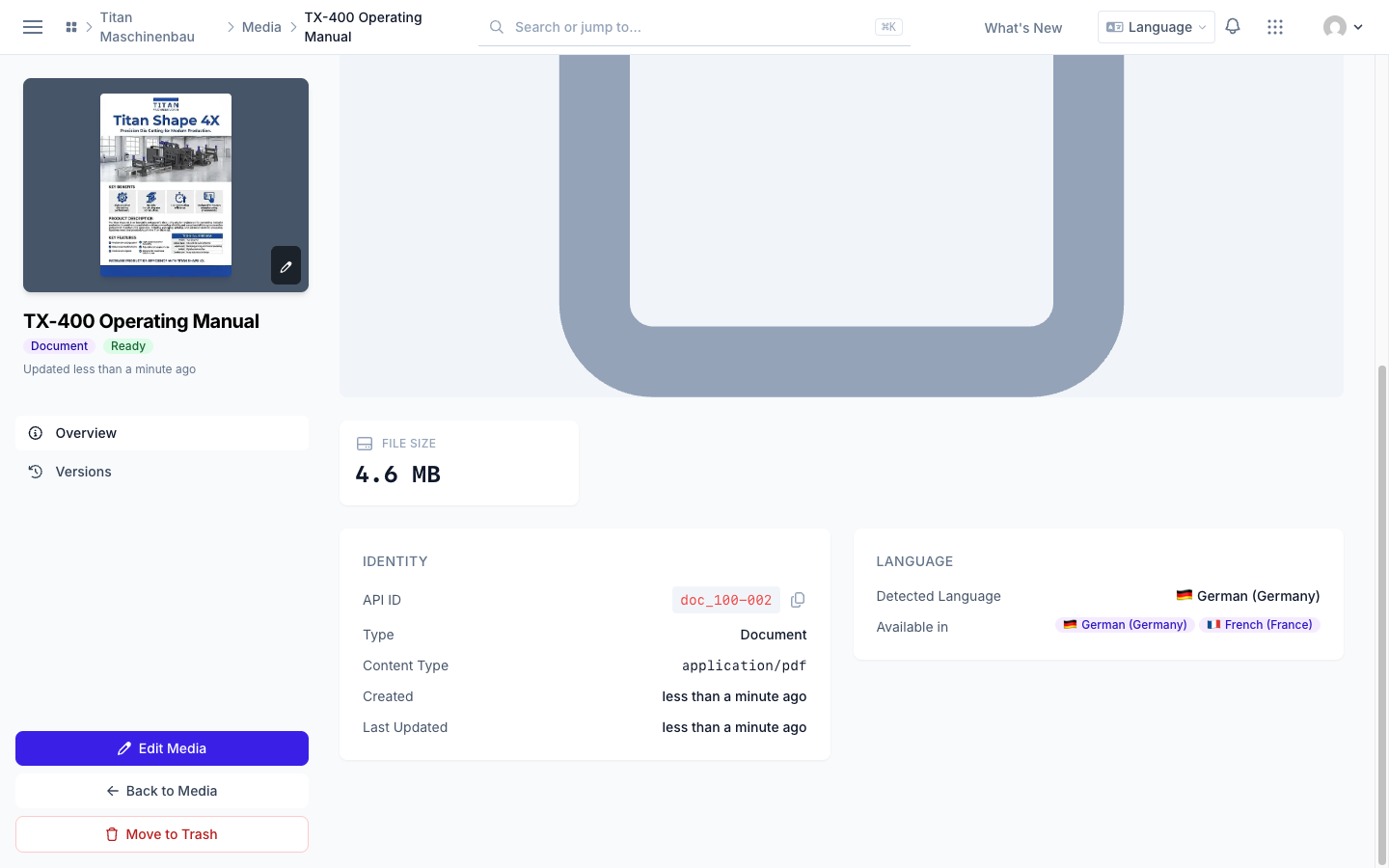
In the sidebar, below CONTENT, click Media, then open a file. The Language card is on the Overview, next to the Identity card.
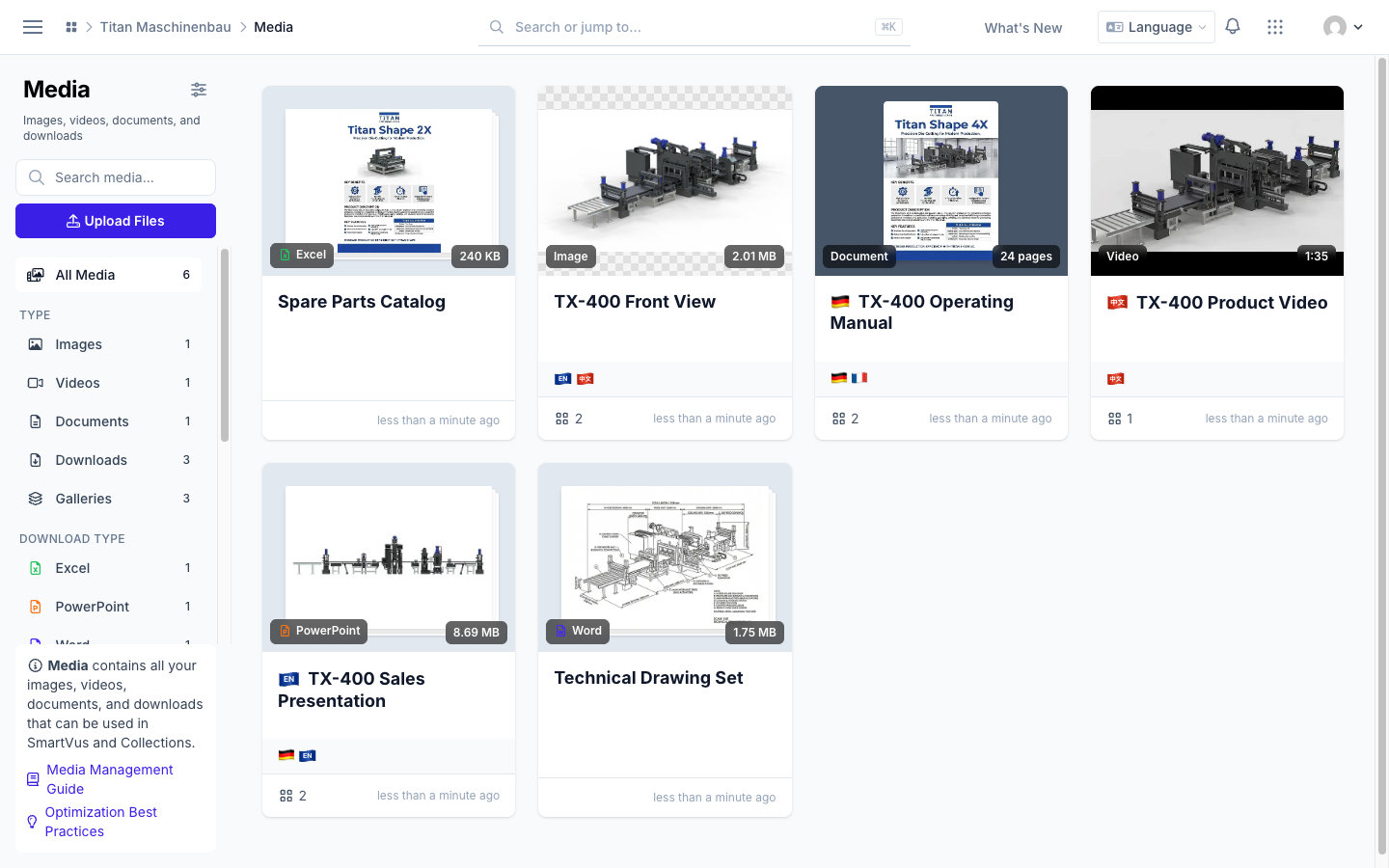
The cards in All Media show the two values as flags. The flag of the Detected Language is in front of the title. The flags of Available in are on the left of the row below the title. To see the name of a language, move the pointer onto its flag.
The two values
| Field | What it tells you | Where it comes from | Example |
|---|---|---|---|
| Detected Language | The language of the text in the file | The import from your product data system. Or Vuframe® Cloud reads it from the text of an uploaded PDF. You can change it on the Edit Media page of the file. | "TX-400 Operating Manual" is in German (Germany) |
| Available in | The languages for which the apps show the file | You set it on the Edit Media page of the file. Imports can also set it. | The manual is available in German (Germany) and French (France) |
The Detected Language can also be:
- No language: the file has no text that needs a language, for example a photo or a technical drawing. This is a correct value, not missing data.
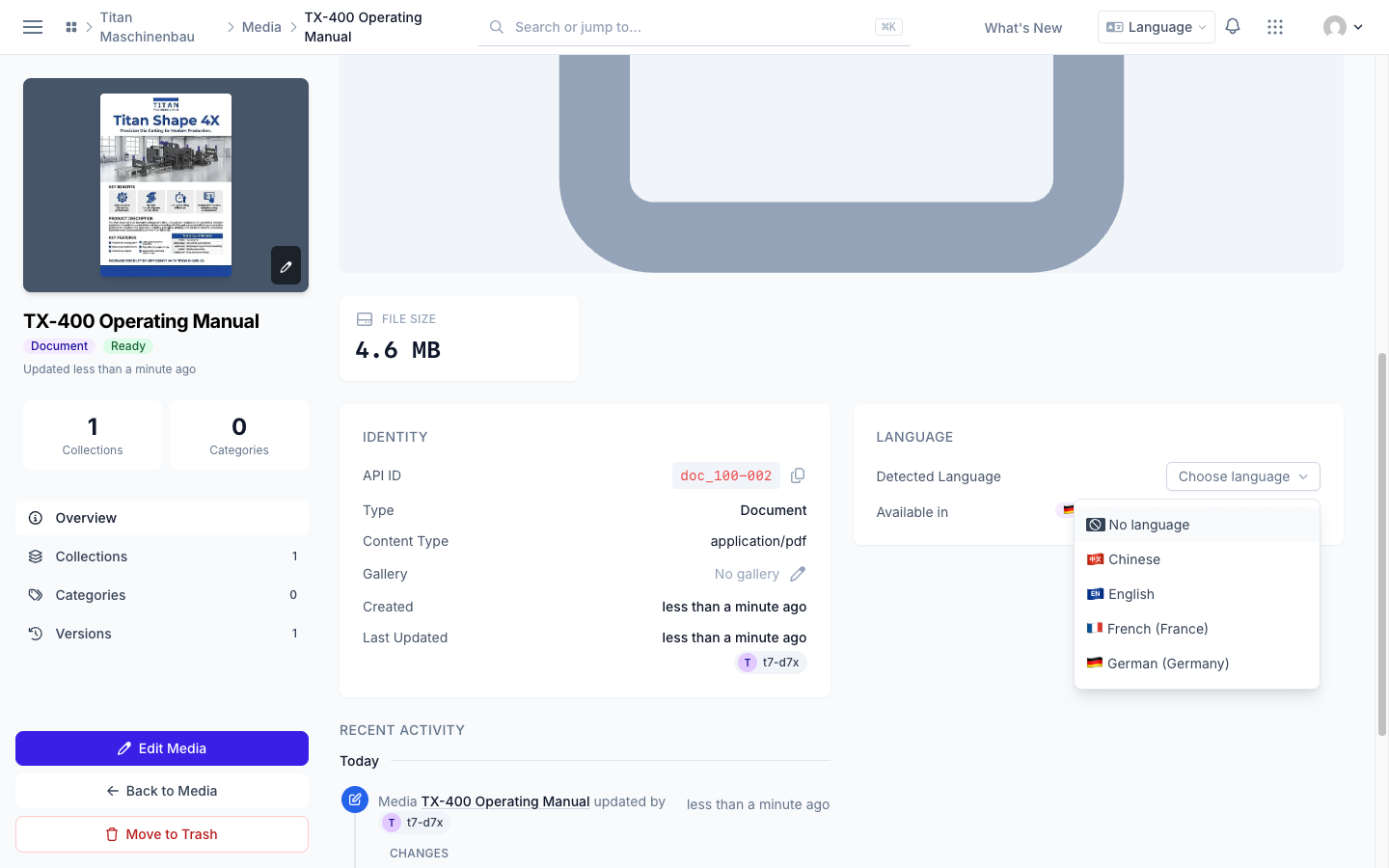
- Not known: Vuframe® Cloud did not find a language. This occurs for scanned PDFs, images and videos, and for PDFs with little text or with text in more than one language. You can then set the language yourself.
The Detected Language is only for your information. The apps use only Available in to select the files that they show.
Flags
A language with a country, for example German (Germany), shows the flag of that country. A language without a country has no flag, because flags are for countries, not for languages. Such a language shows a badge with its short name. The badge has the shape of a flag: EN on European blue for English, 中文 on red for Chinese, and the language code on gray for other languages, for example FR. The badge has the same style as the flags of your system. It is a little larger, so that you can read the short name.
How the apps use Available in
In the app, each user selects one or more languages. The app shows a file when its Available in list is empty or contains one of these languages. If not, the app hides the file.
- Empty means all languages. When the Available in list is empty, all users see the file, whatever languages they selected. The Language card then shows All languages.
- The languages must be the same. German (Austria) is not German (Germany), and English (India) is not English. To show a file for two languages, select the two languages.
- Only workspace languages. The Available in list shows only the languages that are set up for your workspace.
- A language does not give access. A user sees a file only when the user group of the user has access to it and the language agrees.
Change Available in
- Open the file and click Edit Media.
- Next to Available in, click Select.
- In the Select languages dialog, select the languages. To make the file available in all languages, select no language.
- Click Save Changes.
The apps get the change when you publish the app again.
Set the Detected Language
When you upload a PDF, Vuframe® Cloud reads its text and sets the Detected Language. Vuframe® Cloud does not change a language that you or an import set.
When the language is not known, the Language card shows Choose language. Click it and select the language. Vuframe® Cloud saves the language immediately.
To correct a language:
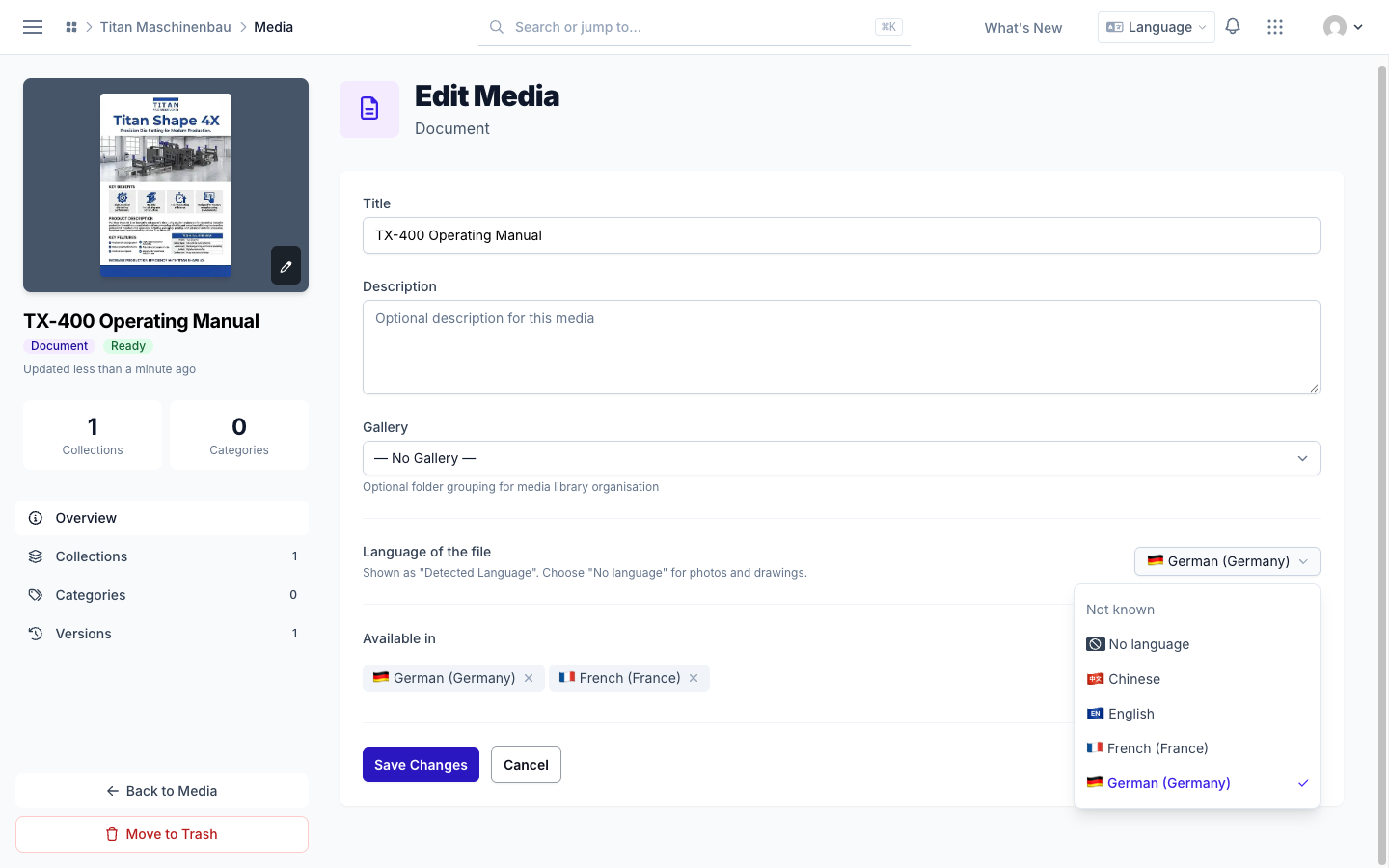
- Open the file and click Edit Media.
- Click Language of the file and select the language. For a photo or a drawing, select No language. To clear the language, select Not known.
- Click Save Changes.
The next import from your product data system keeps the language that you selected.