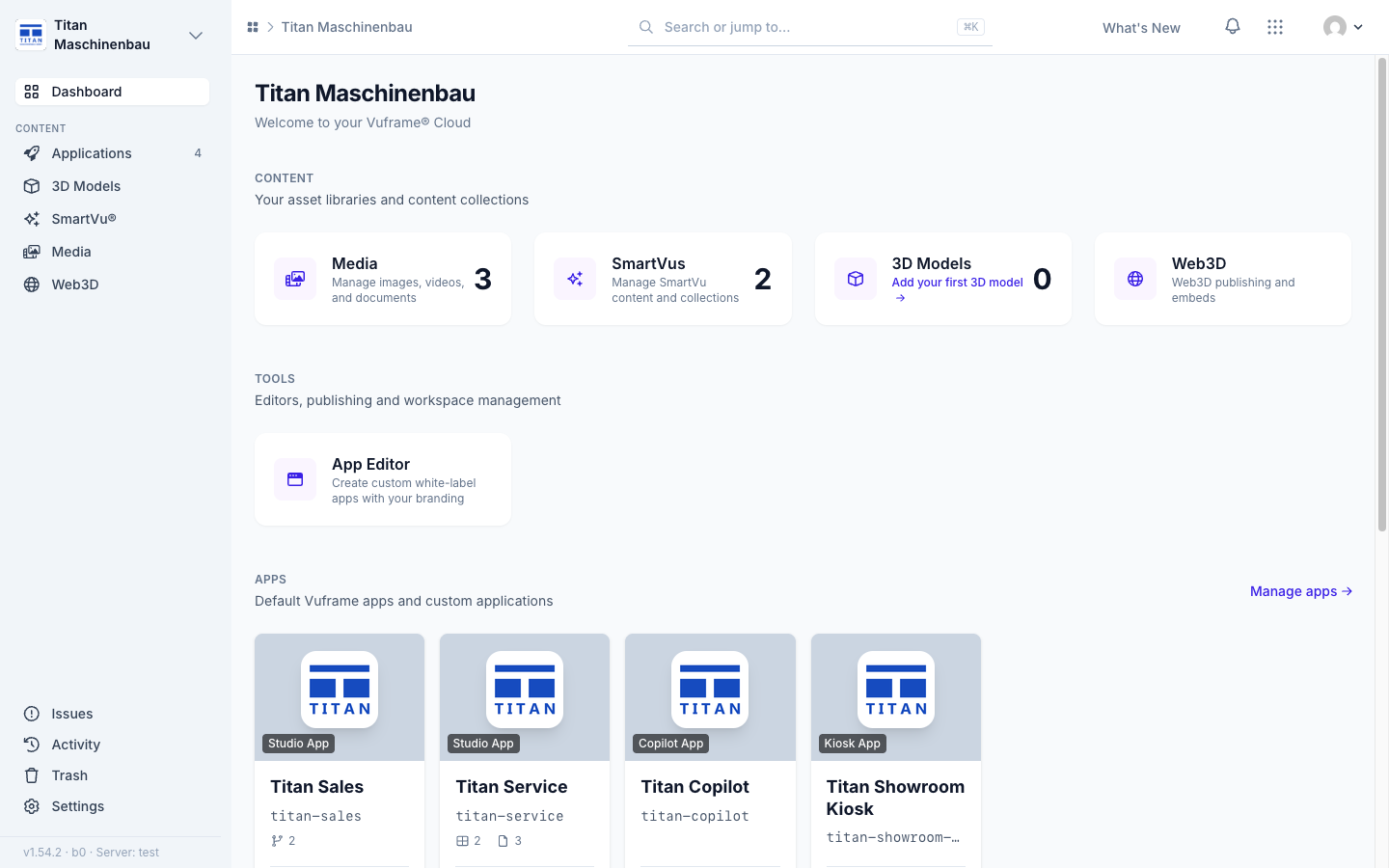
Vuframe® Cloud v1.55.0
Vuframe® Cloud v1.55.0 lets you create and fill galleries yourself, makes a PDF of every Office file for your apps and links iOS apps to their App Store page.
New
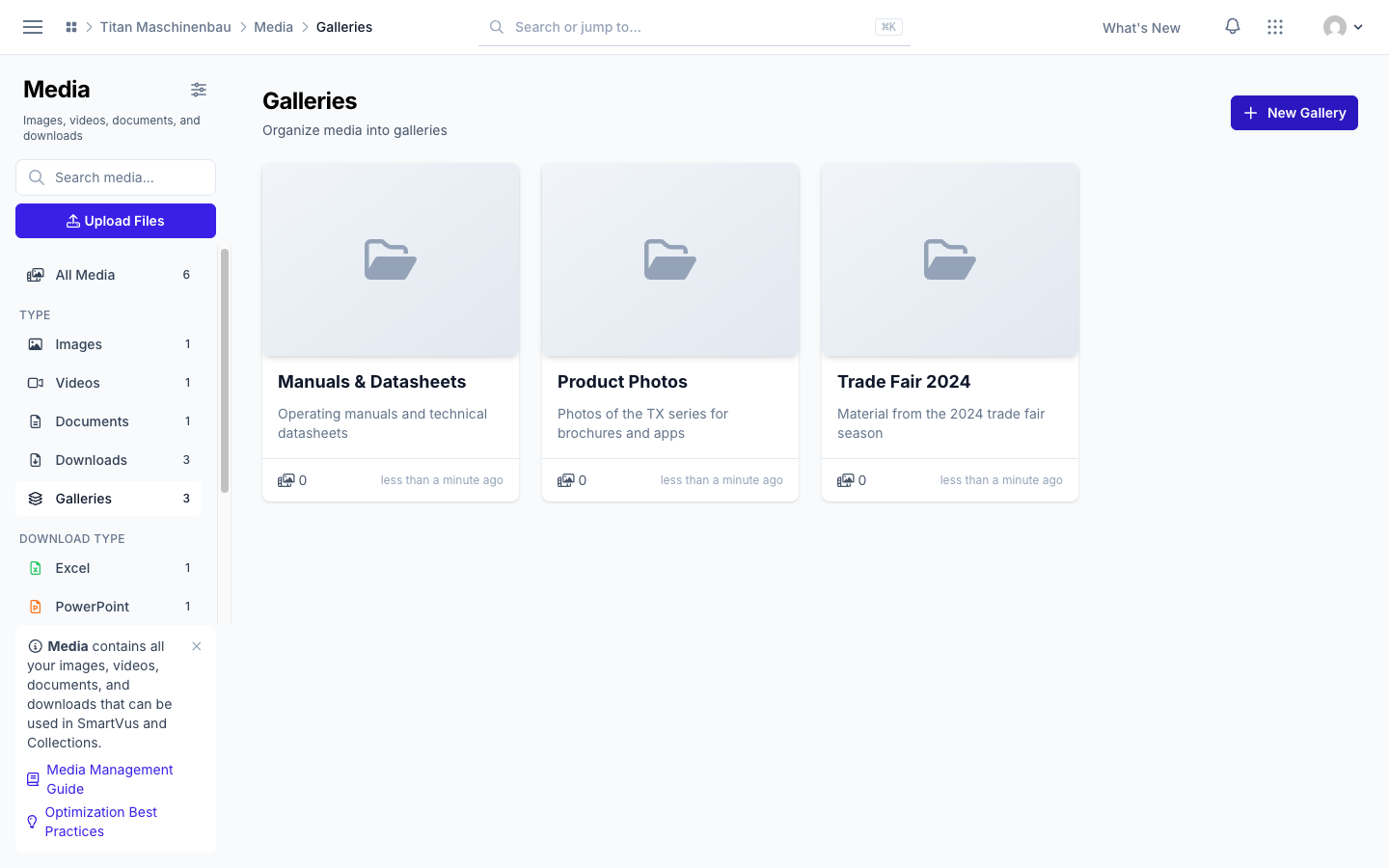
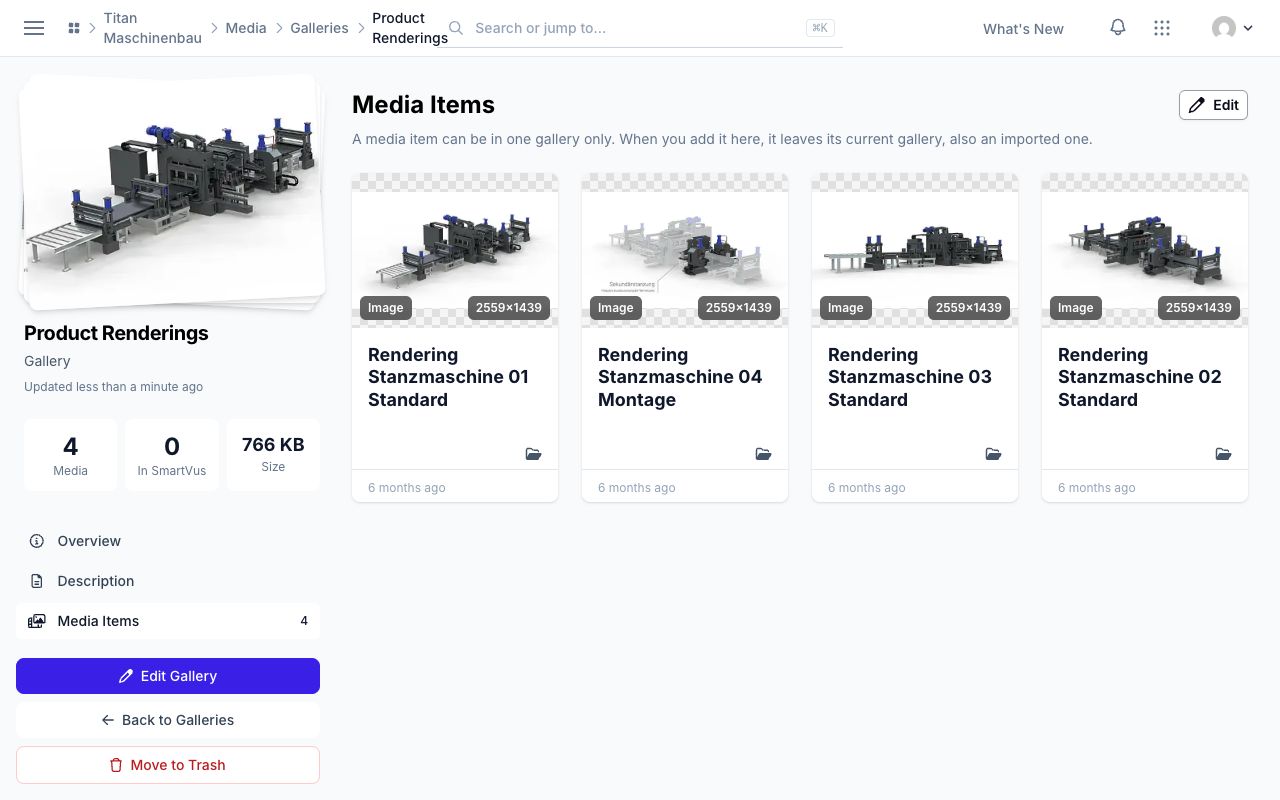
Create, fill and trash galleries. Click New Gallery on the Galleries page. Open a gallery, go to Media Items and click Edit to add media. A gallery you no longer need goes to the trash with Move to Trash; its media stay in your library.
PDF previews for Office files. Vuframe® Cloud makes a PDF of every Word, Excel and PowerPoint file and publishes it with your apps, so apps can show the file also when they cannot open the Office format. Office files without a preview image get one from the first page.
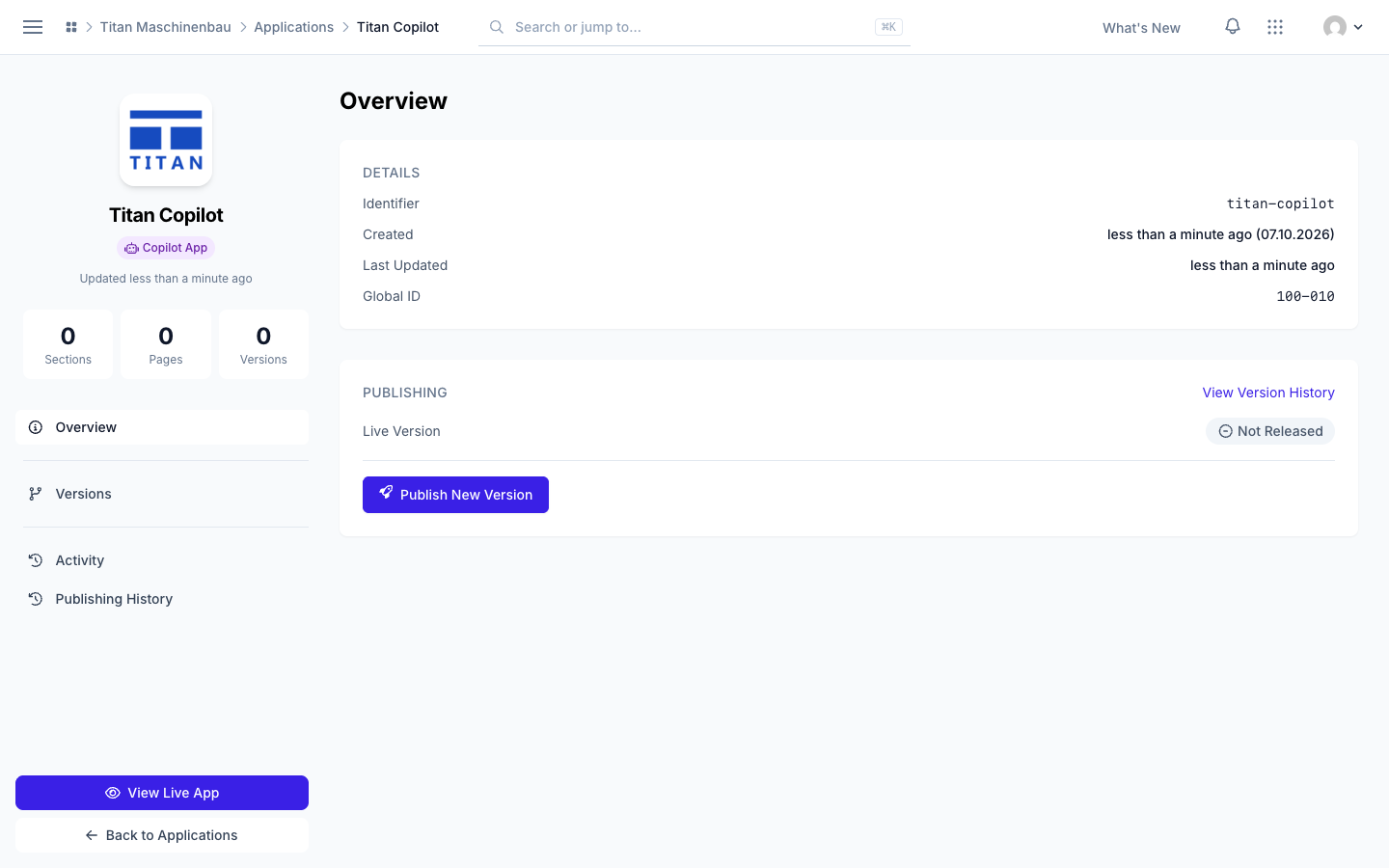
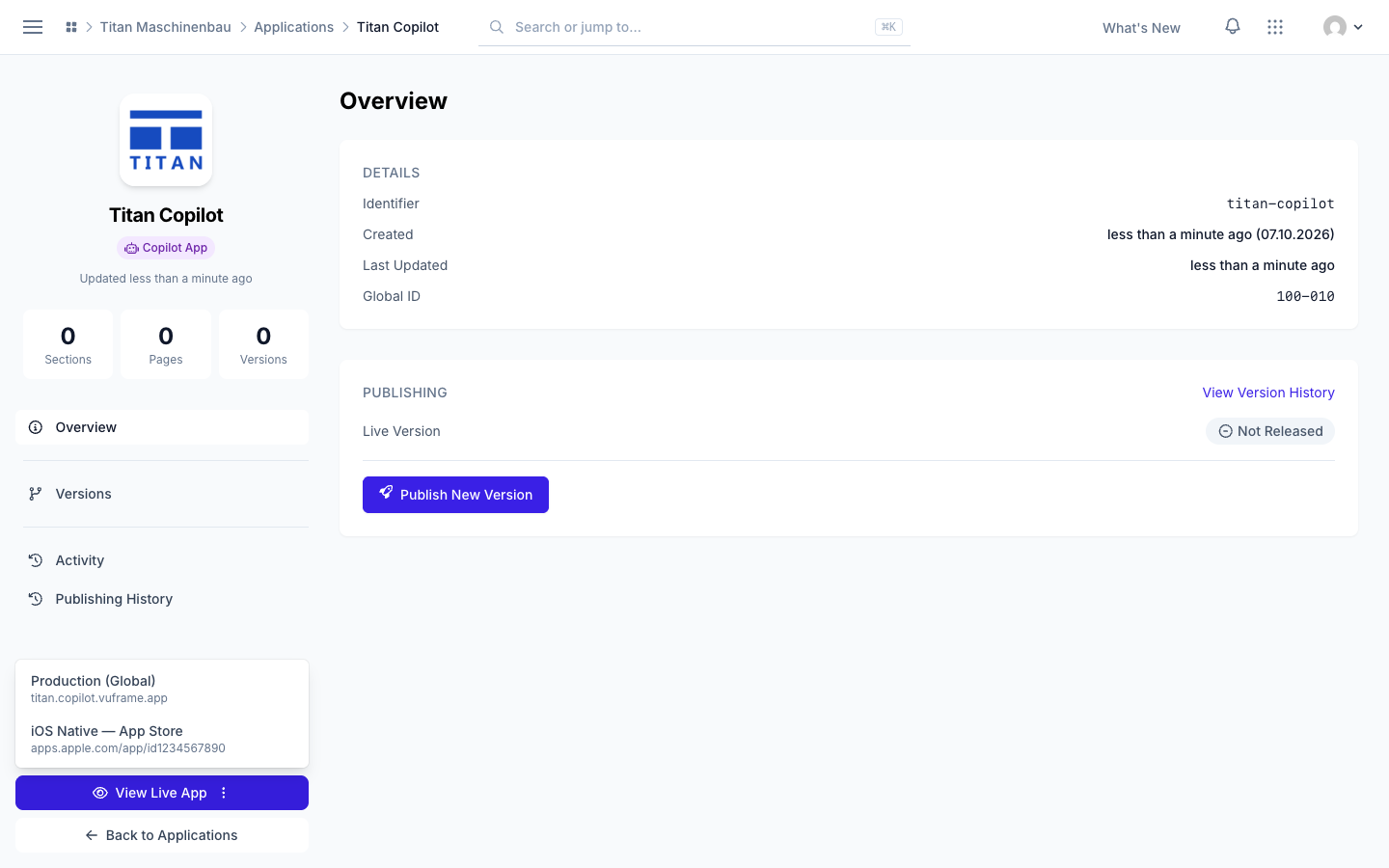
App Store link for iOS apps. When your app is released in the App Store, View Live App opens its App Store page. An app with several live addresses shows a menu to choose from.
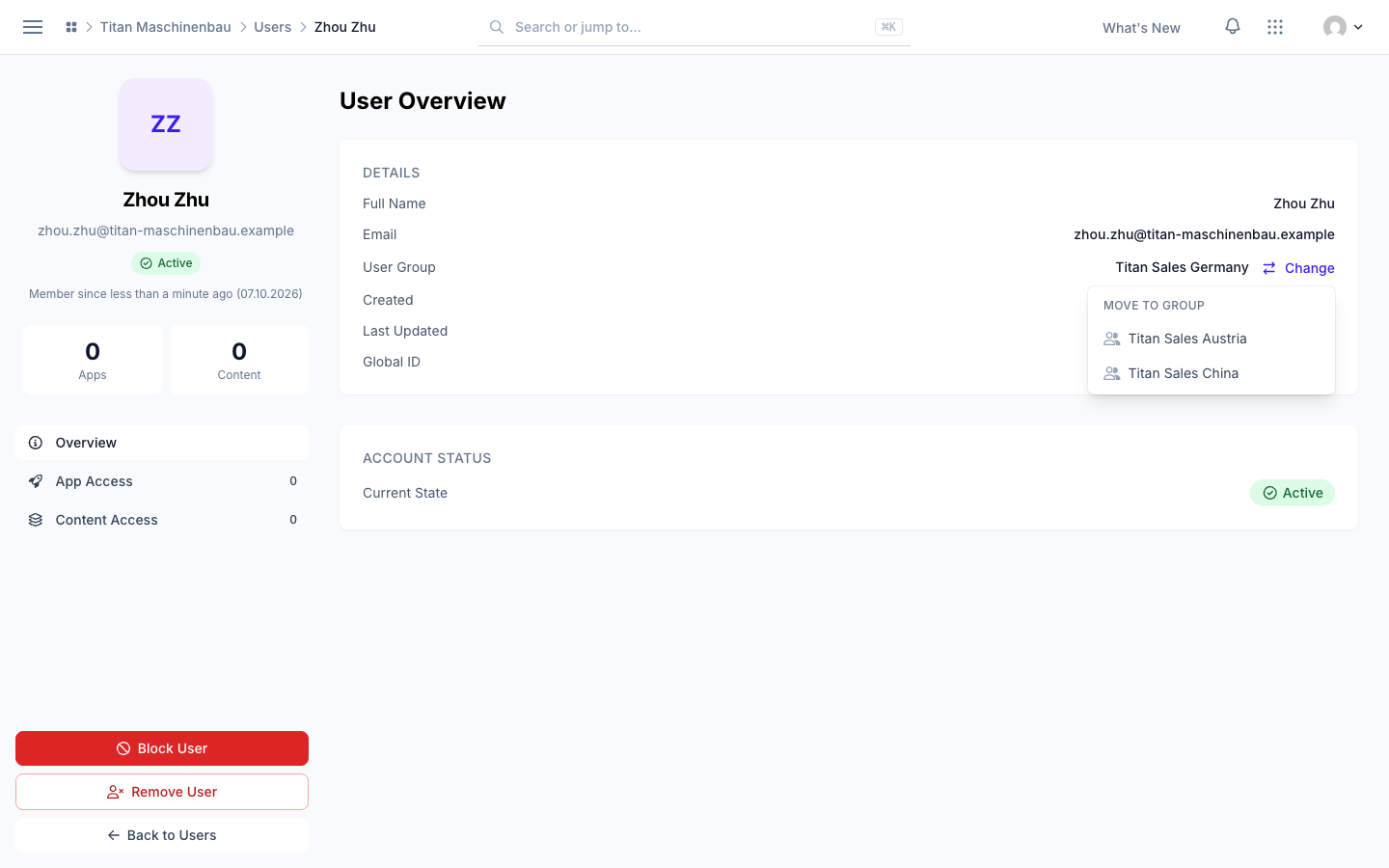
Move a user to another user group. On the user's page, click Change next to User Group and select the new group. The user sees the content of the new group from the next login. The list shows only the groups you can assign. Workspace admins can also click Add Users on a group's page; these users leave their current group.
Improved
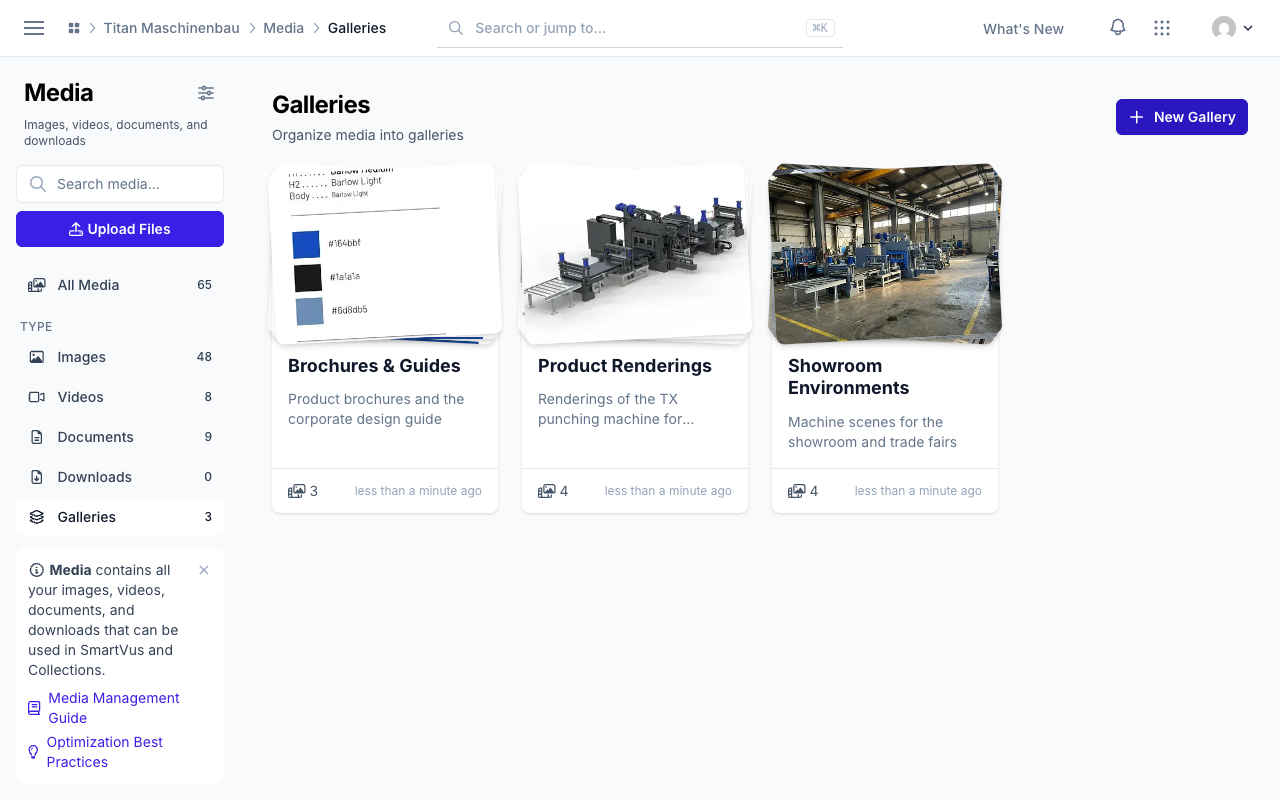
Galleries show a stack of previews of their newest media, and the stack fans out when you point at it.
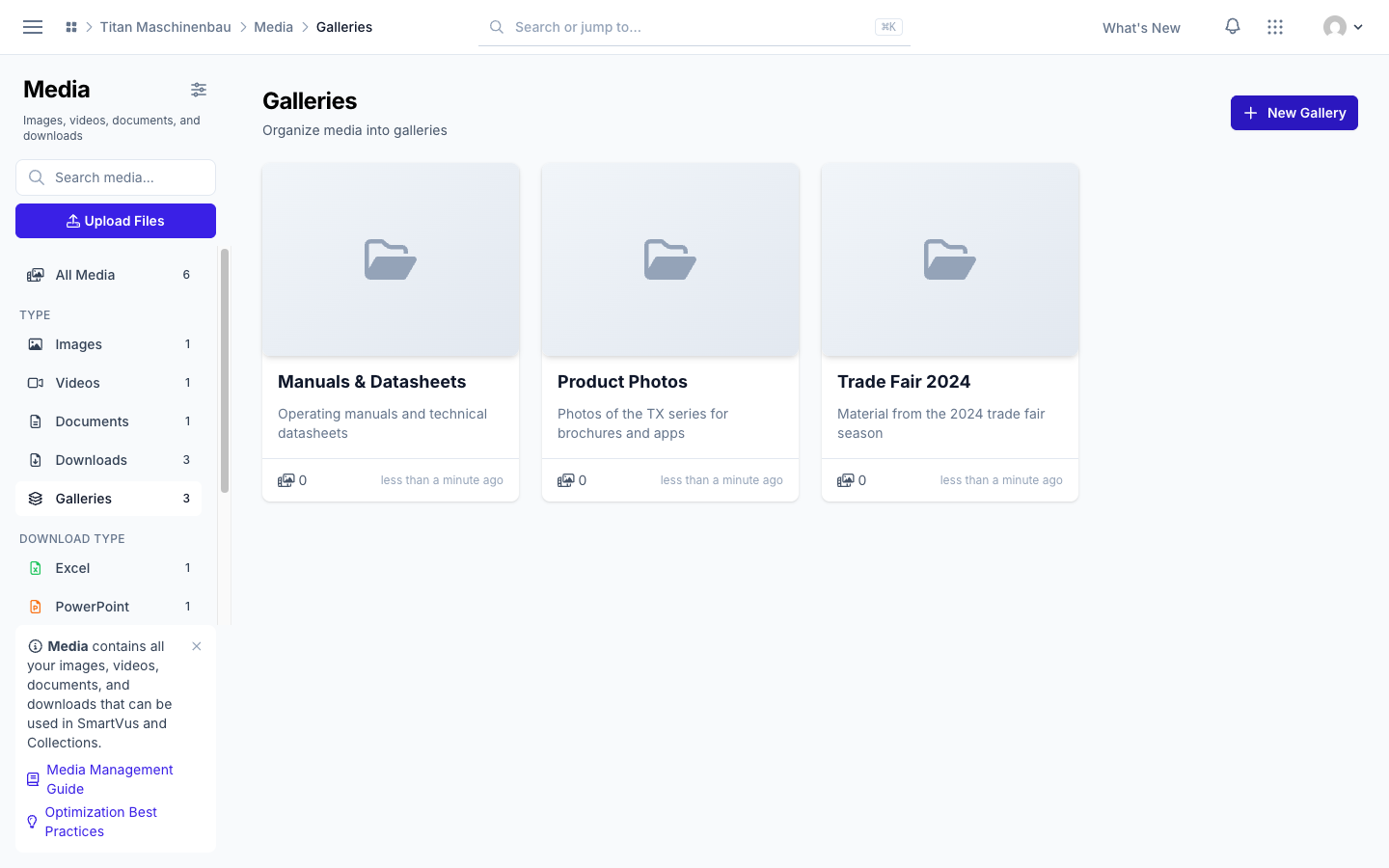
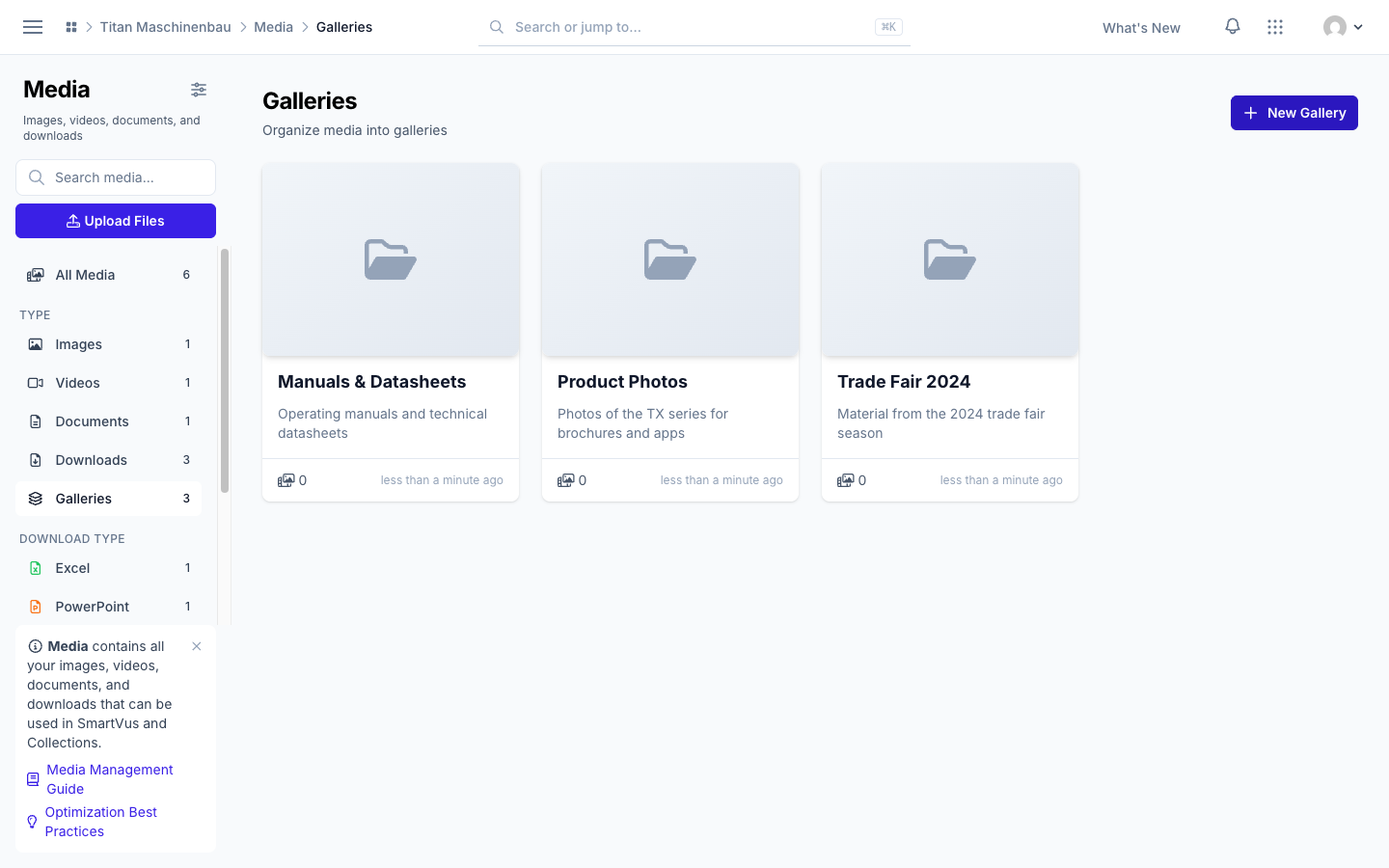
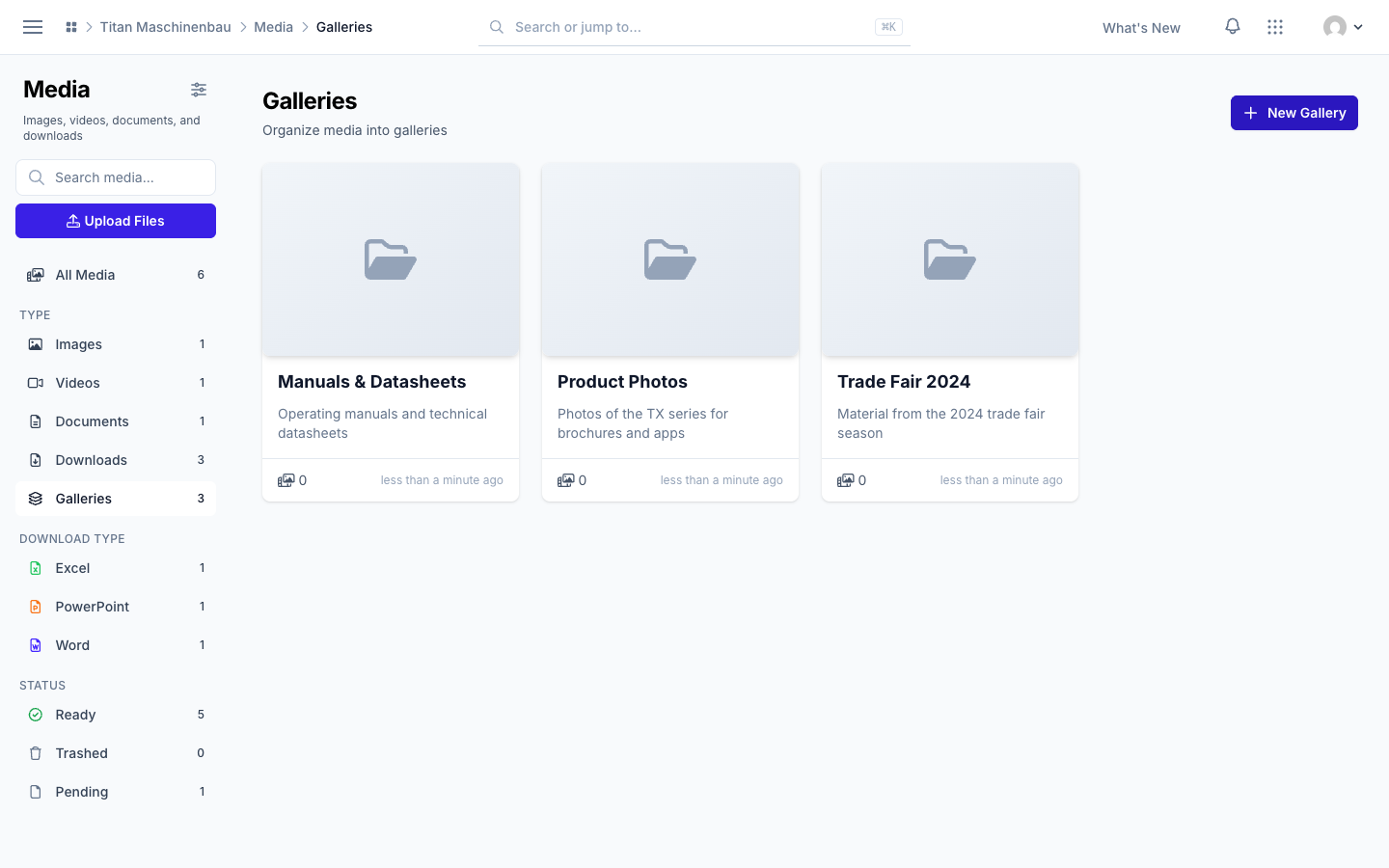
The Galleries page has the same sidebar as All Media, with search, upload and all filters.
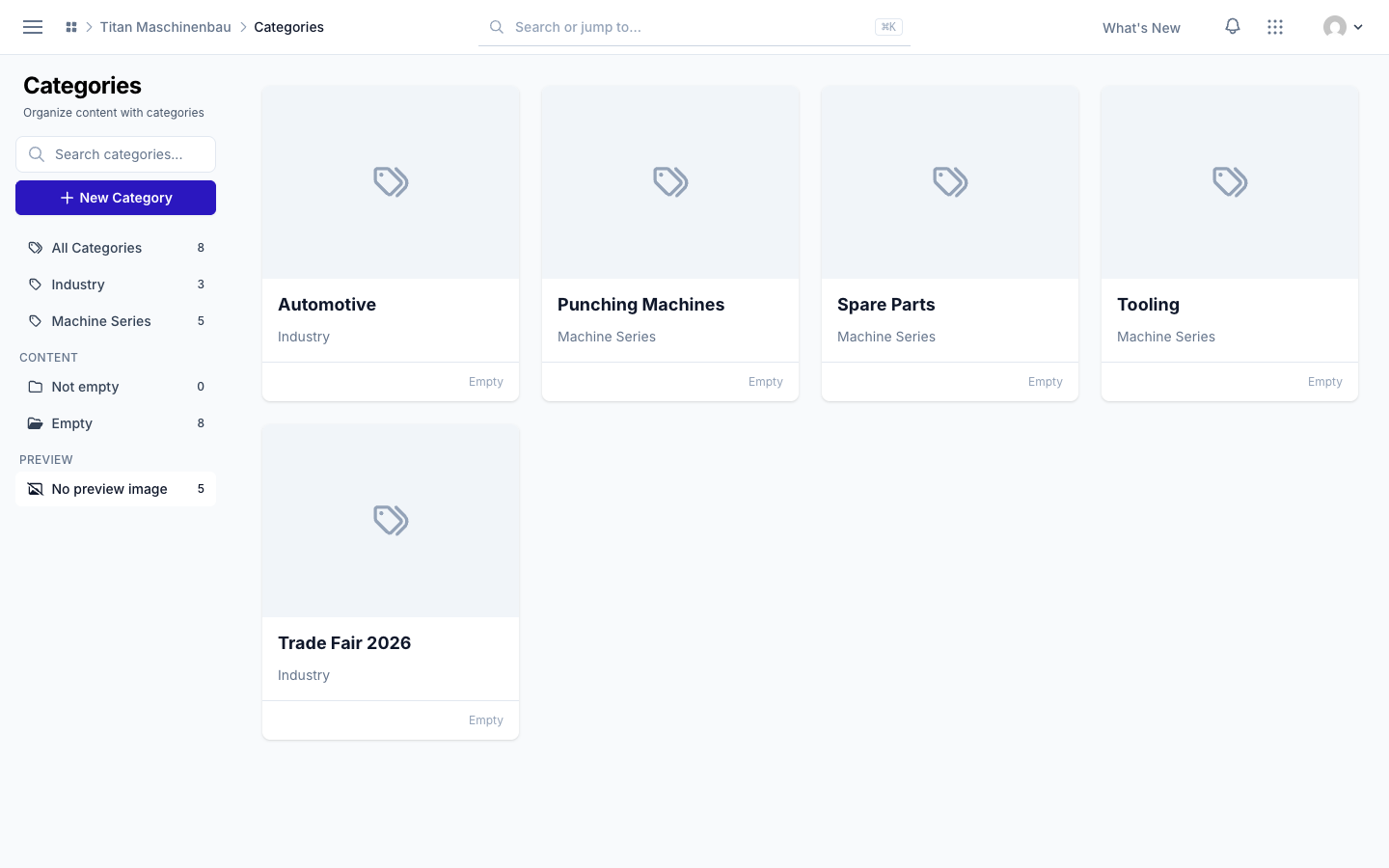
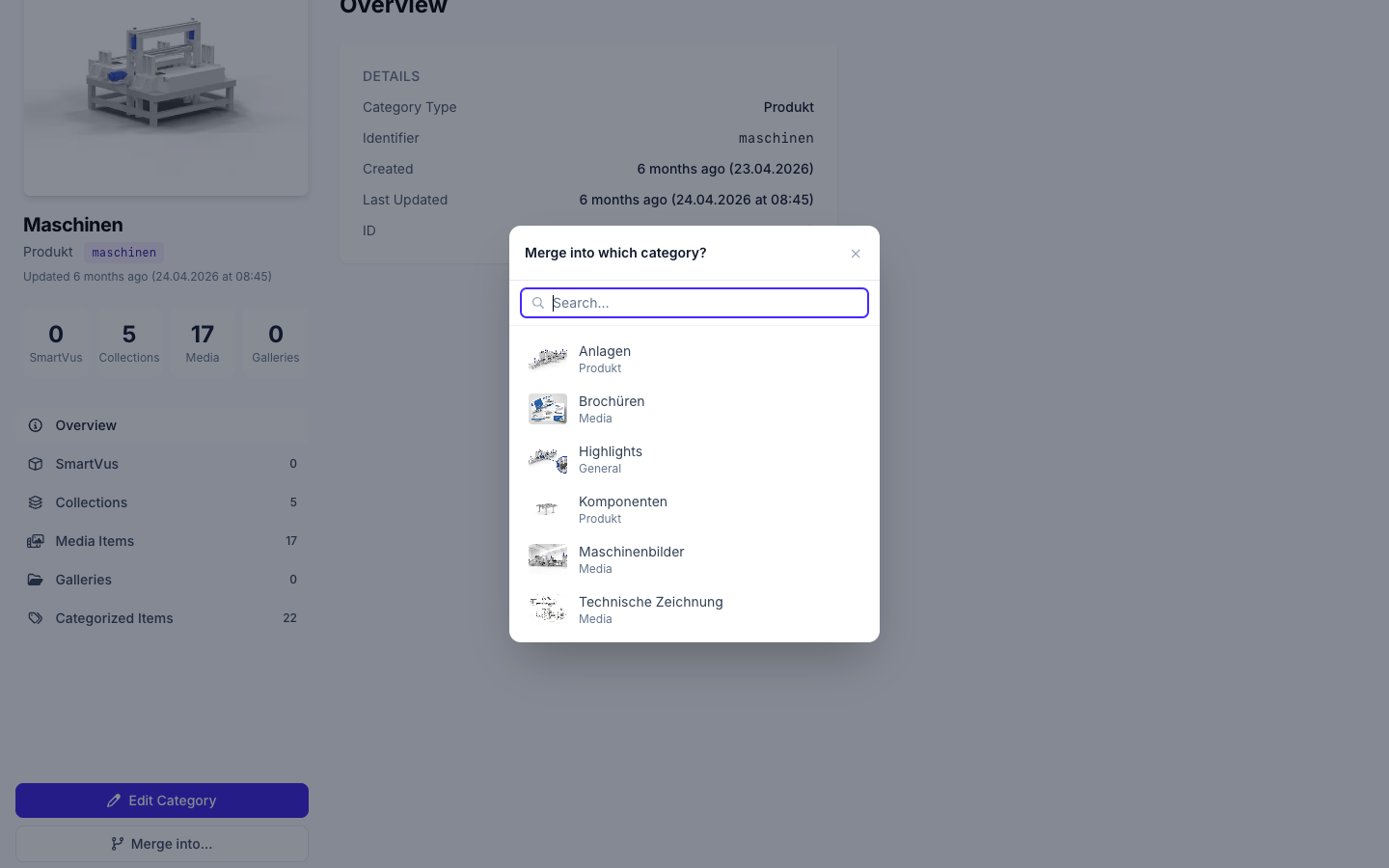
Find categories without a preview image with the new No preview image filter. Merge into… shows each category with its preview and category type.
EN and 中文 badges everywhere, also in the Preview language picker. The first entry is now Original (no translation), and your main language carries a Main tag.

Sidebar tips can be hidden with the × in their corner.
Fixed
Names instead of e-mail addresses. People who signed in with only their e-mail address now show with a readable name in the Activity feed.
The workspace sidebar lists Users only once, under User Management.