Vuframe® Studio v6.5.13
Vuframe® Studio v6.0.2 to v6.5.13 lets you log in with a code from your email instead of a password. Each Smartvu gets its own camera mode and shadow settings, and shared links and embeds can have an end date.
New
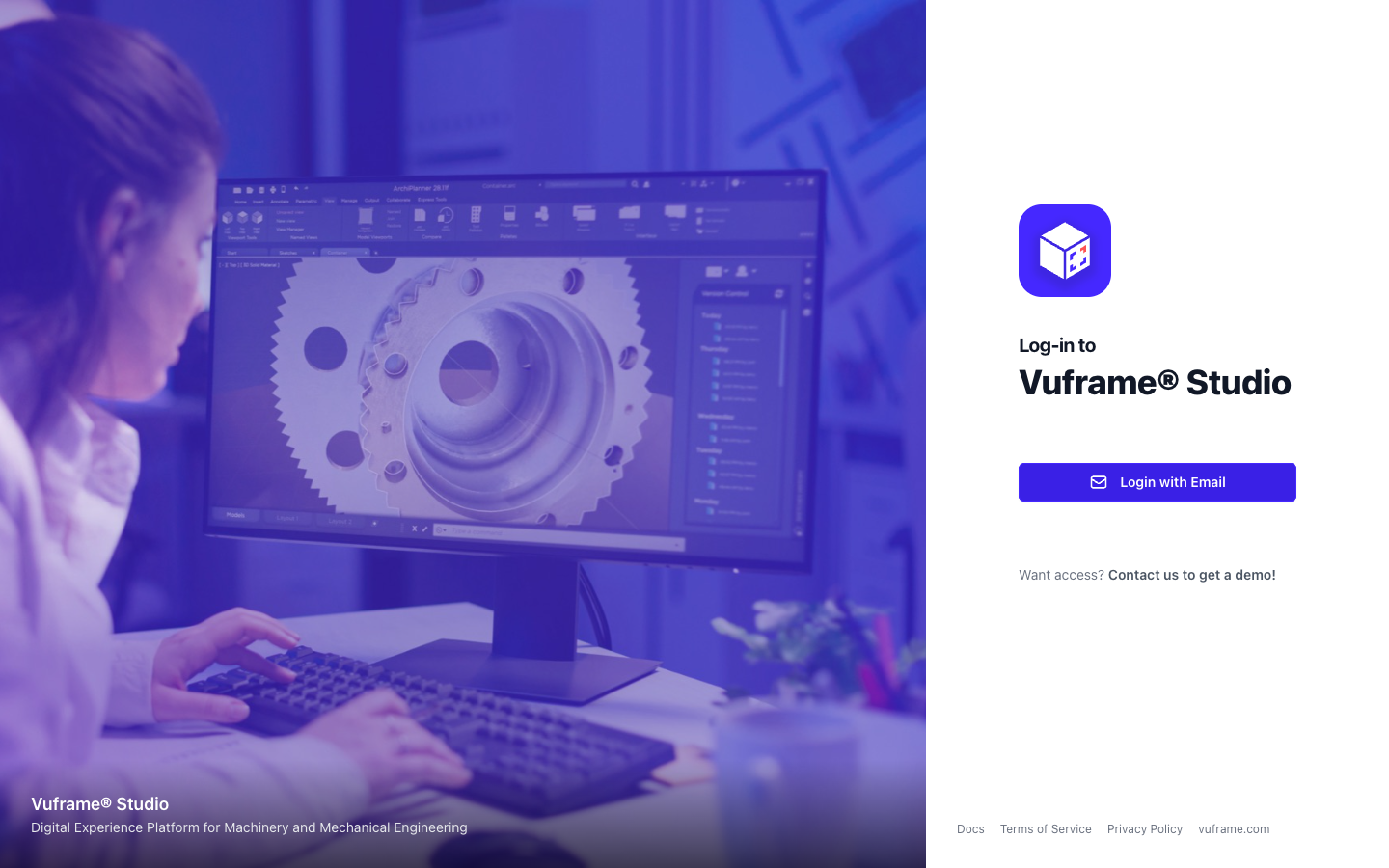
Log in with a code from your email. The new login page is at studio.vuframe.com/login. Click Login with Email, enter your email address and type the one-time code that we send you. You no longer need a password, and you cannot forget it. Old login and password links open the new page. Invitations work the same way: when you accept an invitation, you do not set a password. The password section is gone from your profile. Your account, spaces and content do not change. Log in with the same email address as before.
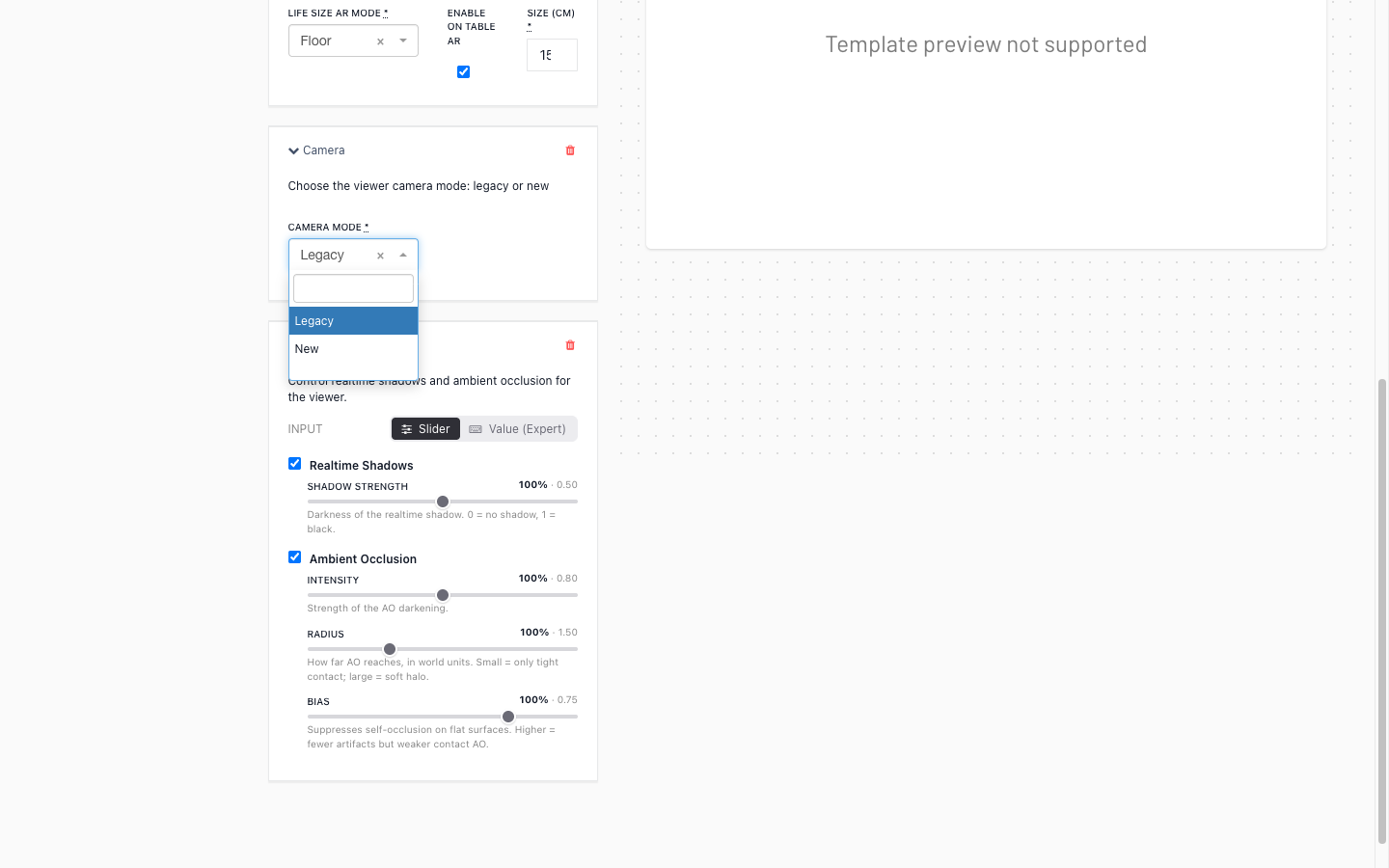
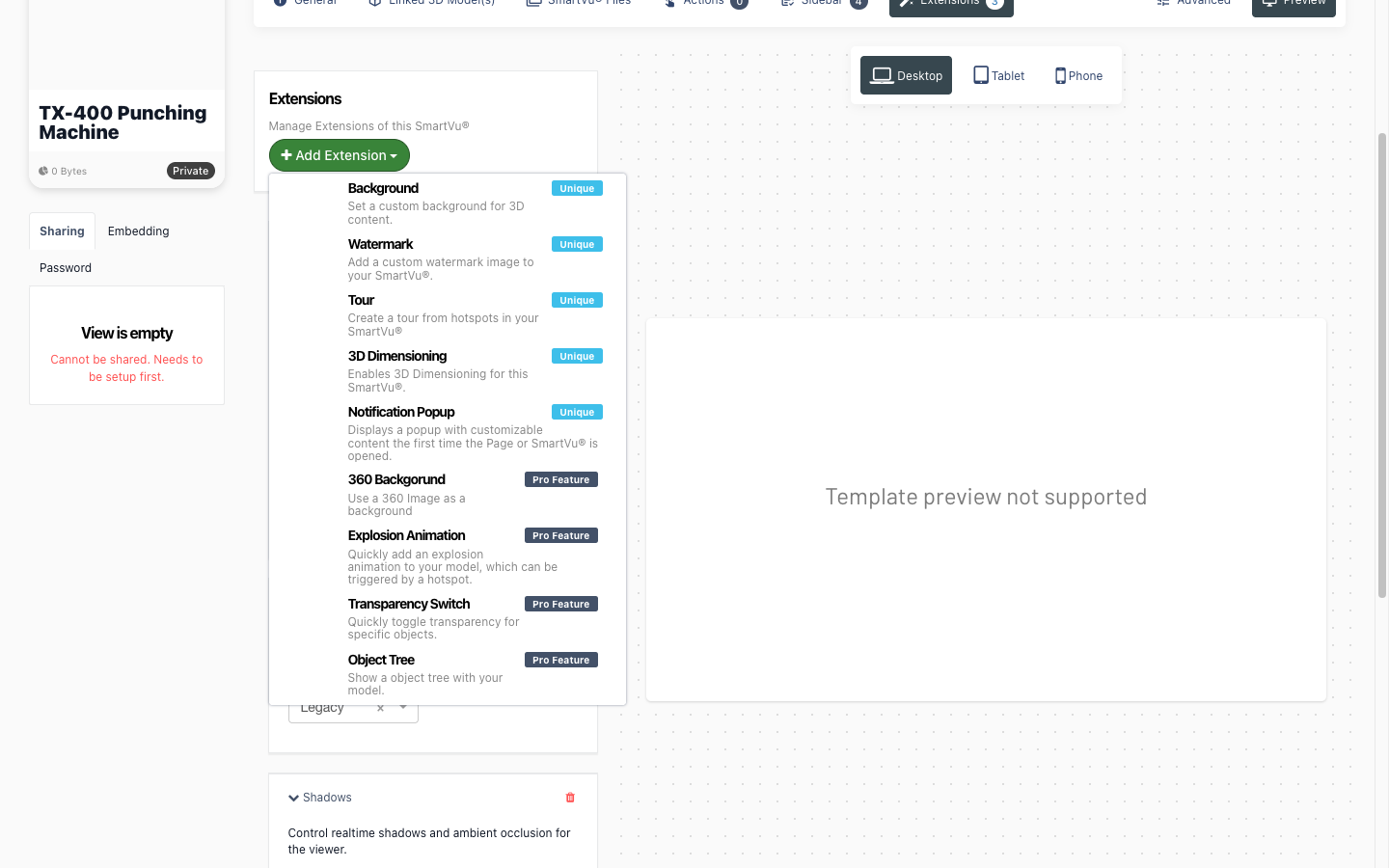
Camera mode for each Smartvu. The new Camera extension sets how visitors move the camera around your 3D content. Open a Smartvu in the editor, go to Extensions, click Add Extension and select Camera. Under Camera Mode, select Legacy (the known controls) or New (the new touch camera). Smartvus without the extension keep the legacy camera.
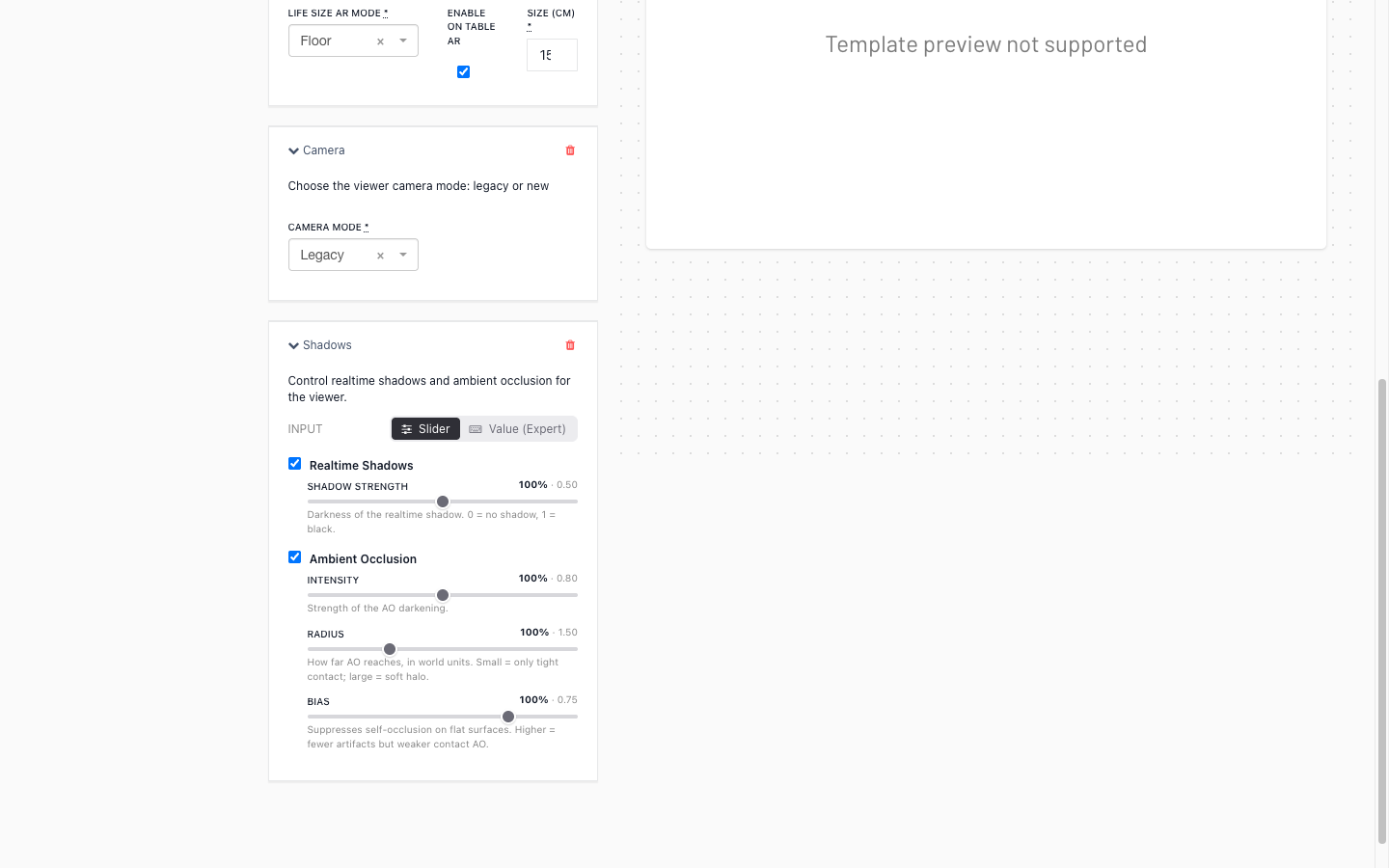
Shadows and ambient occlusion for each Smartvu. The new Shadows extension sets how the viewer lights your 3D content. Add it under Extensions > Add Extension > Shadows. Turn realtime shadows on or off and set how dark they are. Turn ambient occlusion on or off and set its intensity, radius and bias. On slow devices, the viewer can still turn realtime shadows off to keep the frame rate smooth.
Since v6.4.0, each setting is a slider that shows its share of the default (for example "100%") next to the value that the viewer uses. To type the values, change Input from Slider to Value (Expert). Realtime Shadows and Ambient Occlusion each have an on/off checkbox in the heading of their section. The viewer shows what you set. Because the old values meant something different in the viewer, v6.4.0 reset all existing Shadows extensions to the defaults. If a Smartvu had its own values, the Smartvu list shows a to review button. Check the shadow settings of each of these Smartvus, then click Mark as reviewed or save new values.
Shared links and embeds can expire. A share link or an embed of a Smartvu can have an end date. After that date, the link does not open the Smartvu. It shows that the link has expired. This applies to everyone who opens the link, also in connected apps. An embed that you make from a share link gets the end date of that link. Connected apps and integrations set the end date, so there is no Studio screen for it.
Improved
Retired elements are not offered any more. Add Extension, Add Widget and Add Action in the Smartvu editor list only the elements that the Vuframe® viewers and apps still show. Six old types are gone from these lists: Cardboard VR, Bookmark, Custom Markerset, Screenshot Overlay, and the Product States widget and extension. New Smartvus do not get Cardboard VR by default any more. A Smartvu that already uses one of these elements keeps it. The editor marks it with "Deprecated: not shown in the Vuframe viewers and apps", because it has no effect.
Fixed
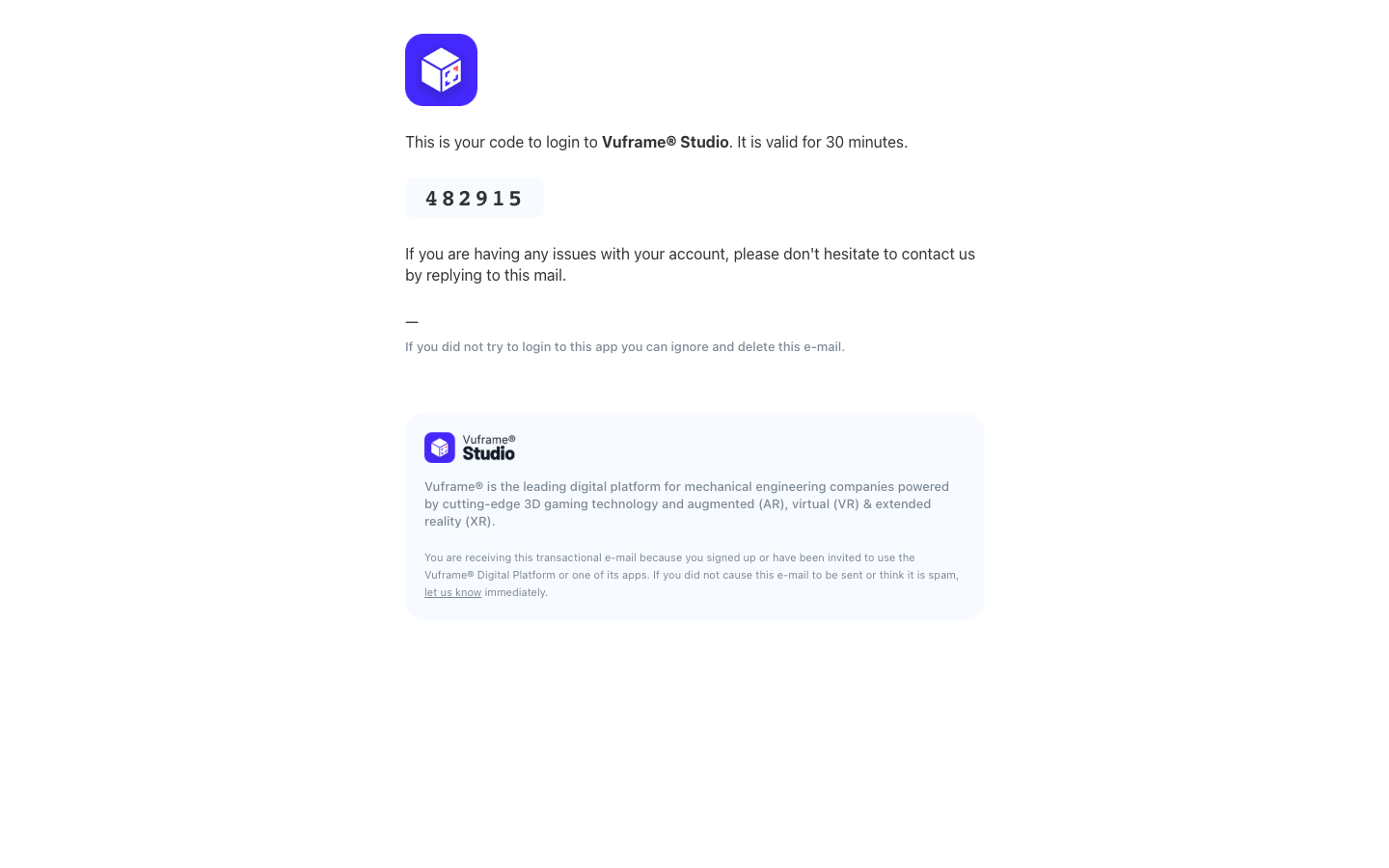
The login code email shows the Studio logo. The email with your Vuframe® Studio login code showed the Vuframe® Cloud logo at the bottom. It now shows the Vuframe® Studio logo, so you can see which product the code is for.